



WordPress
WordPress content planning, from the current site to the new one
Start a project from a WordPress export, with pages, posts, menus, content and SEO. When the plan is approved, export it as a file the standard WordPress importer loads. Both on every plan.


Content copied in and out by hand
Redesigning a WordPress site usually starts with a spreadsheet of every page, copied from the admin screen, and ends with someone pasting approved copy back into the editor, page by page.


In from WordPress, out to WordPress
PagePot reads a WordPress export into a sitemap with the content in each page, so the team plans from what exists. The approved plan goes back out as a WordPress import file, with the page tree, blocks, menus and SEO.
Standard files
Both directions use WordPress’s own export format (WXR) and its official importer. Nothing to install on the site.
Every plan
WordPress import and export are on Starter, Pro, Team and Agency, for anyone who can create or export a project.
Drafts by default
Exported pages arrive as drafts unless you choose otherwise, and imported pages start as Draft in PagePot.
How it works
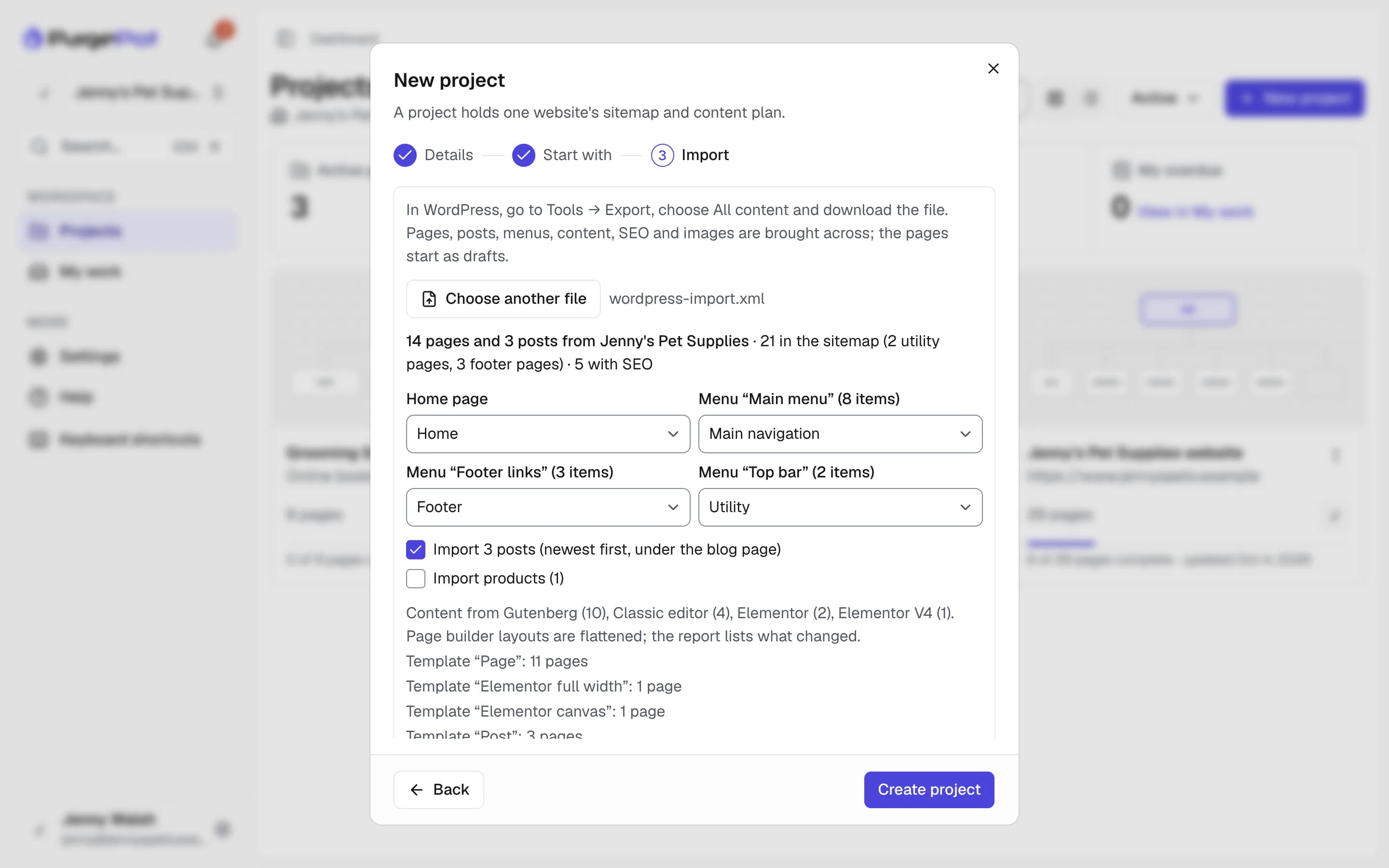
Import a WordPress site
In WordPress, export All content from Tools → Export. In PagePot, start a new project with Import from WordPress and check the preview: the home page, which menu is the main, utility or footer navigation, and whether to include posts.
- The page tree, slugs and order, with each page’s original URL kept for redirects
- Menus become main, utility and footer regions, links and groups
- Posts under the blog page, with categories, tags and dates as metadata
- Content from the block editor, the classic editor, Elementor and Divi 4 and 5 as PagePot blocks
- Yoast SEO or Rank Math titles, descriptions, keywords, canonical URLs and robots settings
- Images and files copied in the background, with a report of anything skipped
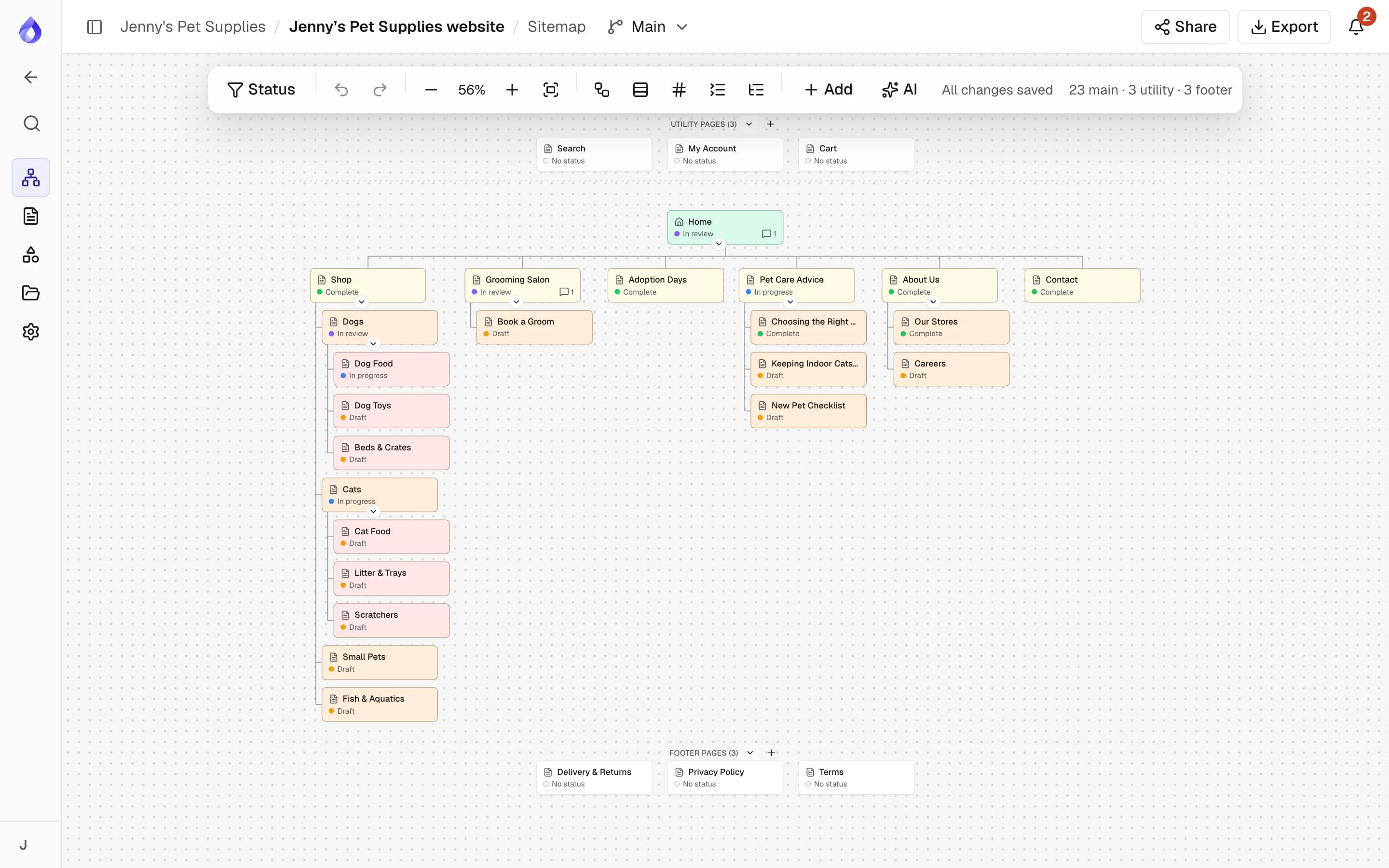
Plan, write and approve
Restructure the imported site on the visual sitemap, test the new structure with a tree test, rewrite pages in structured blocks and get them approved, all on the same pages.
Export to WordPress
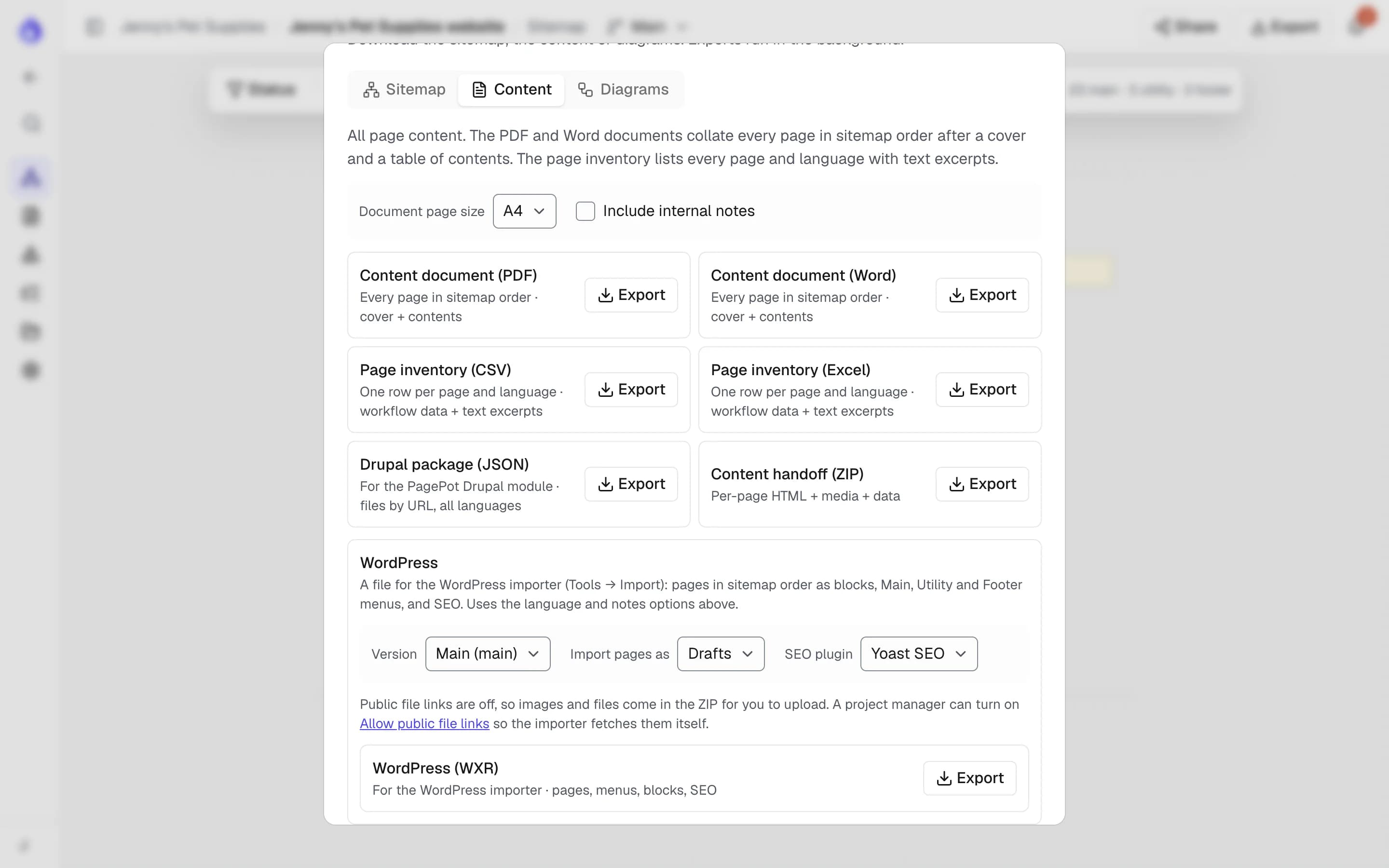
Open Export, go to Content and choose WordPress (WXR). Pick the sitemap version, drafts or published, and Yoast SEO, Rank Math or both. You get a ZIP with the import file and the steps; run it through WordPress’s Tools → Import.
- Pages in sitemap order, with parents and links between pages
- Text, headings, lists, tables, images, videos, accordions and cards as core blocks
- Main, Utility and Footer menus to assign to your theme
- One file per language
Details that matter
Public file links
A project setting, off by default. While on, each export gets its own random links to just its files, for 14 days, so the importer can download them.
Files in the ZIP
With public file links off, images and files come in the ZIP for you to upload.
SEO for either plugin
Titles, descriptions, focus keywords, canonical URLs and robots settings, for Yoast SEO or Rank Math.
Page builders flattened
Elementor and Divi layouts import as content blocks in order. Styling and columns aren’t kept.
Templates kept
Each WordPress page template becomes a PagePot template, so pages stay grouped the way they were.
An honest report
After an import, a report lists each page’s source and what was flattened, skipped or couldn’t be downloaded.
What it doesn’t do (yet)
This is a file-based integration, not a live sync: there is no WordPress plugin yet, and re-importing the same file skips pages that already exist. Exports use core blocks only, not Elementor or Divi layouts, and don’t include ACF or Secure Custom Fields values.
Images imported into WordPress through the export are not linked to their Media Library items by ID, and form plans arrive as a list of fields for you to build with your form plugin. On import, galleries from plugins, forms and theme widgets aren’t brought across.
Frequently asked questions
Which PagePot plans include WordPress import and export?
Every plan, including Starter and the free trial. Plan limits on projects, pages and storage still apply.
Do I need to install a plugin on my WordPress site?
No. Export uses WordPress’s Tools → Export, and import uses the official WordPress Importer, which WordPress offers to install from Tools → Import.
Does it work with Elementor or Divi?
For importing, yes: content from Elementor and Divi 4 and 5 becomes PagePot blocks, with layout and styling flattened. Exports to WordPress use core blocks, which work in any theme.
Are images included?
On import, PagePot copies the images and files from the site in the background. On export, the importer downloads them if the project allows public file links; otherwise they are in the ZIP for you to upload.
Does PagePot keep WordPress and PagePot in sync?
Not yet. Import and export are one-off files. For a live sync with dry runs and conflict checks today, see the Drupal integration.
Can I import a WordPress site and move it to Drupal?
Yes. Import the WordPress export, plan the new structure and content in PagePot, then import it into Drupal 11 with the PagePot module (Team plan and up).