



Content planner
A content planning tool for every page of your website
Write each page in structured blocks from a template, assign it, give it a due date and move it through your workflow to approval. The content lives on the same pages as your sitemap.


Website copy scattered across docs and inboxes
One document per page, a spreadsheet to track who owes what, and images arriving by email. Writers do not know how long a banner headline can be, and developers get copy that does not match the design.


A website content planner built around your pages
PagePot gives every page on the sitemap a structured editor. Templates set the blocks, limits and instructions. Statuses, owners and due dates show what is done, and approval records exactly which version was signed off.
Structured, not free-form
Templates decide which blocks a page has, with writer instructions, character limits and required fields, so content arrives in the shape the build needs.
Progress you can see
Every page has a status, assignees and a due date. The overview, calendar and dashboard show what is late and what is ready.
Approval that sticks
Approving a page records the revision that was approved. Edit it later and the approval is marked out of date.
How content planning works in PagePot
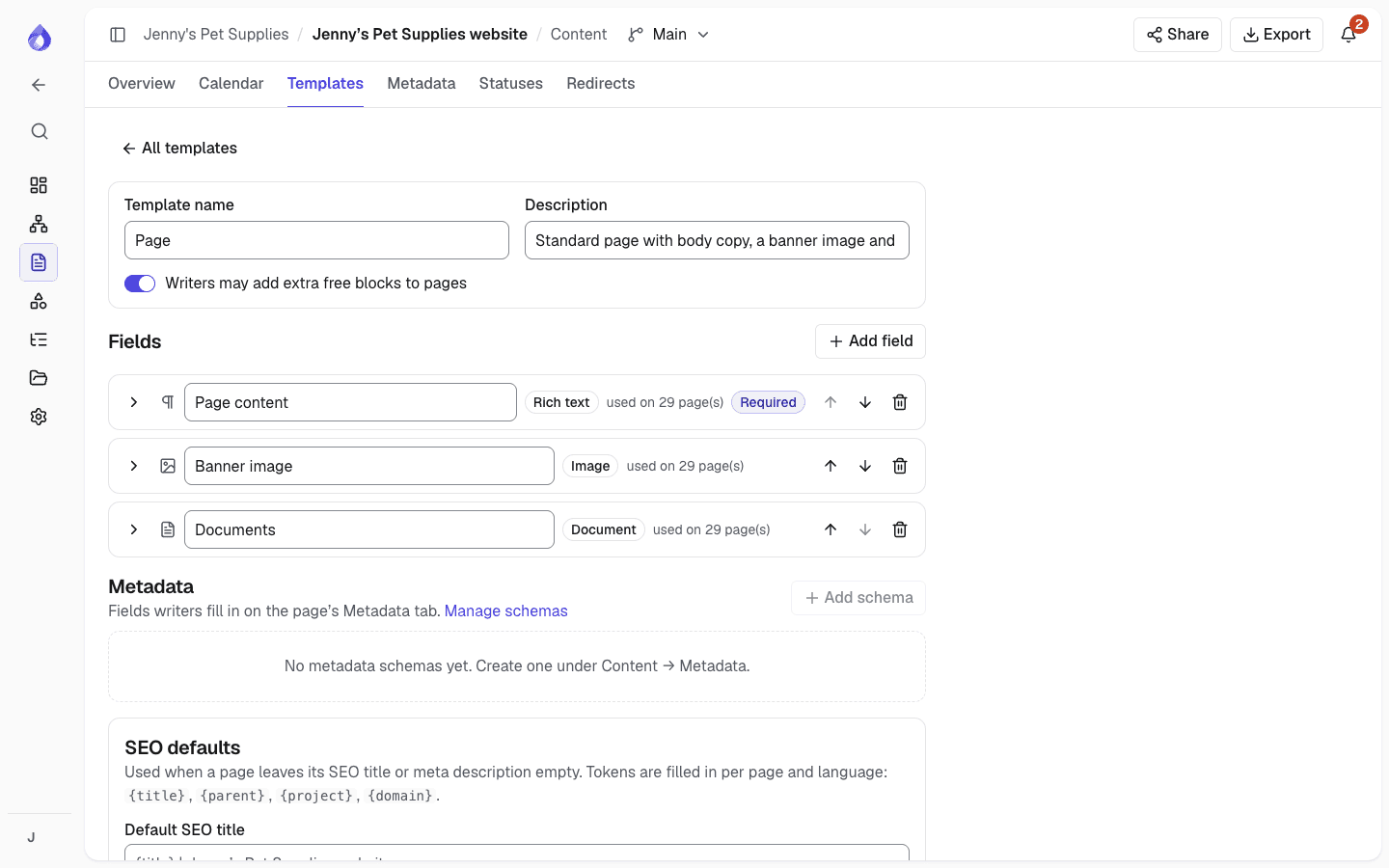
Templates for every kind of page
A template is the list of blocks a page starts with, such as page content, a banner image and documents. Start from Blank, Standard page, Landing page, Article, Contact page or FAQ, then add fields.
- Ten block types, from plain and rich text to forms, accordions and cards
- Writer instructions shown with each block
- Required fields that must be filled before approval
- Character and word limits, file counts, minimum image sizes
- Lock a block’s structure so writers edit it but cannot remove it
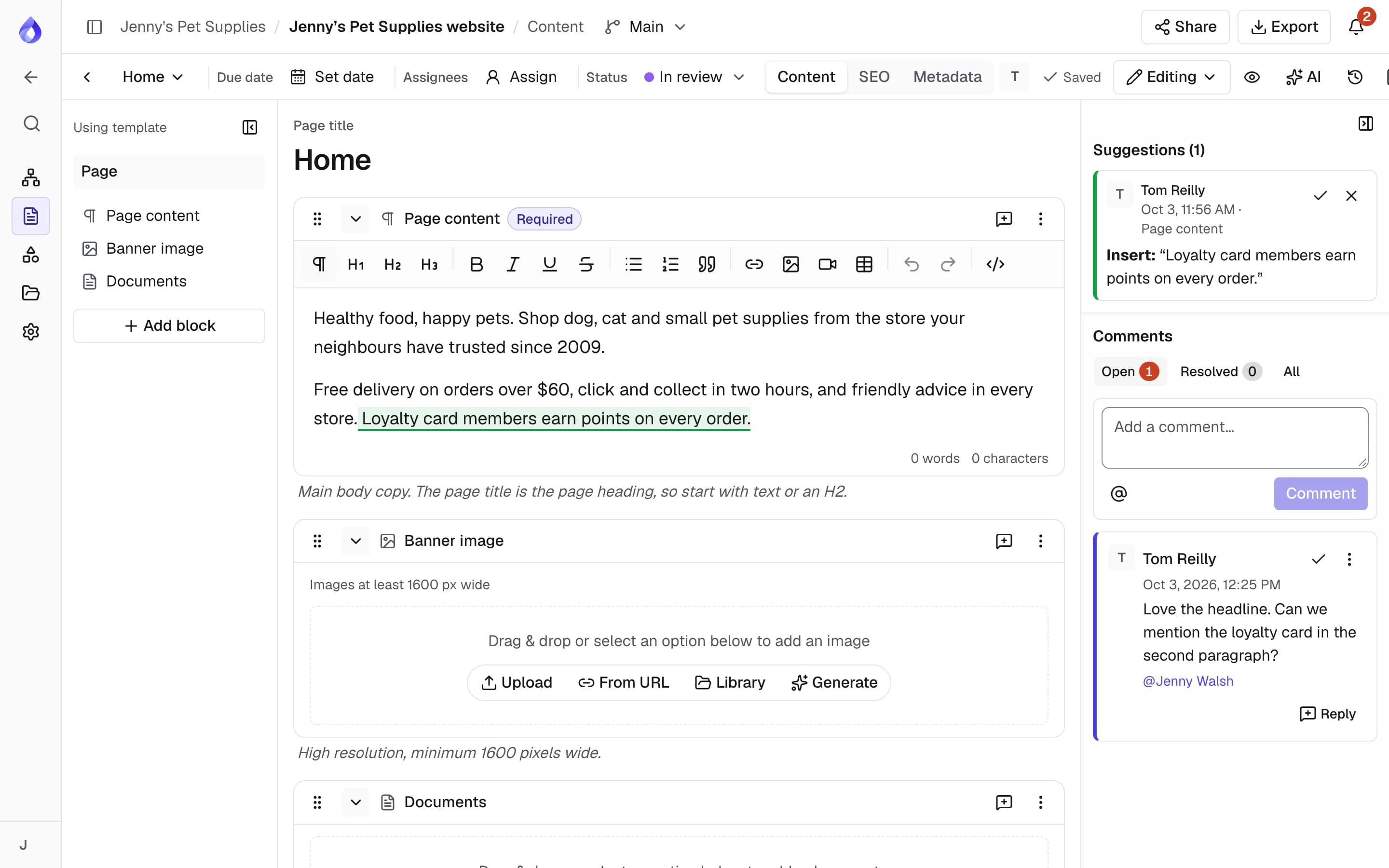
A block editor that writers understand
Each page is written in blocks that save as you type. Rich text has headings, lists, tables, links, images and video. Link to another page in the sitemap and the link stays correct when that page is renamed or moved.
- Plain text, rich text, image, video, document, note, form, code, accordion and cards blocks
- Internal notes that never appear in previews or content exports
- Preview the page as a reader would see it
- Export a single page as Word, PDF, HTML or JSON
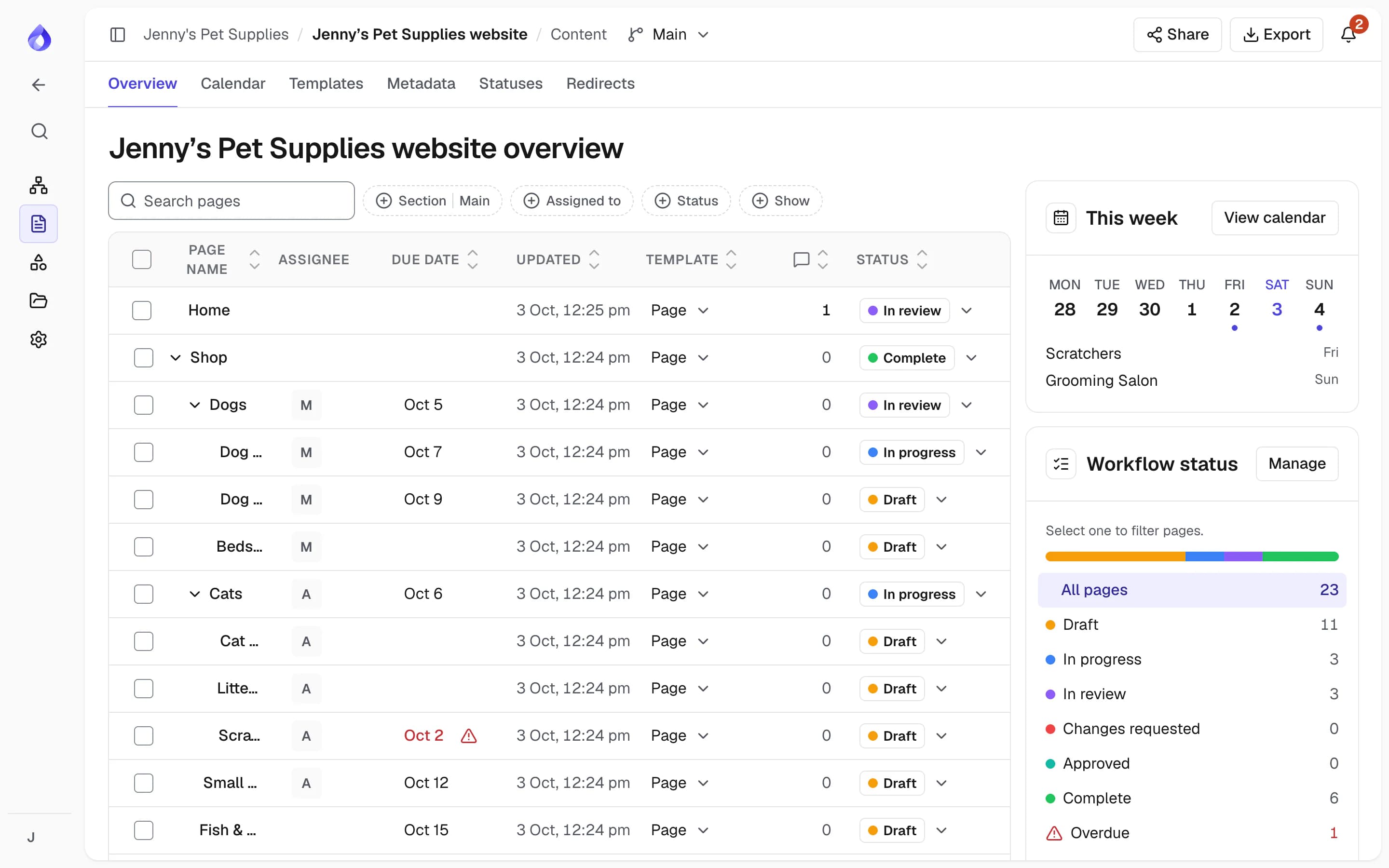
Content overview for the whole site
One table lists every page in sitemap order with its assignee, due date, template, open comments and status. Filter by language, section, assignee, status or metadata, and change assignees, dates and statuses in place.
- Status tiles for each step, plus No status and Overdue
- Pages due this week and recent activity at a glance
- Bulk assign, set due dates, change template or status, with an option to include descendants
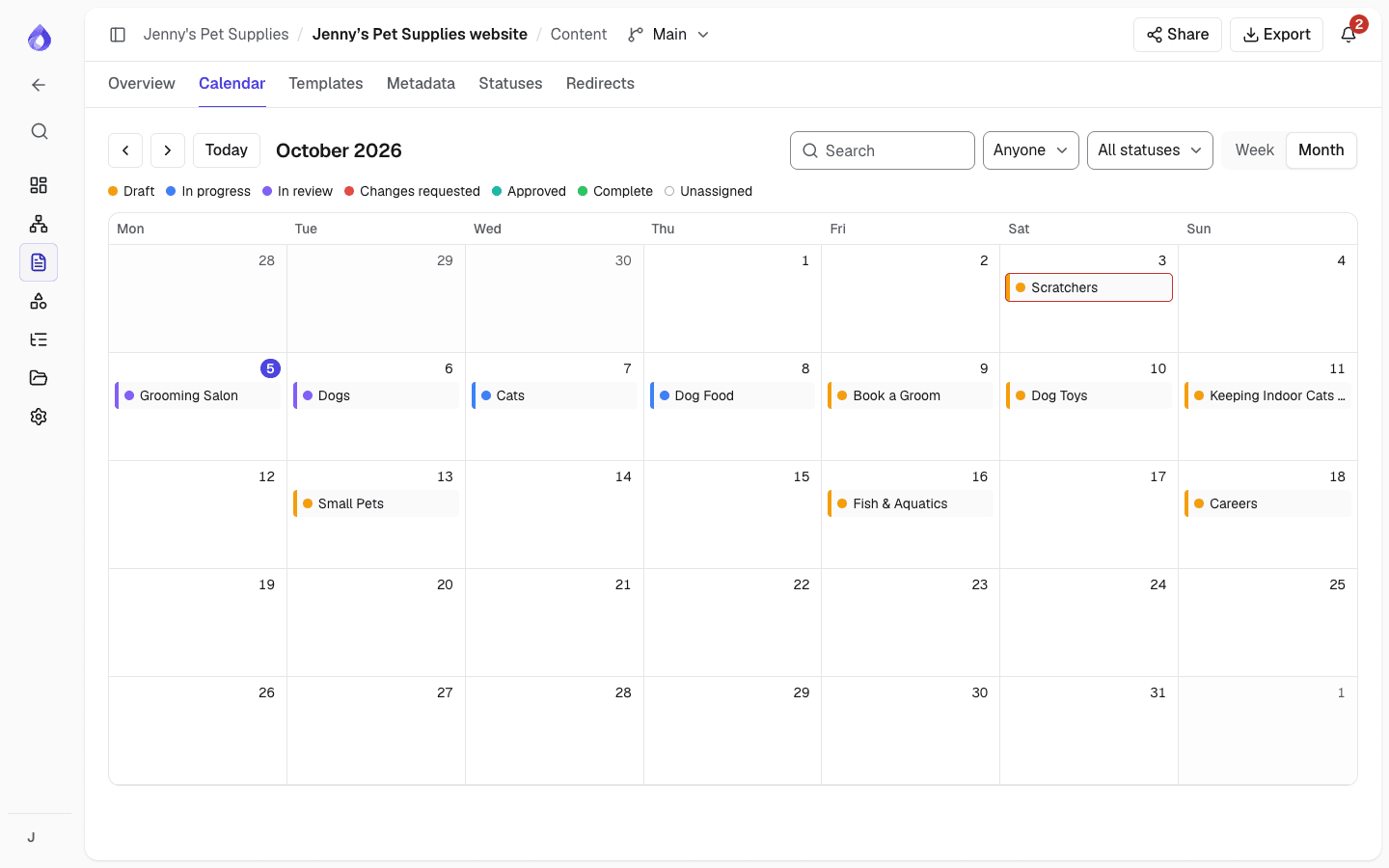
A content calendar with drag-to-reschedule
See pages on their due dates by week or month, filter by assignee and status, and drag a page to another day to change its due date. People get a reminder before a page is due and when it is overdue.
Workflow statuses and approval
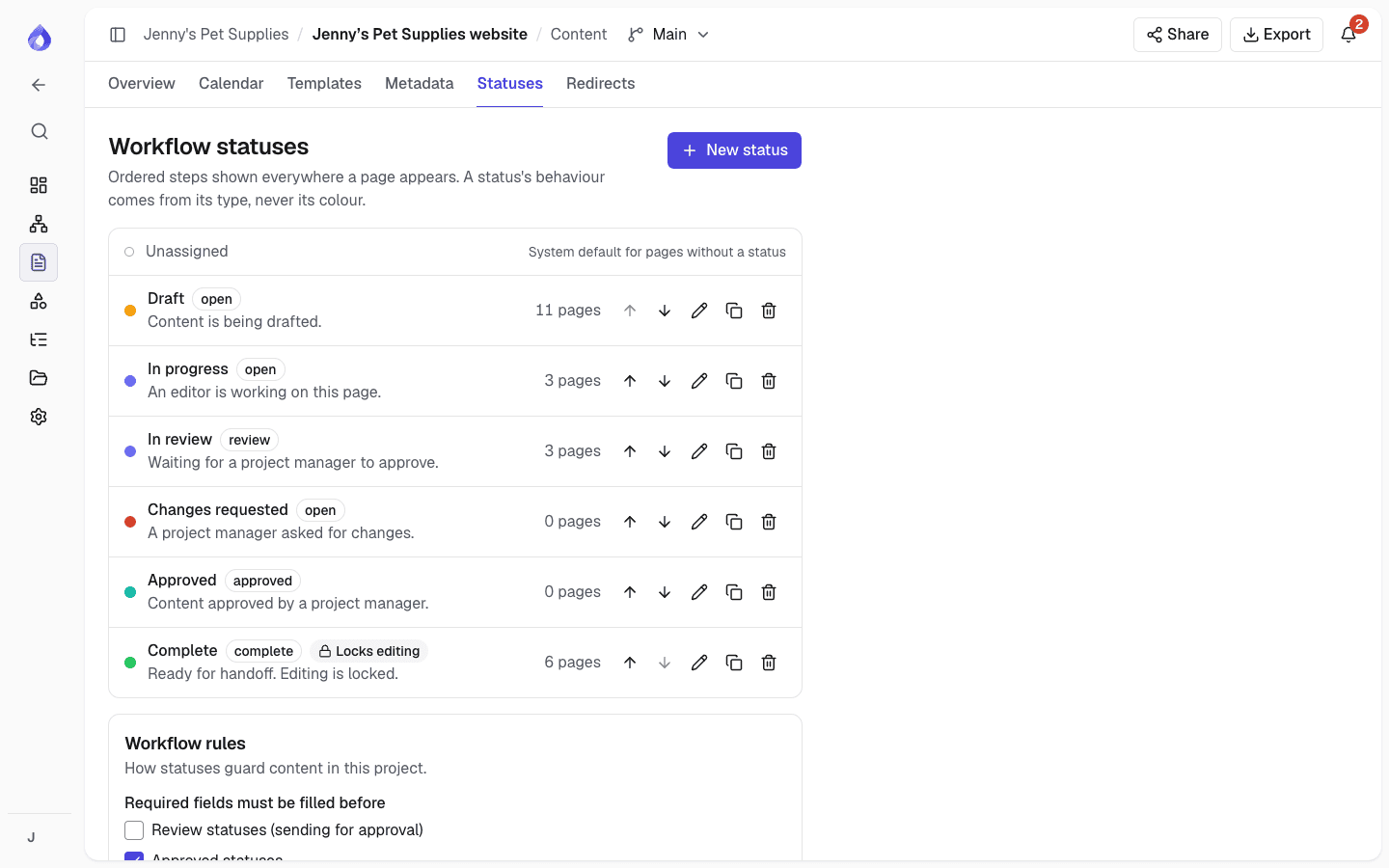
Pages move through Draft, In progress, In review, Changes requested, Approved and Complete, or statuses you define. Editors can move pages to review; only Project managers can approve.
- Custom statuses with a colour and a type: open, review, approved or complete
- Optionally lock editing while a page is in a status
- A page cannot be approved while a required field is empty
Files in one place
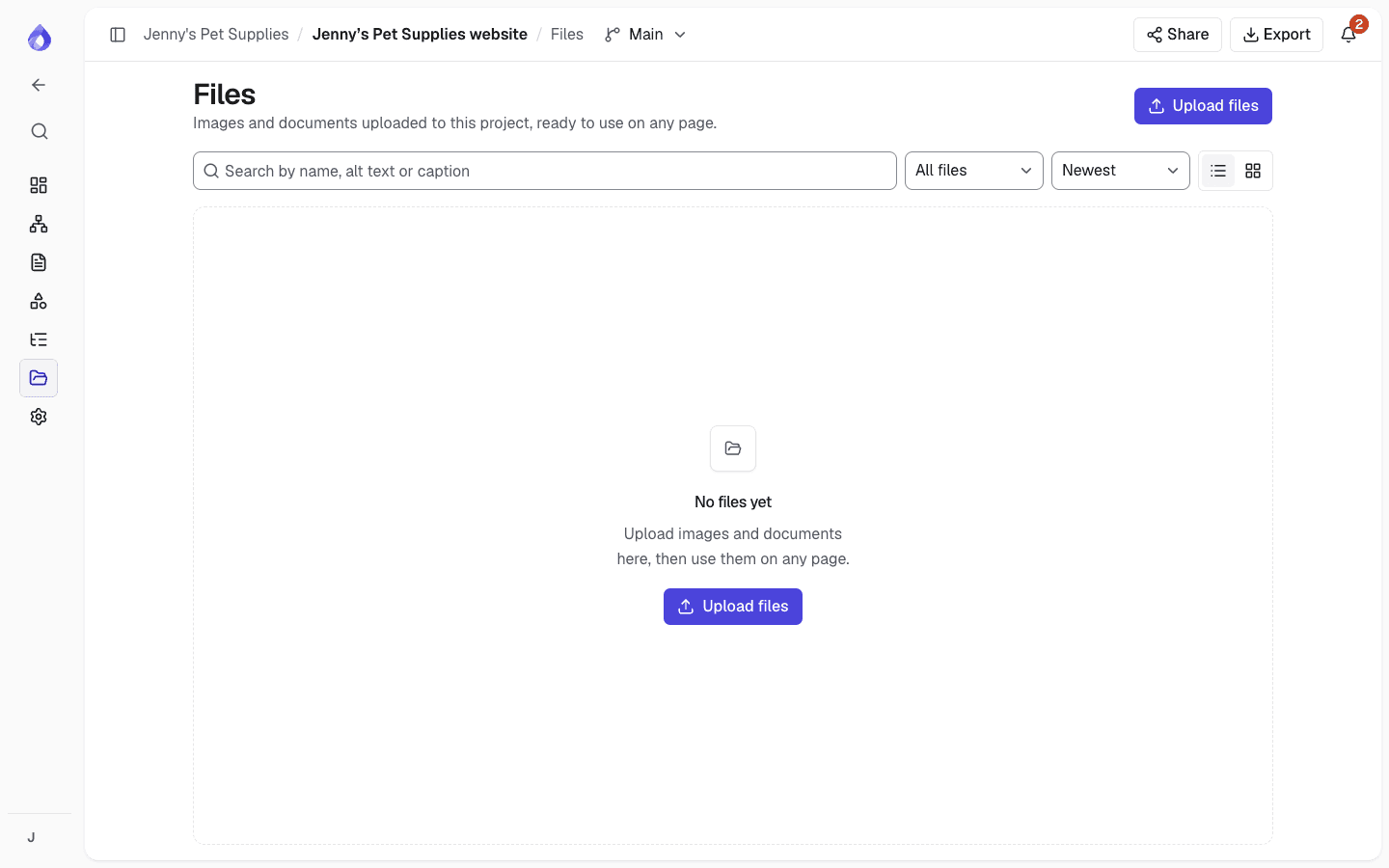
Every image, video and document uploaded to a project is listed on its Files page, with the pages that use it. Replace a file and every page that uses it updates at once.
- Search by name, alt text or caption
- Filter by images, videos or documents
- Add images from uploads, a URL, the library or AI generation
More content planning tools
Autosave
Each block saves as you type, and the editor shows the save state.
Revision history
Compare any earlier revision with the current page and restore it. Restoring adds a new revision, so nothing is lost.
Page locks
Only one person edits a page at a time, so nobody overwrites a colleague. Locks lapse after 5 minutes idle.
Save conflict handling
If a block changed since you started, choose their version or yours. Failed saves are kept in the browser.
Metadata fields
Add structured fields such as category, tags, dates or a featured switch, and filter the overview by them.
Comments and suggestions
Comment on any block, or suggest edits as tracked changes for the writer to accept.
AI drafting
Draft empty fields, rewrite text or review a page against the brief. Nothing goes in until you insert it.
AI assistantTemplate changes without data loss
Removing a field with content asks whether to keep it as free blocks, archive it or move it.
Content per language
Each language has its own content, status, assignees and due date.
Multilingual planningMy work
Each person sees the pages assigned to them across every project, grouped by due date.
Content exports
Download all content as a Word or PDF document, or an HTML handoff package for developers.
Who uses the content planner
Marketing and digital teams
Assign pages to writers, track progress on new and existing pages, and hand approved copy to developers.
For marketing and digital teamsAgencies
Collect content from clients in the shape the design needs, and get sign-off on a share link.
PagePot for agenciesRedesign and migration teams
Import the current site, then rewrite, keep or retire each page with a clear status.
Website redesignsFrequently asked questions
What is a website content planning tool?
A website content planning tool is where a team plans, writes and approves the content for each page of a site before it is built or published. PagePot ties the content to the sitemap, so every page has its own editor, status, owner and due date.
How is PagePot different from writing content in Google Docs?
Content is written in structured blocks from a template, with limits and required fields, rather than a free-form document. Progress, approvals and files are tracked per page, and the content exports to Word, PDF, HTML or straight into Drupal.
What block types can a template include?
Plain text, rich text, image, video, document, note, form, code, accordion and cards. Each field can have writer instructions, limits and a required-before-approval rule.
Can I see what is overdue?
Yes. The content overview flags overdue pages and has an Overdue tile, the calendar shows due dates by week or month, and people get reminders before and after a page is due.
What happens if two people edit the same page?
Only one person edits a page in one language at a time. Anyone else sees who is editing and can view a preview or take over. Every change is saved as a revision you can restore.
Is there a limit on how many pages I can plan?
No. There is no limit on pages or on pages with content on any plan. Plans differ in projects, people, storage, diagrams and AI credits, and every plan starts with a 14-day Pro trial, no card needed.
Keep exploring
Website content migration guide
Move content from an old site to a new one without losing pages.
Read the guide