



Website redesigns
Website redesign planning that starts from your current site
Bring the existing pages onto a visual sitemap, decide what stays, moves or goes, and plan the new content for every page before the build starts.


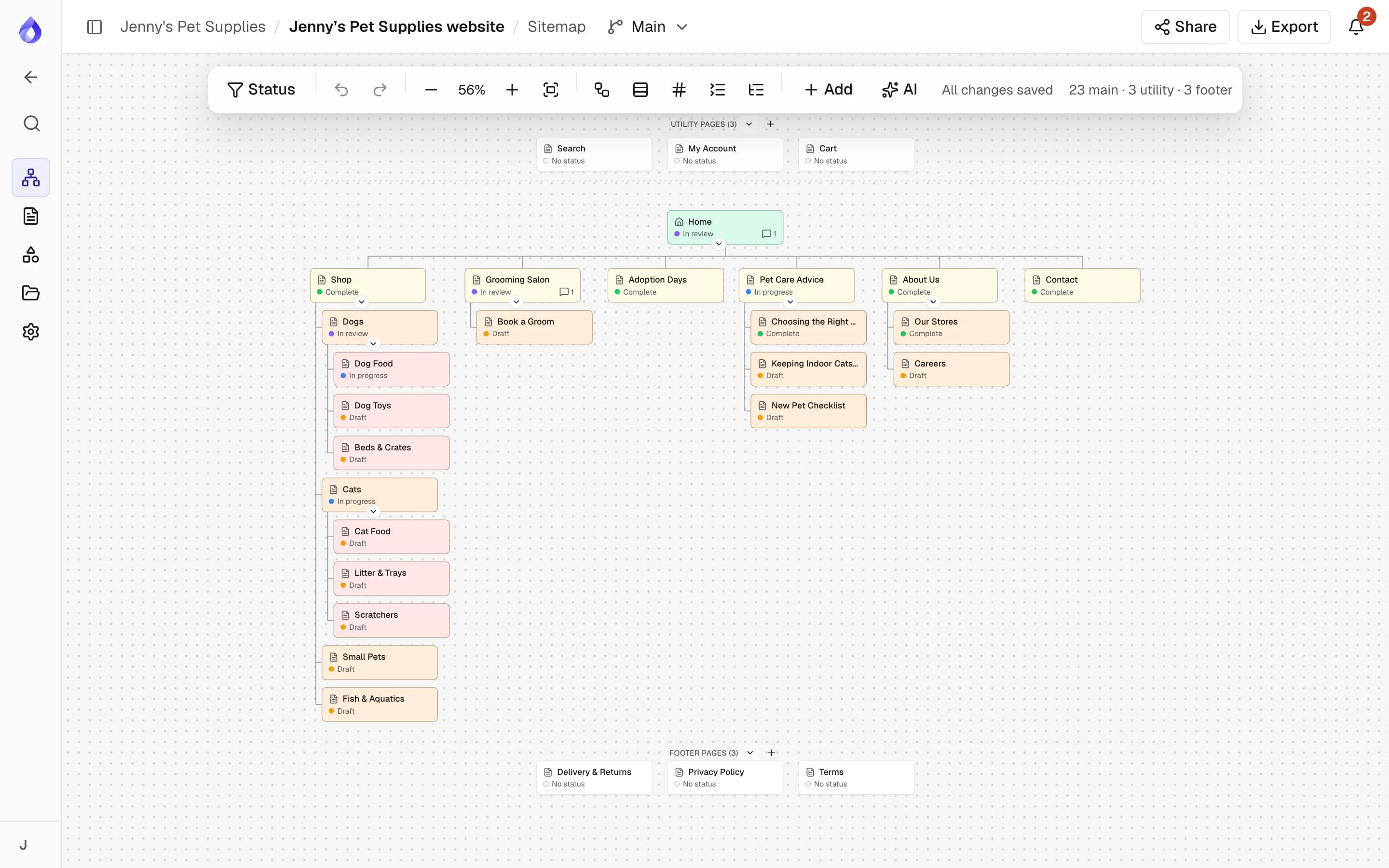
Redesigns start with a spreadsheet nobody trusts
Someone copies the old site into a sheet, someone else redraws it in a slide, and the new structure ends up in a third file. By the time content is written, nobody knows which pages were kept, merged or dropped.


Import, restructure and plan in one place
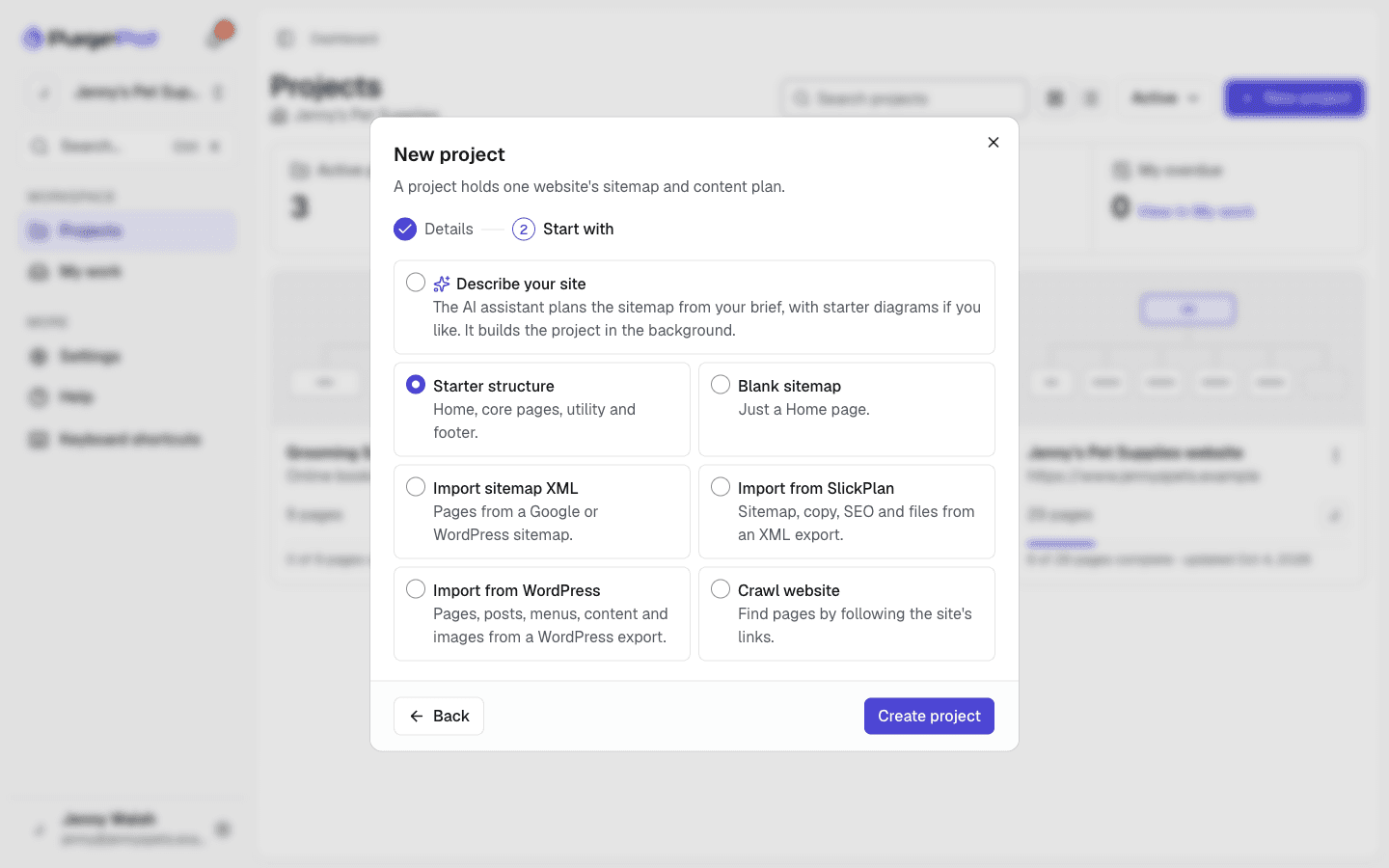
Website redesign planning in PagePot starts with the real site. Import its WordPress export or sitemap XML, bring a plan across from Slickplan or crawl it, restructure the pages on the map, then plan the content, SEO and sign-off for each page on the same records.
Start from what exists
Import a WordPress export with its content, a sitemap XML file or URL, or crawl the live site with a live log.
Restructure visually
Drag pages into the new structure. Content and comments move with them.
Plan every page
Templates, owners, due dates and statuses for each page of the new site.
Hand off cleanly
Inventories, documents, developer packages, a WordPress import file and a Drupal import.
How to plan a website redesign in PagePot
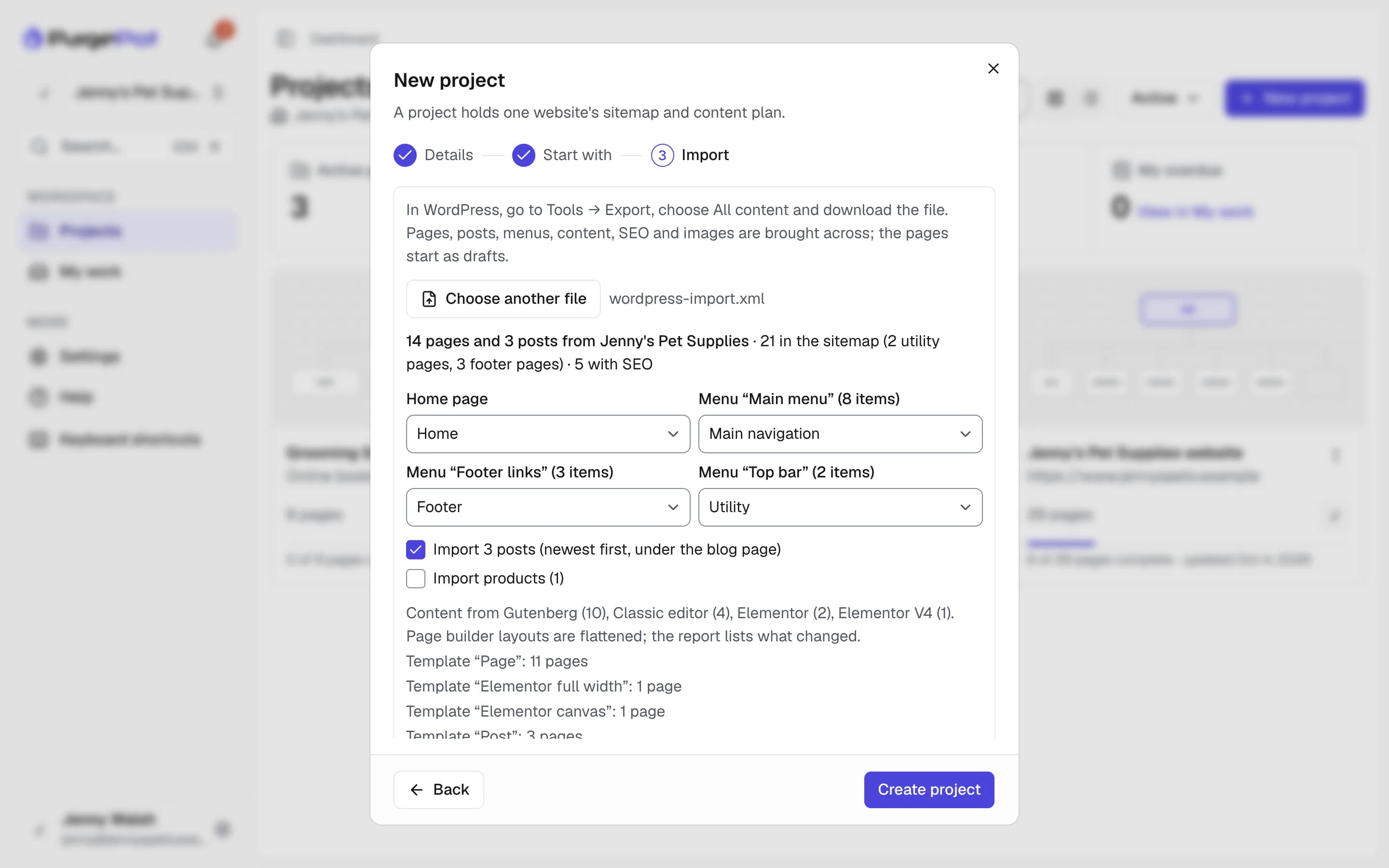
Import a WordPress site, content included
If the site runs on WordPress, export All content from Tools → Export and start a project with Import from WordPress. You get the page tree and menus, posts, the content of each page from the block editor, the classic editor, Elementor or Divi, Yoast or Rank Math SEO, and the images. Each page keeps its original URL in its notes, ready for redirects.
- Up to 2,000 pages and posts, with a preview first
- Menus become main, utility and footer navigation
- A report lists what was flattened, skipped or couldn’t be downloaded
Import a sitemap XML file
Upload a file or paste a sitemap URL. Google sitemaps, sitemap indexes and WordPress sitemaps (core, Yoast, RankMath and Jetpack) work, including compressed files. You preview the page tree before the project is created.
- Up to 2,000 pages, 50 child sitemaps and 10 MB
- The hierarchy follows the URL paths; missing folders become pages
- Slugs keep the existing URL segments
Crawl the live site
Enter the site address and PagePot follows its links. A panel on the sitemap shows progress and a live log; stop and save, resume, or cancel to remove what it added.
- Label pages by title tag, first heading or URL
- Follow the domain, its subdomains or one folder only
- Limit pages (up to 1,000) or depth, and include or exclude folders
- Import SEO metadata into the content planner
- Render JavaScript for script-built sites (up to 300 pages)
- Basic HTTP authentication for staging sites
Restructure the site on the map
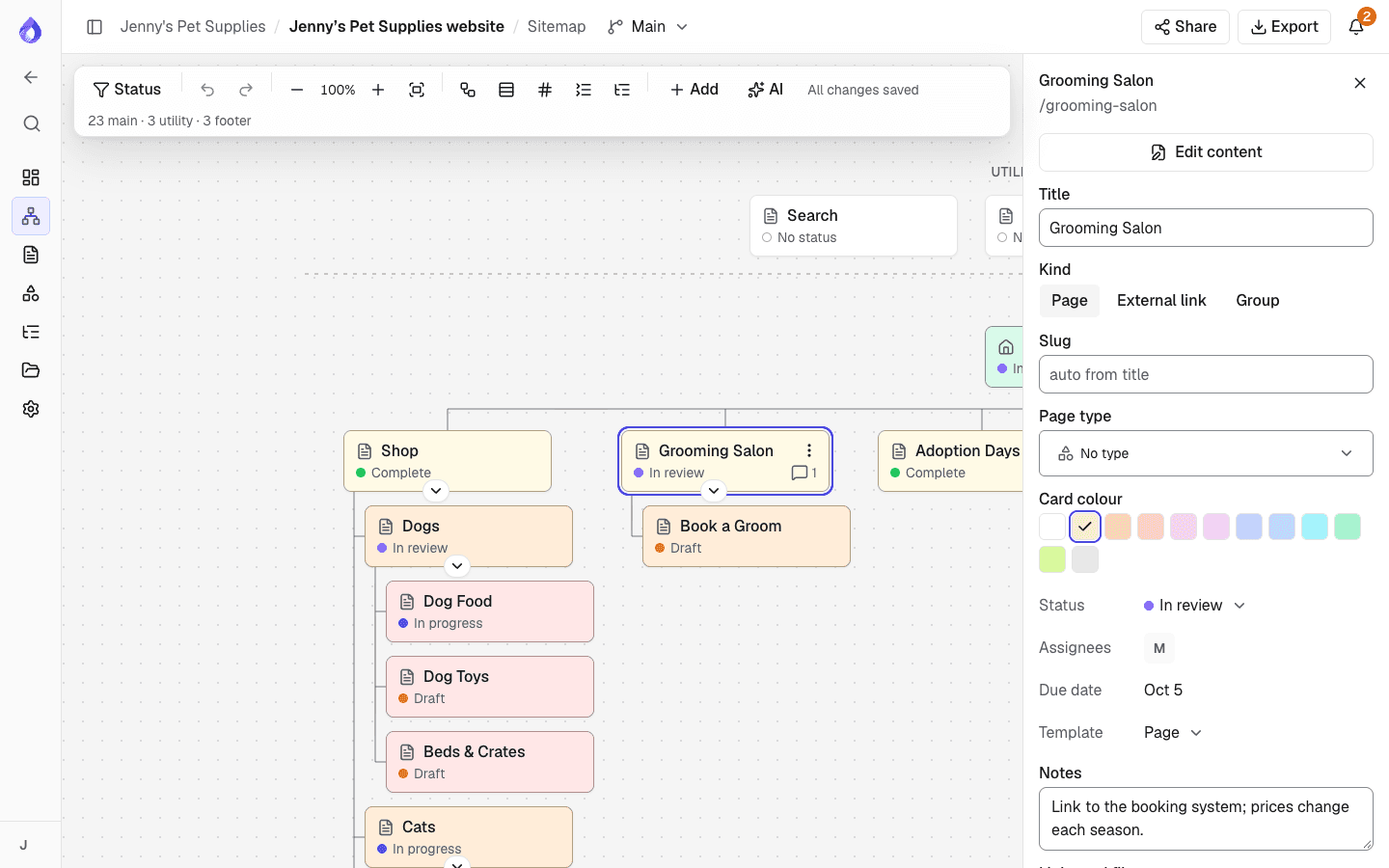
Move, merge and rename pages with drag and drop. Plan main, utility and footer navigation, turn large branches into sections, and colour pages to mark what is new, kept or rewritten.
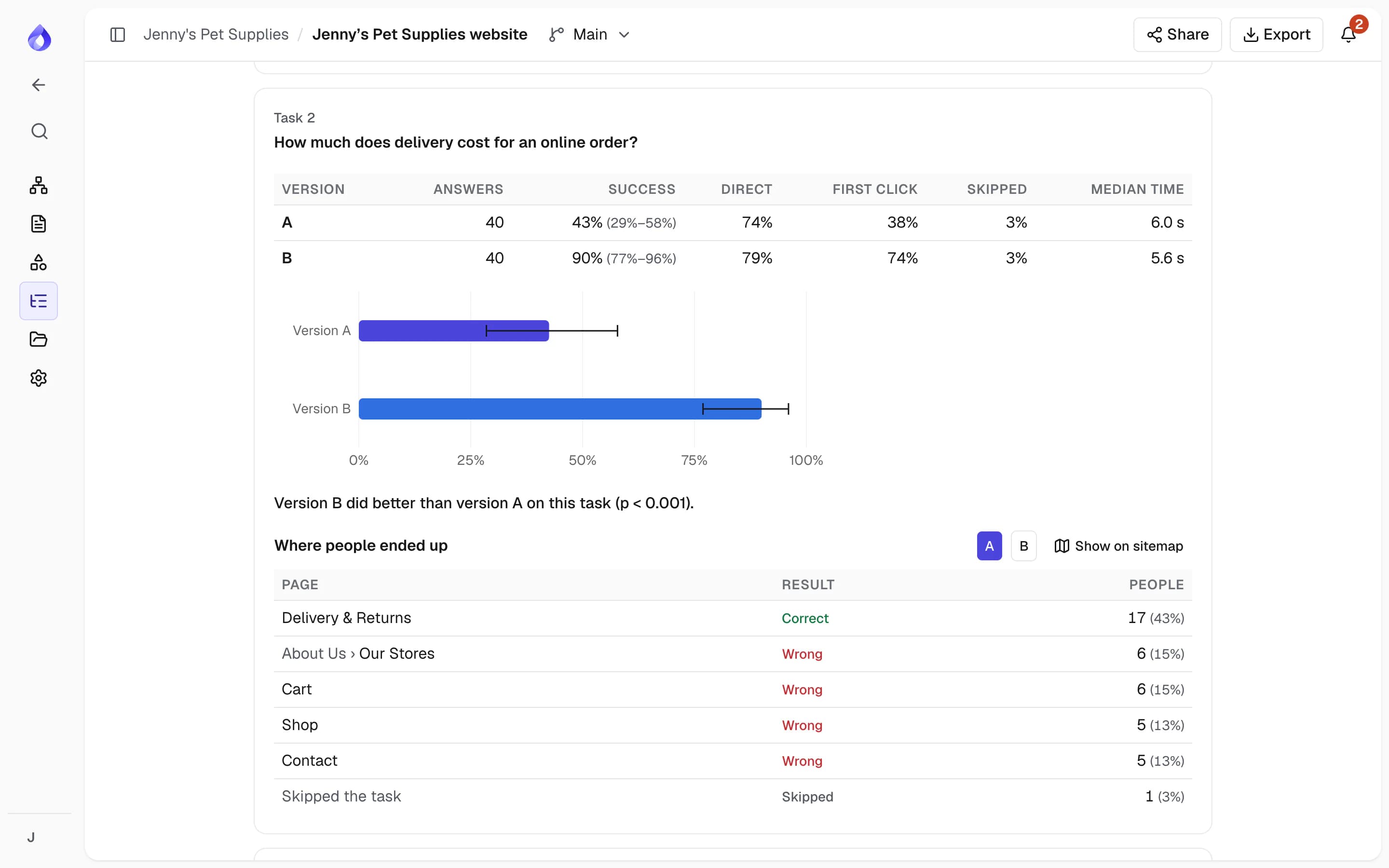
Test the new structure against the old
Keep the current structure as one sitemap version and the new one as another, then run a tree test. Participants try everyday tasks in one version each, and the results show which structure people find things in, task by task.
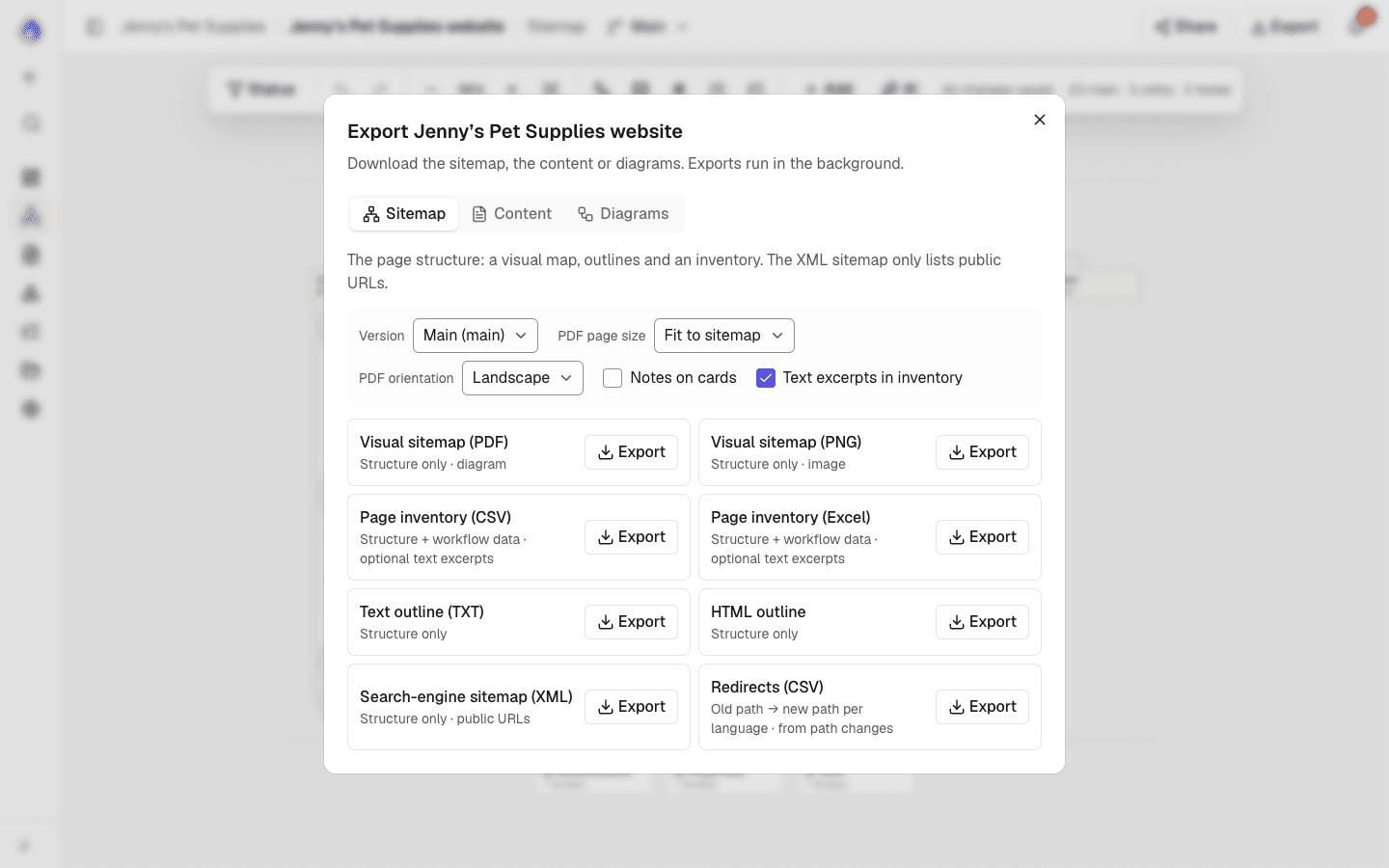
Take a content inventory
Export the page inventory as CSV: one row per page and language with status, assignees, due dates, template, metadata and optional text excerpts. Open it in Excel or Google Sheets for audits and stakeholder reviews.
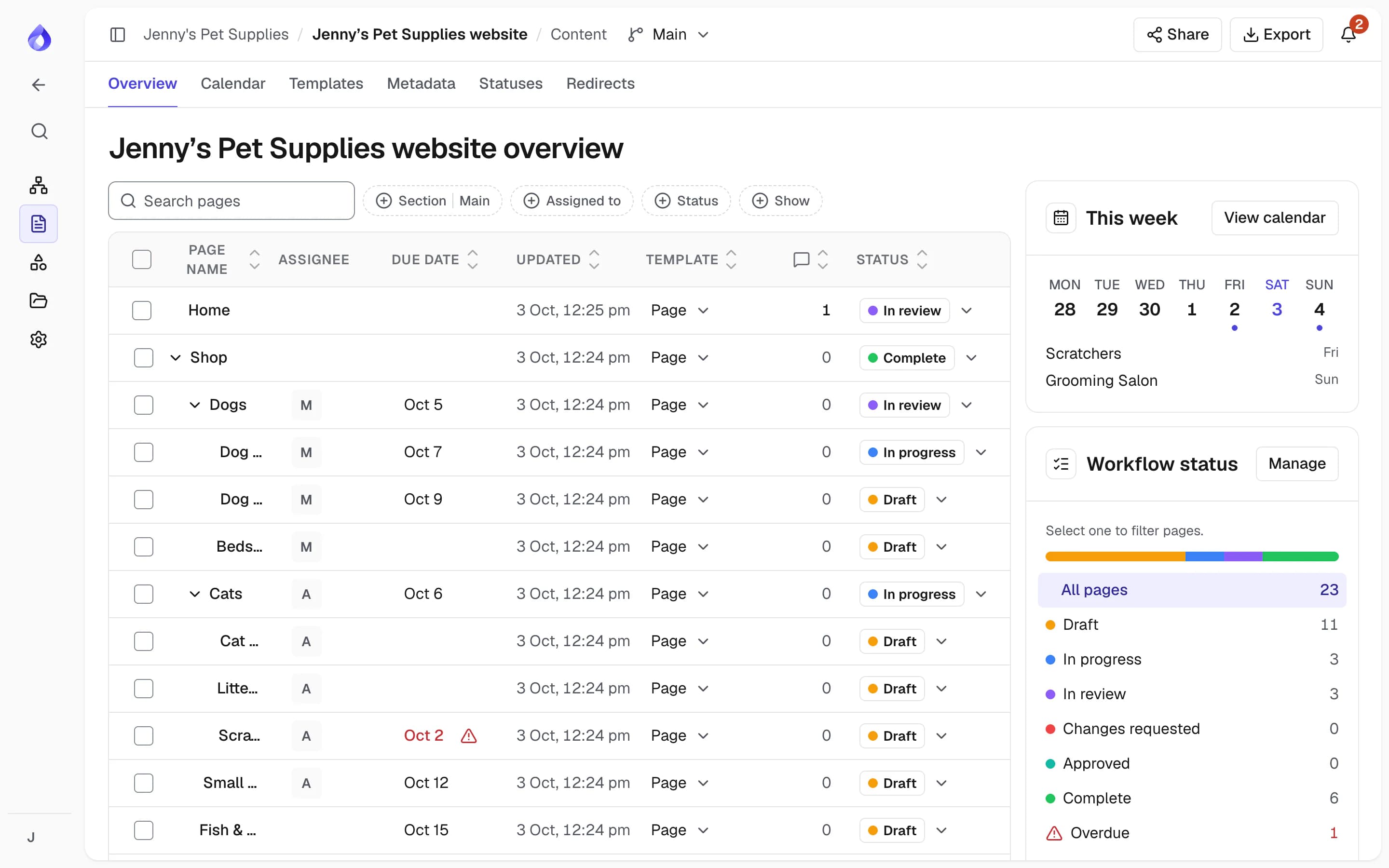
Plan new content page by page
Apply templates so every page of a kind has the same blocks, assign writers, set due dates and move pages through statuses from Draft to Approved. The content overview shows what is done and what is overdue.
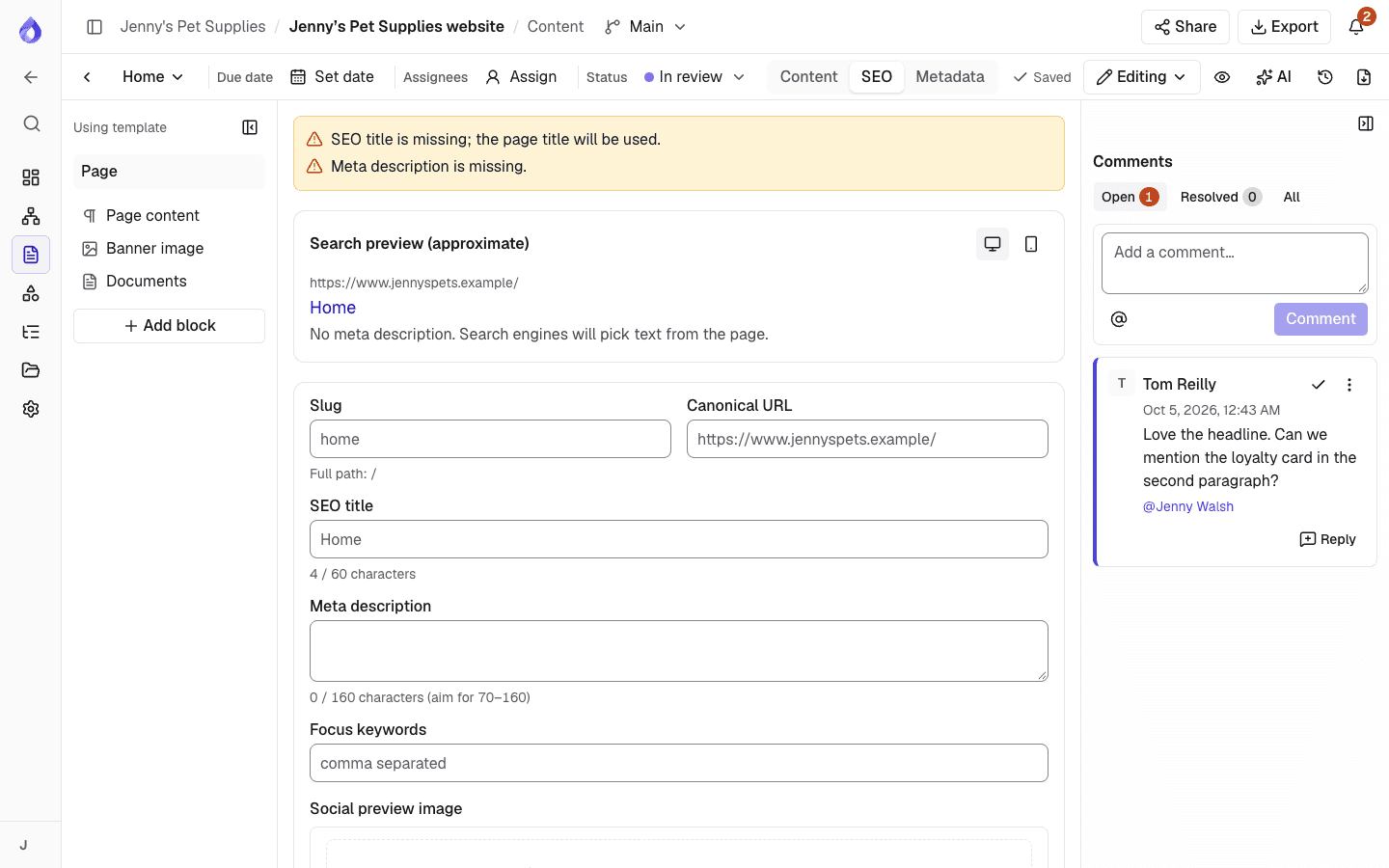
Keep SEO in view
Each page has its slug, SEO title, meta description, canonical URL, robots settings and structured data. Warnings flag missing or overlong titles and paths another page already uses. Export a search-engine XML sitemap of the new structure.
A website redesign plan in five steps
Import
Bring the current site in from a WordPress export, a sitemap XML or a crawl.
Audit
Export the inventory, add notes on cards and agree what stays, merges or goes.
Restructure
Shape the new sitemap, tree test it against the old one, and share it with stakeholders for comments.
Plan content
Apply templates, assign pages, set due dates and write or migrate the copy.
Content migration guideApprove and hand off
Approve each page, then export to WordPress, export the handoff ZIP or import into Drupal.
Drupal integration
More for redesign projects
Internal notes
Record decisions on each page, such as "merge with Services".
Status highlighting
See on the map which pages are drafted, in review or approved.
Sections
Open a large branch as its own map so big sites stay readable.
Links and files per page
See the links and files each page uses, and spot links to deleted pages.
Templates with limits
Character limits, required fields and instructions for writers.
Metadata fields
Categories, tags and dates as structured fields.
Multilingual sites
Plan each language on one structure, with hreflang in the XML sitemap.
Multilingual planningContent document
Every page in sitemap order as PDF or Word.
Revisions
Approval records the revision, and flags pages edited afterwards.
Frequently asked questions
How do you plan a website redesign?
Start with an inventory of the current site, agree the new structure, plan the content for each page with owners and due dates, get sign-off, then hand off to the build. PagePot covers each step, from importing the old site to exporting the approved content.
Can I import my existing website into PagePot?
Yes. Import a WordPress export with its content, or a sitemap XML file or URL (each up to 2,000 pages), on any plan, or crawl the live site (Pro plan and up, up to 1,000 pages, or 300 with JavaScript rendering).
Does the crawler import SEO titles and descriptions?
Yes, if you turn on the SEO metadata option under View more options. The crawler brings each page’s existing metadata into the content planner.
How do I create a content inventory?
Import or crawl the site, then export the page inventory as CSV. It has one row per page and language with status, assignees, due dates, template, metadata and optional text excerpts.
Can I plan a multilingual redesign?
Yes, on Pro and above. Each language has its own title, slug, content, SEO, status and assignees, and the XML sitemap export includes hreflang links.
Does the crawl change my live website?
No. The crawler only reads pages by following links. It obeys robots.txt unless you choose to ignore it.