WordPress
Export a project as a file WordPress imports: pages as blocks, menus, SEO and files.
PagePot exports a project as a WordPress file (WXR) that the standard WordPress importer loads. Pages arrive in sitemap order with their content as normal blocks, the sitemap's regions become menus, and SEO fields are filled for Yoast SEO or Rank Math. It's on every plan, and everyone who can export a project can make one.
Jenny's Pet Supplies is planned in PagePot; when the content is approved, Tom at Brightpaw Studio exports it and imports it into the new WordPress site.
Export from PagePot
Open Export in the project header and go to the Content tab. The WordPress box has the options:
- Version: the sitemap version to export (when the project has more than one).
- Import pages as: Drafts (the default) or Published.
- SEO plugin: Yoast SEO, Rank Math or Both.
- The tab's Document language and Include internal notes options apply too. Each export is one language; export again for each language. Notes come through as hidden comments in a Custom HTML block.
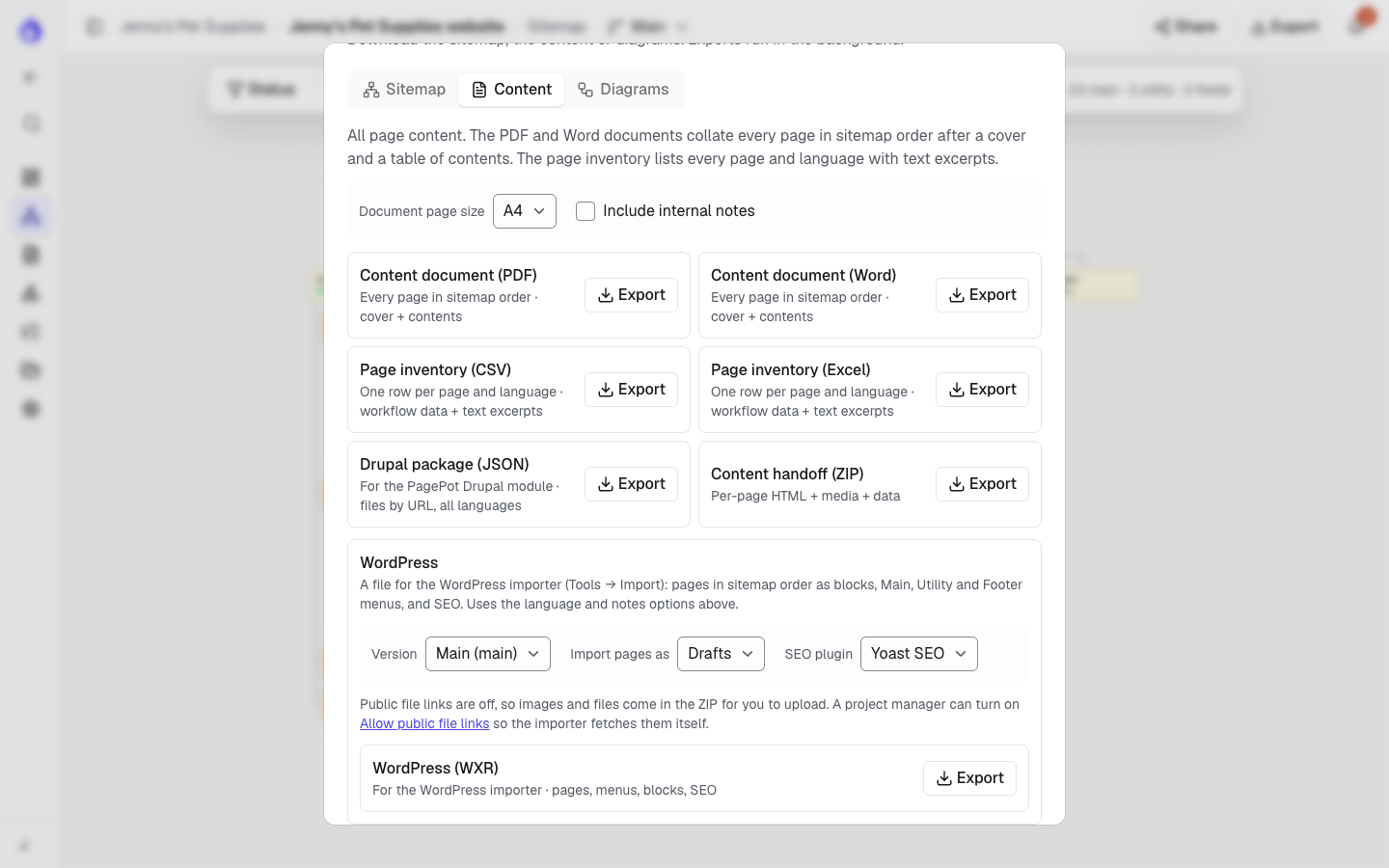
Click Export next to WordPress (WXR). You get a ZIP with pagepot.xml, a README.md with the steps below, and a media/ folder when files aren't linked (see below).
Images and files
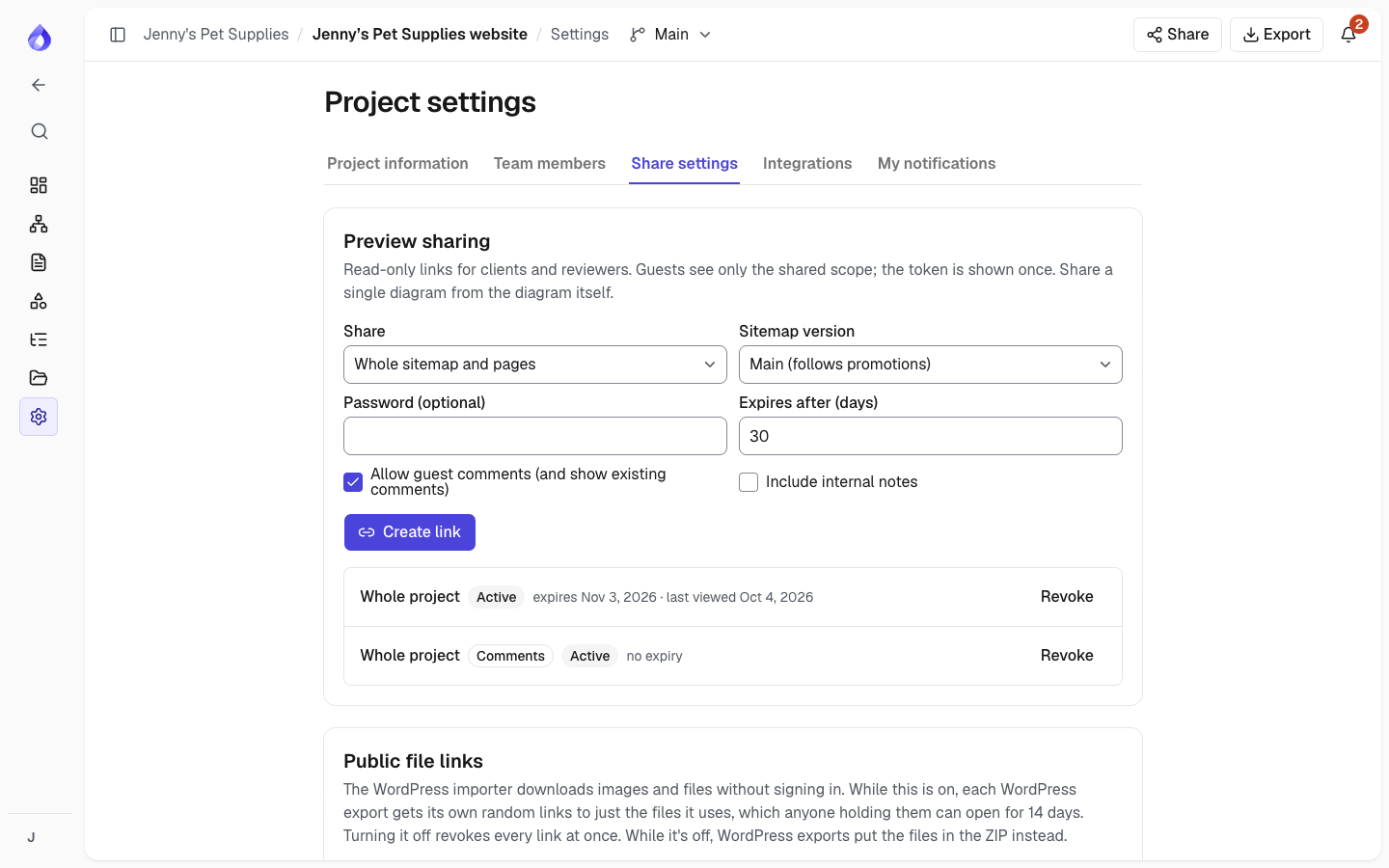
The WordPress importer downloads images and files from a web address without signing in. PagePot only gives it such addresses when a project manager turns on Allow public file links in Project settings → Share settings:
- On: each export gets its own random links to just the files it uses. They work for 14 days, so import before then. In the importer, tick Download and import file attachments; images then go into the Media Library and the pages use the local copies. A page's SEO social image becomes its featured image.
- Off (the default): the files come in the ZIP's
media/folder. Upload them to the Media Library and replace the images and file links in the pages.
Turning the setting off stops every link from earlier exports at once.
Import into WordPress
- In WordPress, go to Tools → Import and run the WordPress importer (install it if asked).
- Upload
pagepot.xmland assign the pages to a user. - Tick Download and import file attachments if the project allows public file links, then Submit.
- Go to Appearance → Menus (or the Site Editor's navigation) and assign the new Main, Utility and Footer menus to your theme's menu locations.
- Home arrives as a page called Home: choose it under Settings → Reading → Your homepage displays → A static page.
Importing the same file twice skips pages that already exist.
What comes across
| PagePot | WordPress |
|---|---|
| Pages and their order in the sitemap | Pages with parents and order; links between pages point at the new addresses |
| Groups | A page if the group has a slug, otherwise a menu heading |
| Links | Custom menu links |
| Text, headings, lists, quotes, tables, code | The matching blocks |
| Images and videos | Image, video and YouTube/Vimeo embed blocks |
| Documents | A link to the file |
| Accordions | Details blocks |
| Cards | Columns, three to a row |
| Form plans | A Custom HTML block listing the fields, to build with your form plugin |
| SEO title, description, canonical, robots, keywords | Yoast SEO or Rank Math fields |
| Metadata | Custom fields named pagepot_ and the field key |
Structured data (JSON-LD) isn't exported. Unresolved suggestions are left out, as in other exports.
Import a WordPress site into PagePot
Start a new project from a WordPress export (pages, posts, menus, content from Gutenberg, the classic editor, Elementor or Divi, Yoast or Rank Math SEO, and images). Available on every plan. See Import from WordPress.

