



Diagram maker
A user flow diagram maker connected to your sitemap
Map checkout journeys, approval processes and team structures in the same project as the site plan. Link each step to the page it describes, and share the diagram for review.


Flows drawn in one tool, pages planned in another
The checkout journey lives in a whiteboard app, the pages it touches live in the sitemap, and feedback comes back as screenshots with arrows. Nobody can tell which step maps to which page.


Diagrams that live with the site plan
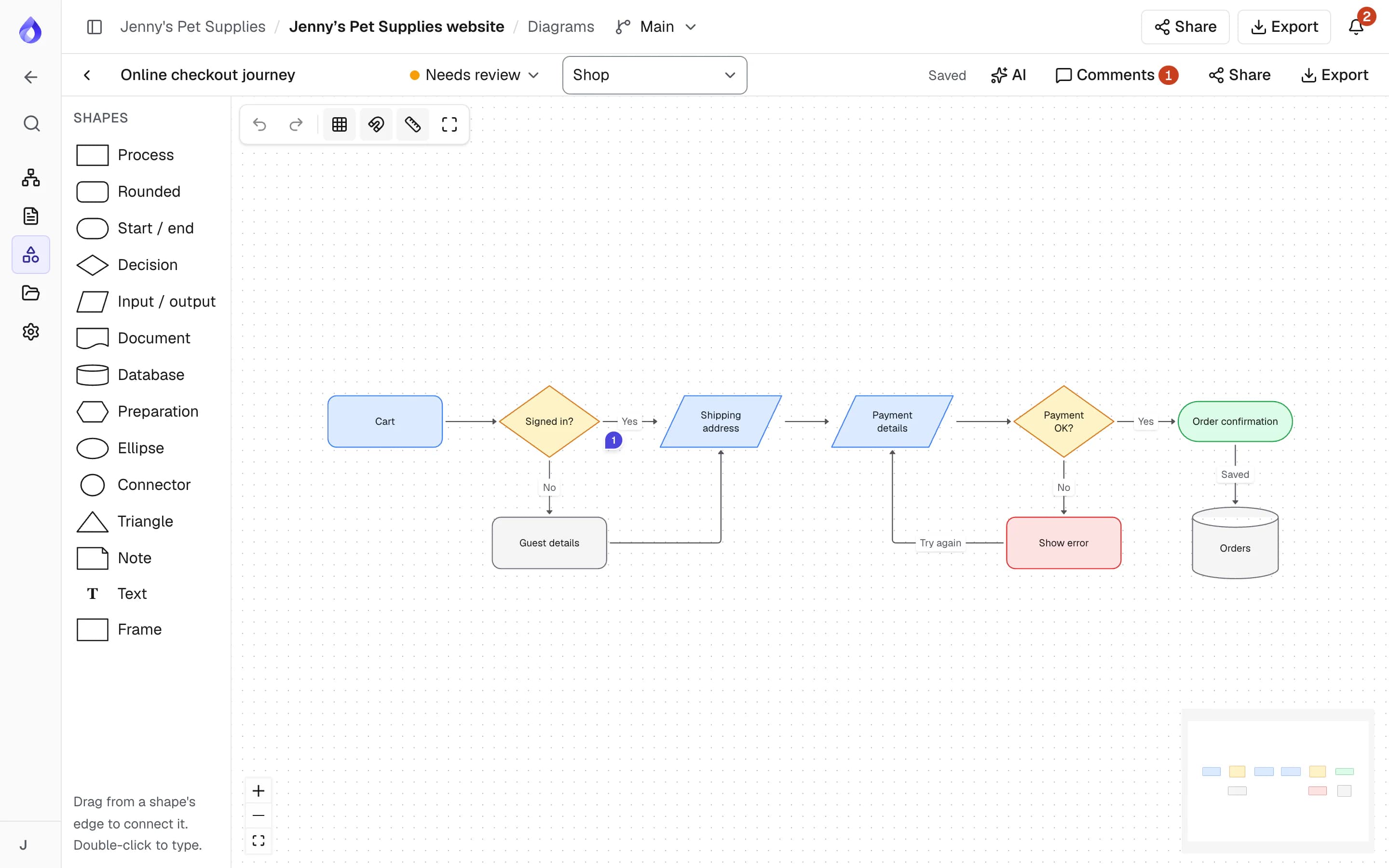
PagePot’s user flow diagram maker sits inside each project. Shapes link to real sitemap pages, pages show the diagrams linked to them, and reviewers comment on the exact spot they mean.
Start fast
Pick a template such as Checkout flow or Swimlane process, or describe the flow and let the AI assistant draw it.
Linked to pages
Link a shape to a sitemap page. On share links the shape becomes clickable, so reviewers can jump to the page.
Reviewed in place
Give the diagram a status, pin comments to a spot, and share it with a password and expiry date.
An online diagram maker built for website planning
Shapes and connectors
Drag shapes from the Shapes panel and drag from a shape’s edge to connect it. Double-click a shape or connector to add text.
- Process, decision, start/end, input/output, document, database, note and text shapes
- Frames for groups and swimlanes
- Elbow, straight or curved connectors, with colour, line style and arrows
- Fill, border and text styles, plus arrange and align tools
Templates for common flows
Start from Blank or one of eight templates: Basic flowchart, Content approval, Content publishing, User onboarding journey, Swimlane process, Decision tree, Team structure and Checkout flow.
Link diagrams to sitemap pages
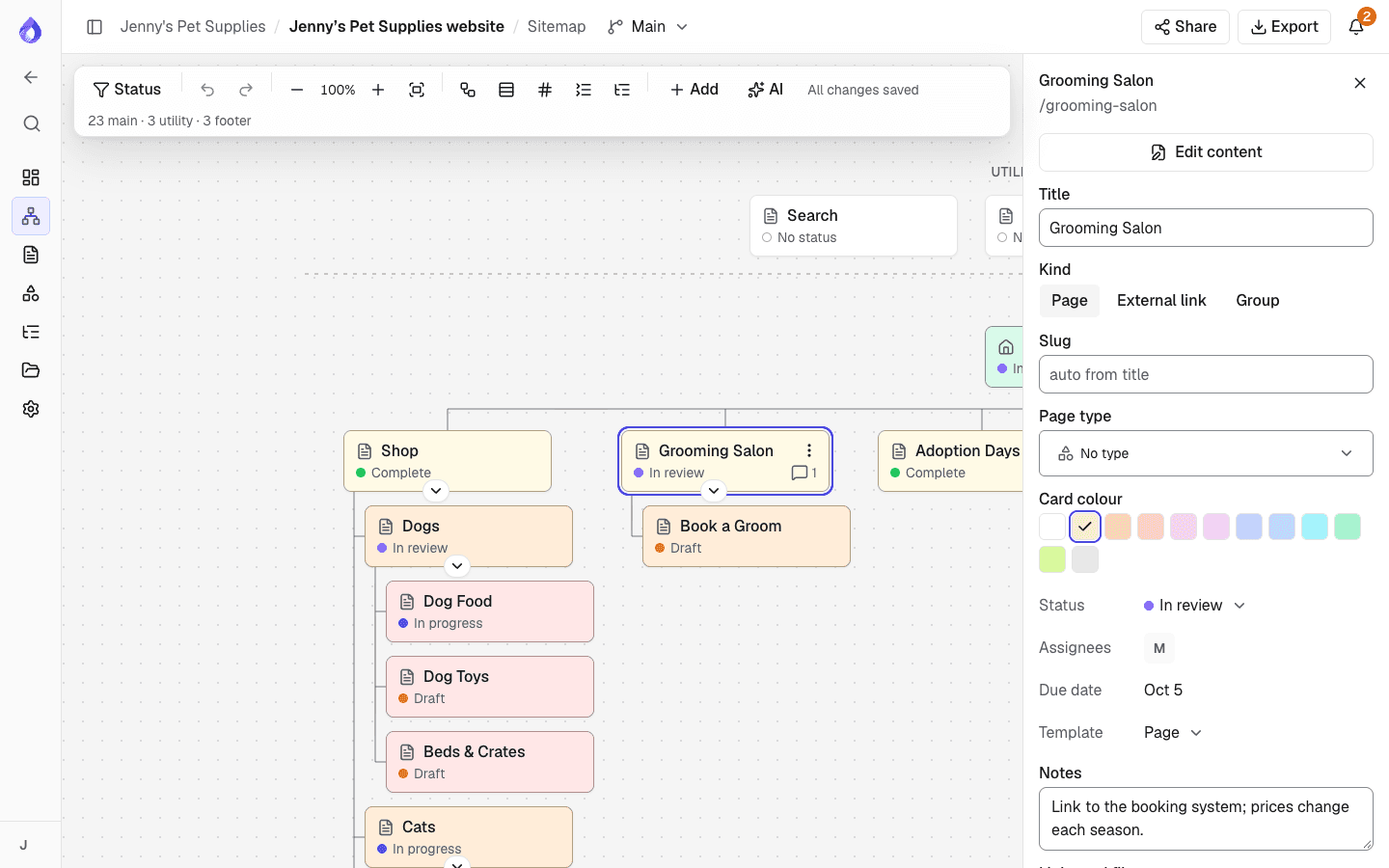
Link a diagram to the page it belongs to when you create it, and link individual shapes to pages. Each page’s properties list its linked diagrams, with a button to start a new one.
AI that draws, tidies and reviews
Describe a flow and the AI assistant draws it, or adds steps to an existing diagram. Tidy layout cleans up positions for free, and Review finds dead ends, unlabelled decisions and missing steps.
- Draw or add steps from a description: 3 credits
- Review a diagram: 1 credit
- Tidy layout: free
Review, share and export
Set a status (Unassigned, In progress, Needs review, On hold or Approved), add general comments or place a pin on a spot, and share a link people outside the workspace can open.
- Optional password and expiry on diagram share links
- Guests can pan, zoom and export shared diagrams
- Export as PDF, PNG or a PagePot file for another project
More diagram tools
Undo and redo
Step back through changes while you draw.
Grid and snap
Show a grid and snap shapes to it for tidy layouts.
Alignment guides
Guides appear as you drag, so shapes line up.
Minimap
Find your way around large diagrams.
Fit to screen
Bring the whole diagram into view in one click.
Keyboard shortcuts
Copy, paste and duplicate shapes, select an area and zoom with the scroll wheel.
Diagram locks
One person edits at a time, and others can take over editing when needed.
Pinned comments
Place a pin to comment on a specific spot, not just the whole diagram.
Diagram statuses
Track each diagram from in progress to needs review to approved.
Import a diagram file
Upload a diagram exported from PagePot into another project.
Diagrams from client files
When the AI assistant plans a new project, it can draw diagrams too.
Search with ⌘K
Jump to any diagram by name from the command palette.
Bulk PDF export
Download every diagram in the project as one PDF.
Who draws diagrams in PagePot
UX designers
Map user journeys and checkout flows, and link each step to the page it needs.
Marketing and digital teams
Agree how content gets drafted, reviewed and published with a content approval flow.
For marketing and digital teamsAgencies
Walk clients through a proposed flow on a share link and collect comments on the exact step.
PagePot for agenciesFrequently asked questions
What is a user flow diagram?
A user flow diagram shows the steps a person takes to complete a task on a website, such as buying a product or signing up, including the decisions along the way. It helps a team agree which pages are needed and how they connect.
Can I make flowcharts and org charts as well as user flows?
Yes. Templates include a basic flowchart, a decision tree, a swimlane process, content approval and publishing flows, a user onboarding journey, a checkout flow and a team structure chart.
Can the AI assistant create a diagram for me?
Yes. Choose Describe it when you create a diagram and the assistant draws it (3 credits). It can also add steps to an existing diagram, review it for dead ends and missing steps (1 credit), and tidy the layout for free.
Can clients review a diagram without an account?
Yes. Share a diagram with a link, optionally with a password and an expiry date. Guests can view, pan, zoom and export it. Comments come from people in your workspace, including pinned comments on a spot.
What formats can I export diagrams in?
PDF and PNG, or a PagePot file you can upload into another project. You can also export every diagram in a project as one PDF.
How many diagrams can I create?
The Starter plan allows 2 diagrams per project. Pro, Team and Agency allow unlimited diagrams.