



Integrations
Website planning integrations that carry the plan into the build
Work on the plan from AI agents like Claude and ChatGPT, bring a WordPress site in and send the plan back out, import planned pages and content into Drupal, keep your team up to date in Slack, and connect your own tools with the API and webhooks.


The plan stops where the build starts
A sitemap and approved copy are only useful if they reach the CMS intact. Copying pages by hand into the site, and chasing updates in chat, is where content goes missing.


Connected website planning
PagePot’s website planning integrations move the structure, content and files into Drupal, post progress to the channel your team already reads, and let developers script anything else.
Integrations built into PagePot
WordPress import and export, and reading through AI agents, are on every plan. Drupal, Slack, the API, webhooks and editing through AI agents are on the Team and Agency plans. Project managers set up Drupal, Slack and webhooks in the project’s Settings → Integrations; everyone connects their own AI agents and API keys in Settings → API and AI agents.
AI agents (MCP)
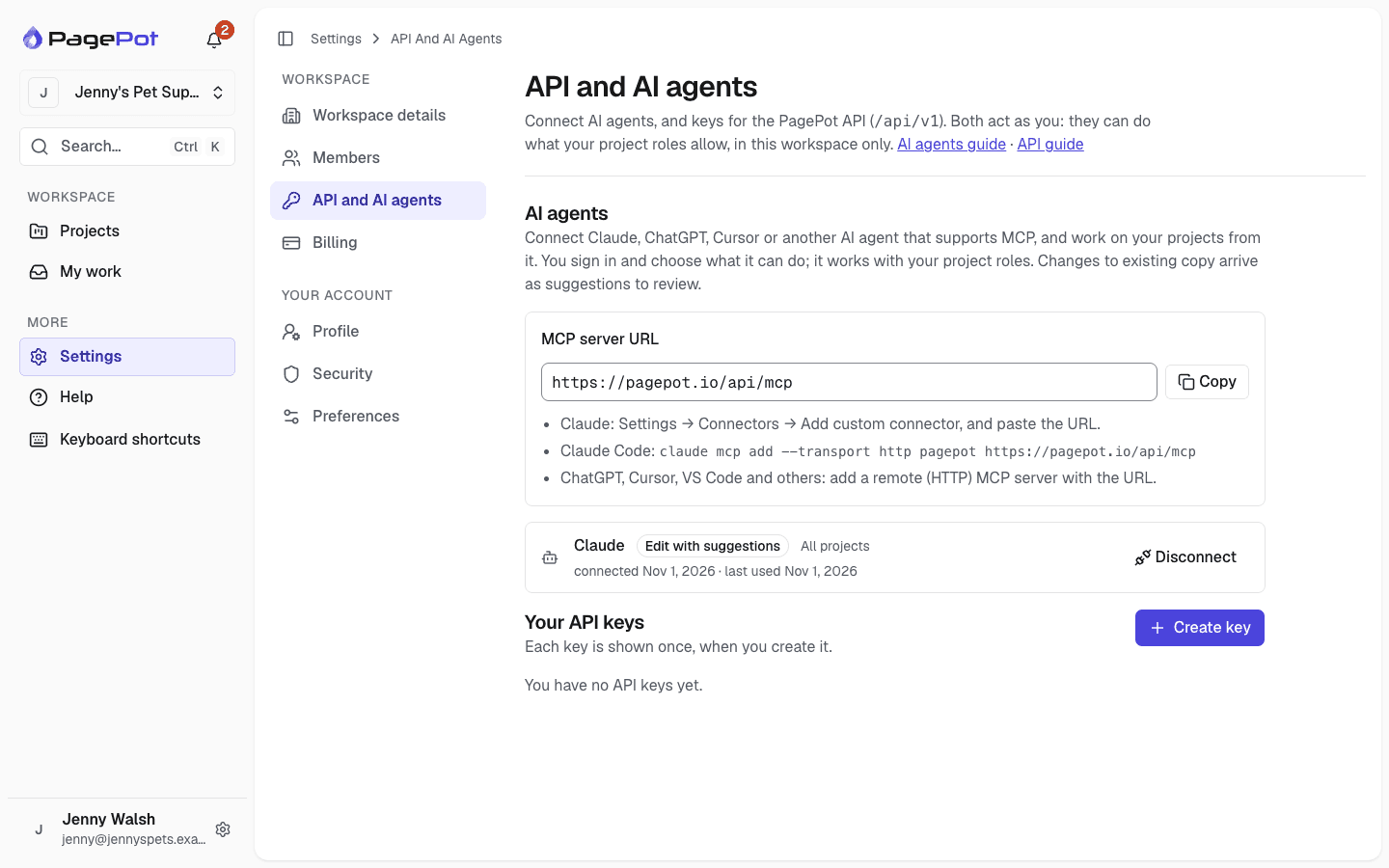
Connect Claude, ChatGPT, Cursor or another MCP agent and ask it to plan sitemaps, draft pages or review copy. Changes to existing copy arrive as tracked suggestions.
AI agentsWordPress
Start a project from a WordPress export, with pages, posts, menus, content and SEO, and export the approved plan as a file the WordPress importer loads.
WordPressDrupal
The PagePot module for Drupal 11 turns templates into content types, pages into nodes, files into media and the sitemap into menus. Import once, or keep the site in sync.
Drupal integrationSlack
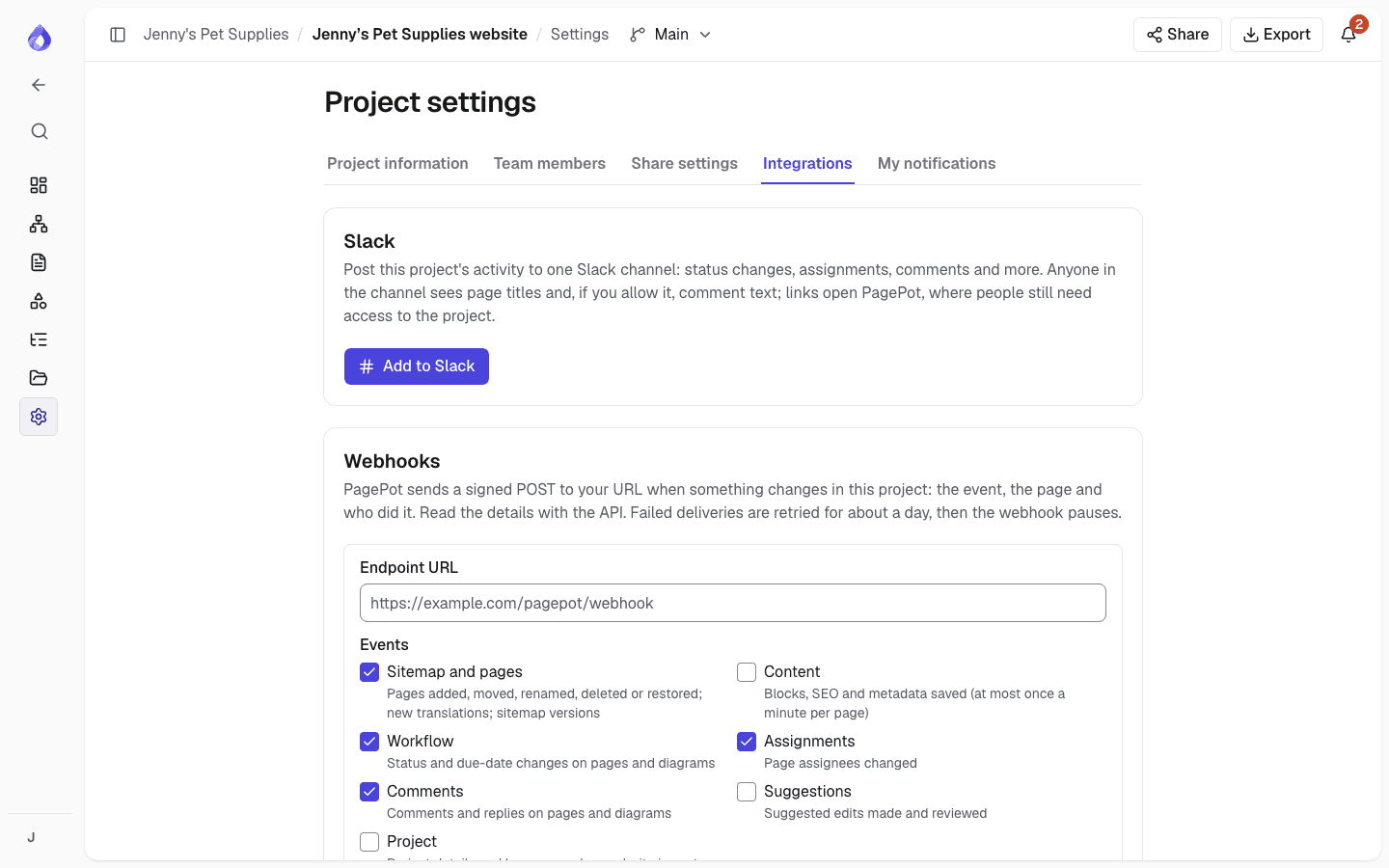
Post a project’s activity to a Slack channel: status changes, assignments, comments, suggestions and a daily due-date digest.
API and webhooks
Read and change projects from your own scripts with personal API keys, and get a signed call to your URL when something changes.
API and webhooksHow each integration works
AI agents: work on the plan from Claude or ChatGPT
Add PagePot’s MCP server URL to your agent, sign in to PagePot and choose the workspace, what the agent can do and which projects it can reach. The agent then works with your project roles, and its changes show in the history as yours, “via Claude”.
- Plan a sitemap from a brief and create it in one go
- Draft empty pages and suggest changes to written ones, following the project’s brief
- Comments, statuses, assignees, due dates and SEO
- Disconnect any time; Workspace admins can turn agents off for everyone
WordPress: in from the current site, out to the new one
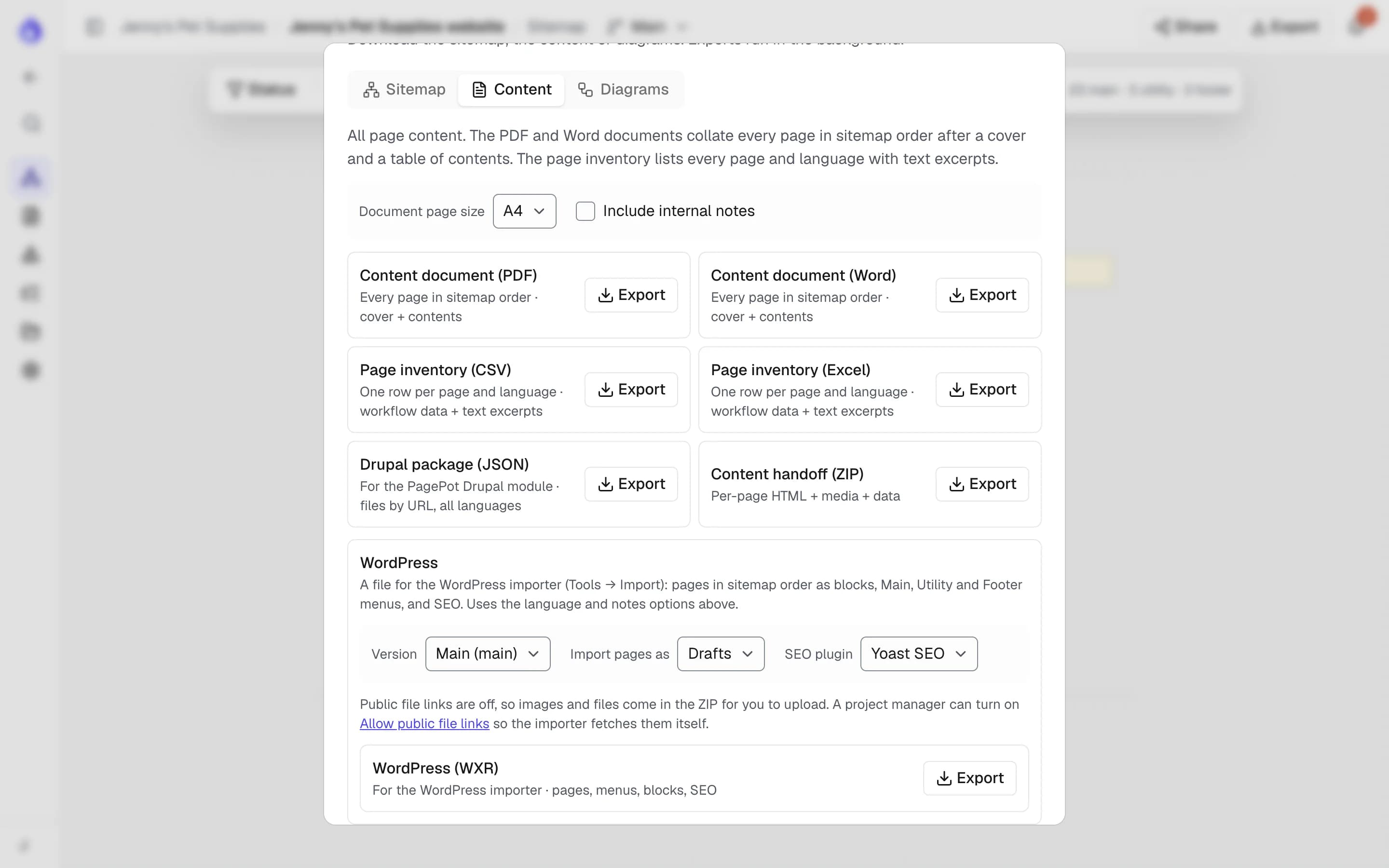
Import a WordPress export (Tools → Export) into a new project, then export the plan as a WordPress import file (WXR) for Tools → Import. Both use WordPress’s own format, so nothing is installed on the site.
- Import: pages, posts, menus, content from the block editor, the classic editor, Elementor and Divi, Yoast or Rank Math SEO, and images
- Export: pages in sitemap order as core blocks, Main, Utility and Footer menus, and Yoast SEO or Rank Math fields
- Files linked for the importer when the project allows public file links, otherwise in the ZIP
- File-based: no live sync or WordPress plugin yet
Drupal: from plan to nodes
Create a read-only integration token in PagePot, paste it into the Drupal module, and map each PagePot template to a content type, field by field. A dry run shows what will be created, updated or in conflict before anything is imported.
- New content arrives unpublished; updates keep each node’s status
- Menus built from the main, utility and footer navigation
- Languages imported as translations
- Live sync on demand, with Drush, or on cron
Slack: project activity in one channel
Connect one Slack channel per project with Add to Slack; private channels you belong to are listed too. Each post links to the page in PagePot, and people still need project access to open it.
- Turn status changes, assignments, comments, suggestions, page changes and project changes on or off
- A daily digest of pages that are overdue or due the next day
- Optionally include the first 200 characters of each comment
- Bulk changes arrive as one message, not twelve
- Send a test message and see recent posts and errors
API and webhooks for your own tools
Personal API keys act as their owner, with the same project roles, locks and plan limits as the app. Webhooks tell another system about changes as they happen, signed so you can check they came from PagePot.
Exports for every hand-off
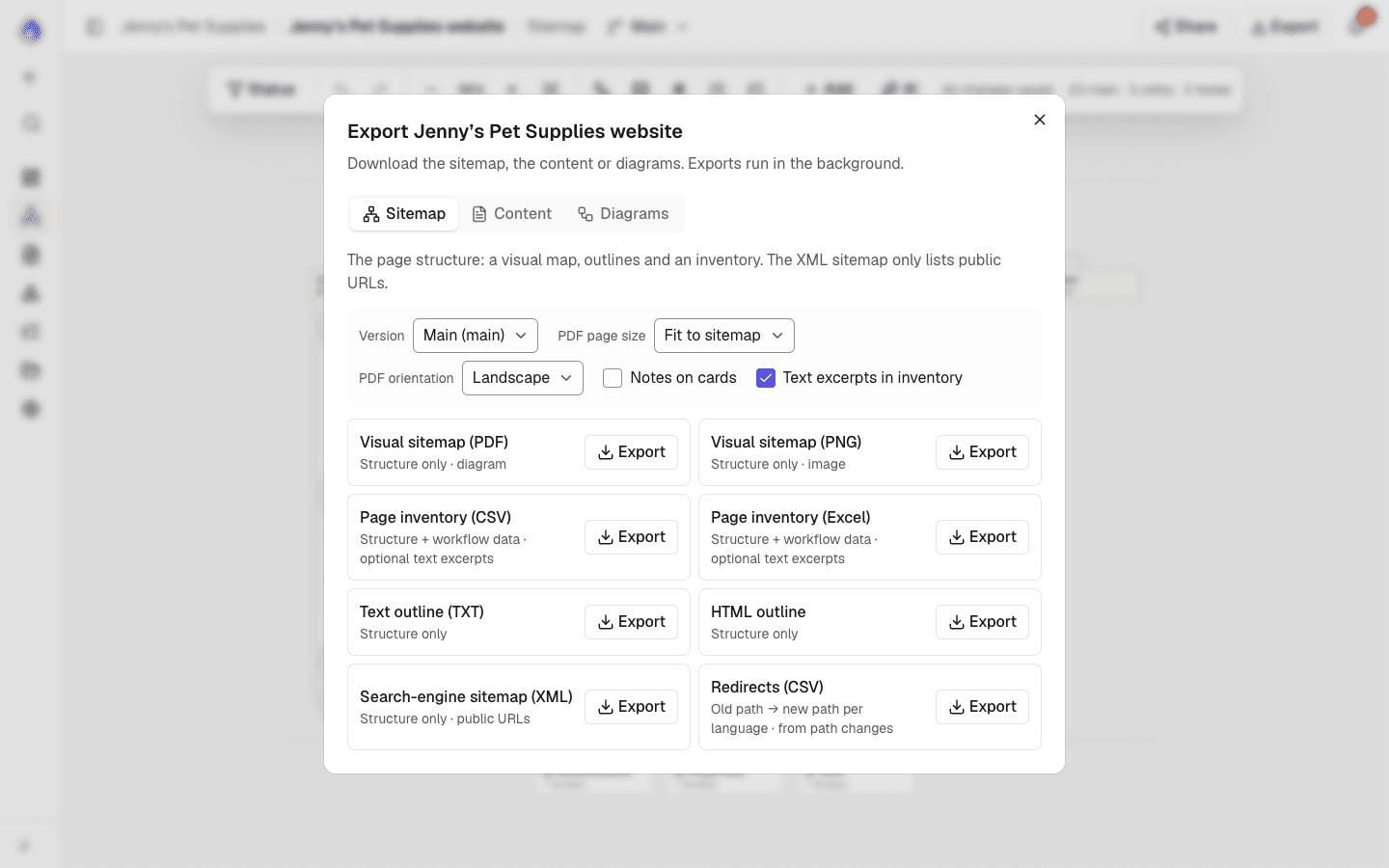
When a tool has no direct integration, an export usually does the job. Everyone on a project can export, and exports are always made from the latest content.
- Visual sitemap as PDF (fit, A4, A3, Letter, Tabloid) or high-resolution PNG
- Page inventory as CSV, text and HTML outlines
- Search-engine XML sitemap with hreflang links
- Content document as PDF or Word
- Content handoff ZIP: HTML per page with media, inventory, sitemap.xml and a JSON manifest
- Single pages as Word, PDF, HTML or JSON
- Drupal package (JSON) for the Drupal module
- WordPress import file (WXR) for the WordPress importer
Imports to start from the current site
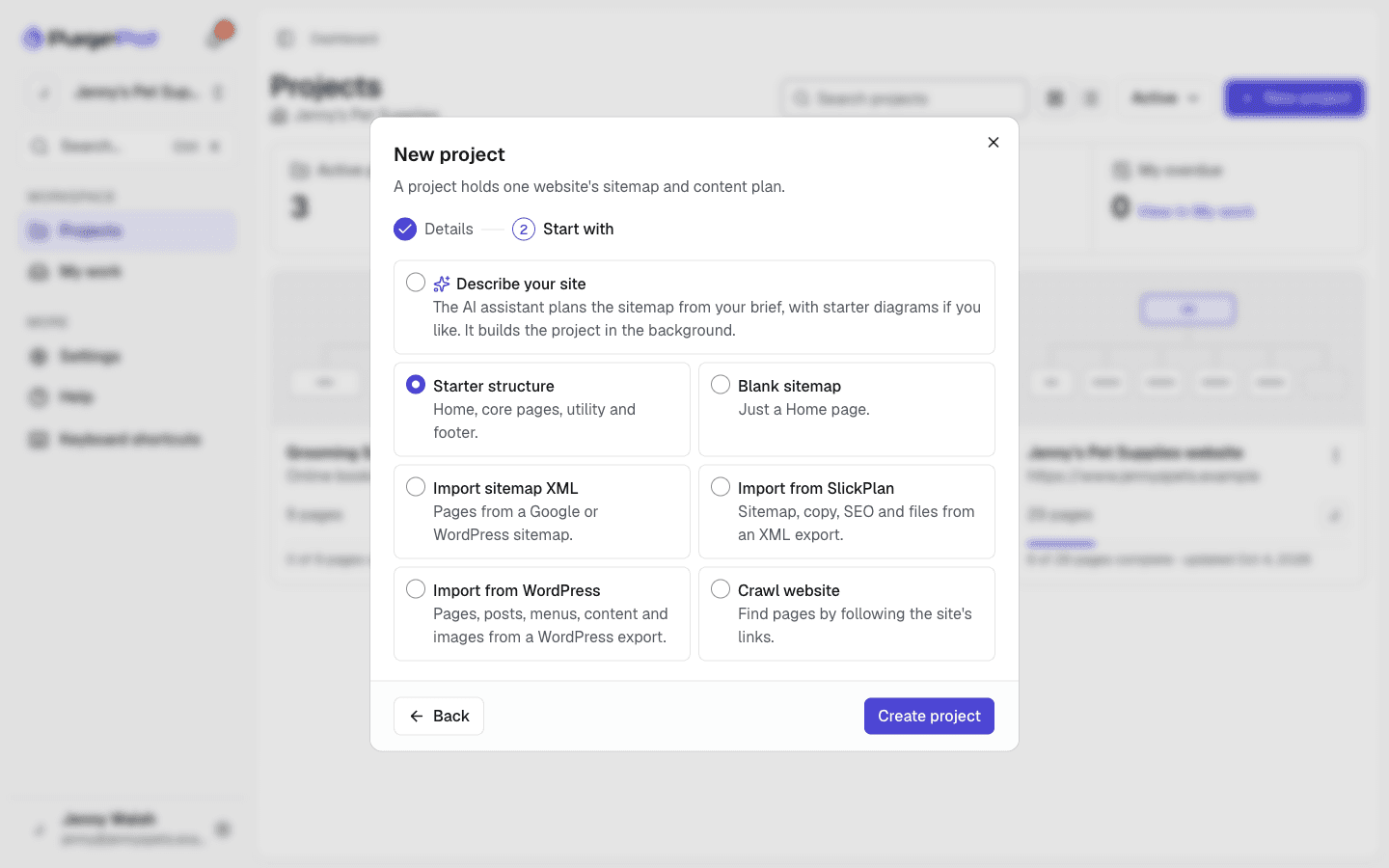
Start a redesign from what already exists. Import a WordPress export with its content, a SlickPlan export, or a sitemap XML file or URL, or crawl the live site and watch a live log you can stop, resume or cancel.
- WordPress export: up to 2,000 pages and posts, with content, menus, SEO and images
- Sitemap XML: up to 2,000 pages, with a preview tree first
- Crawler: up to 1,000 pages, with SEO metadata import and JavaScript rendering
What gets shared, and what doesn’t
Integrations only send project activity and content. Slack never receives sitemap edits, content saves, team members, share links, exports or settings. Webhooks never send changes to team members, sharing, integrations or settings.
An AI agent only reads what its person can see, within the projects and access they chose when connecting it. What it reads goes to the agent’s provider under that person’s own account.
If a workspace moves to a plan without integrations, they stop working until it upgrades. You can still disconnect or delete them.
Frequently asked questions
Which integrations does PagePot have?
An MCP server for AI agents such as Claude and ChatGPT, WordPress (import and export files), Drupal (a module for Drupal 11), Slack, a REST API with personal API keys, and webhooks. Exports cover PDF, PNG, CSV, Word, HTML, JSON, XML sitemaps, a WordPress import file and a content handoff ZIP.
Which plans include integrations?
WordPress import and export are on every plan, like the other exports, and AI agents can read on every plan. Drupal, Slack, the API, webhooks and editing through AI agents are on the Team and Agency plans, and the site crawler is on Pro and up.
Can I use PagePot from Claude or ChatGPT?
Yes. Copy the MCP server URL from Settings → API and AI agents and add it to your agent as a custom connector or remote MCP server. You sign in to PagePot and choose what the agent can do.
How do I connect PagePot to Slack?
Open the project’s Settings → Integrations, click Add to Slack, pick a channel and click Allow. A first message appears in the channel. Each project posts to one channel.
Can I send PagePot content to a CMS other than Drupal?
Yes. Export a WordPress import file for WordPress. For other systems, use the content handoff ZIP (HTML, media, inventory and a JSON manifest), single-page JSON exports, or the REST API.
Can I import my existing website into PagePot?
Yes. Import a WordPress export (with its content), a SlickPlan export or a sitemap XML file or URL on any plan, or crawl the live site on Pro and up. Each creates a sitemap you can restructure.
Who can set up integrations?
Project managers set up Slack, Drupal tokens and webhooks in the project’s settings. Anyone in the workspace can connect their own AI agents and create their own API keys.