



AI assistant
An AI website planner that works inside your plan
Describe the site or upload the client’s files, and the assistant plans the sitemap. Then it drafts, rewrites and reviews page copy. Nothing goes into a page until you say so.


Generic AI tools don’t know your site
Pasting a brief into a chat window gives you copy that ignores the sitemap, the template and the pages next to it. Then someone has to copy it back in, field by field, and nobody can see what changed.


An AI website planner with the whole project as context
PagePot’s assistant reads the project brief, the sitemap, the page template and related pages. It proposes; you choose to insert the result or add it as tracked changes. It never moves or deletes pages.
From brief to sitemap
Start a project from a description or the client’s files. The assistant plans the pages, notes and page types, and can draw starter diagrams.
Copy you review first
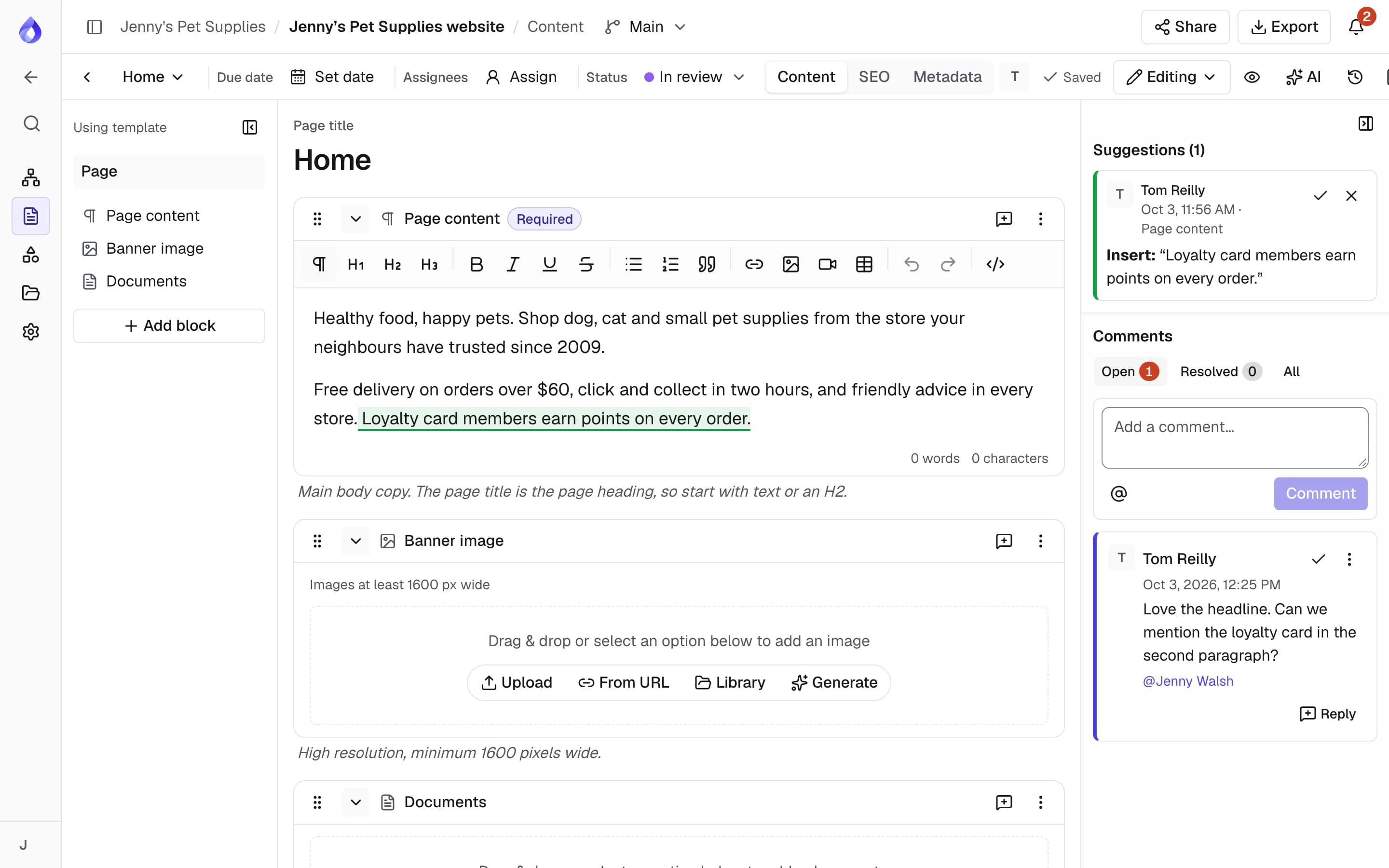
Draft, rewrite, review and SEO results show first. Insert them, or add rich text as suggestions to accept or reject.
Clear costs
Every action shows its credit cost before you run it. Workspace admins see usage on the Billing page, and failed requests are refunded.
What the AI assistant does
AI sitemap generator: plan a site from a brief
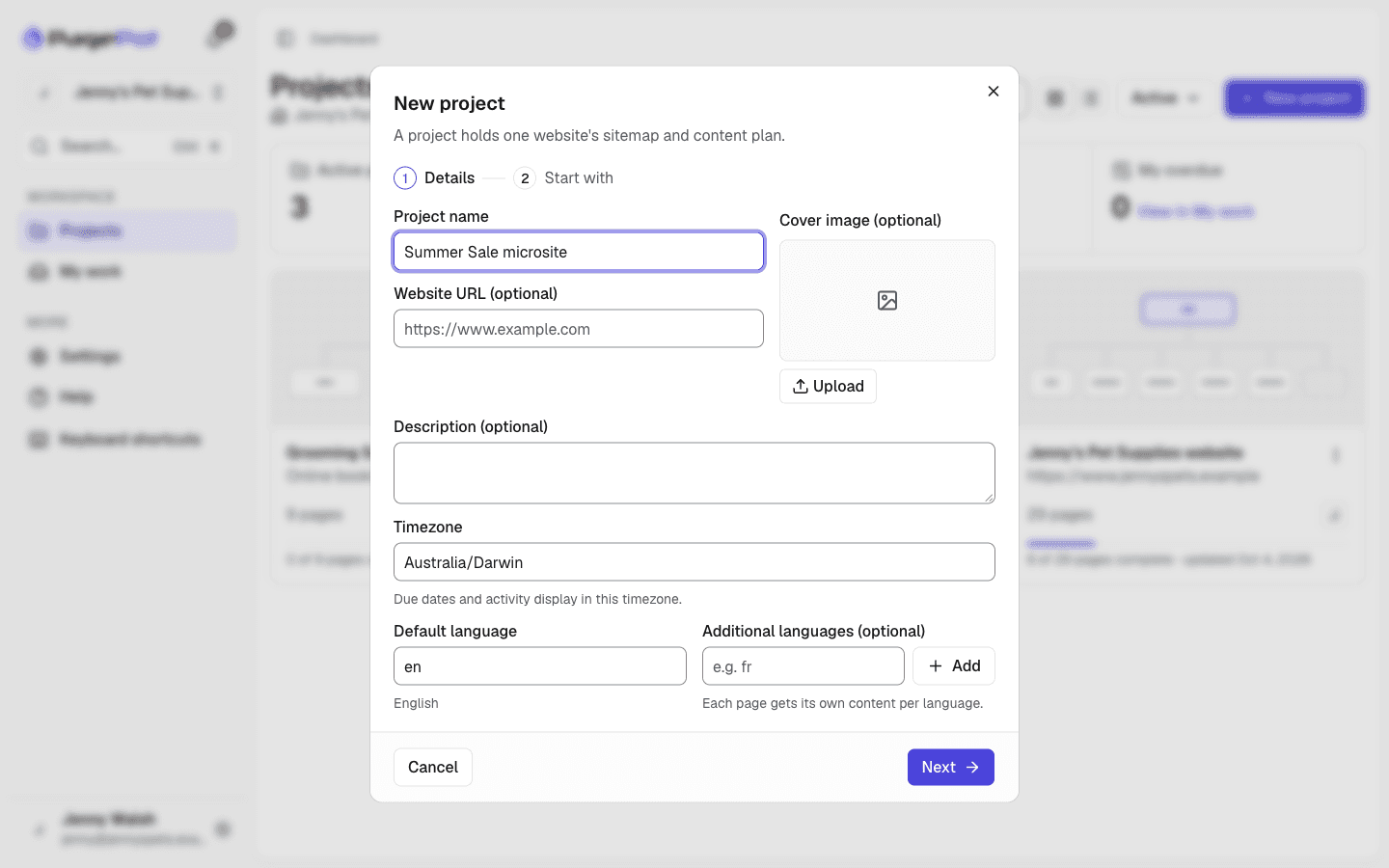
Choose Describe your site when you create a project. Say what the site is for, and optionally the audience, must-have pages and a page limit (40 by default, up to 150). The assistant plans the sitemap with notes and page types, and suggests a project brief.
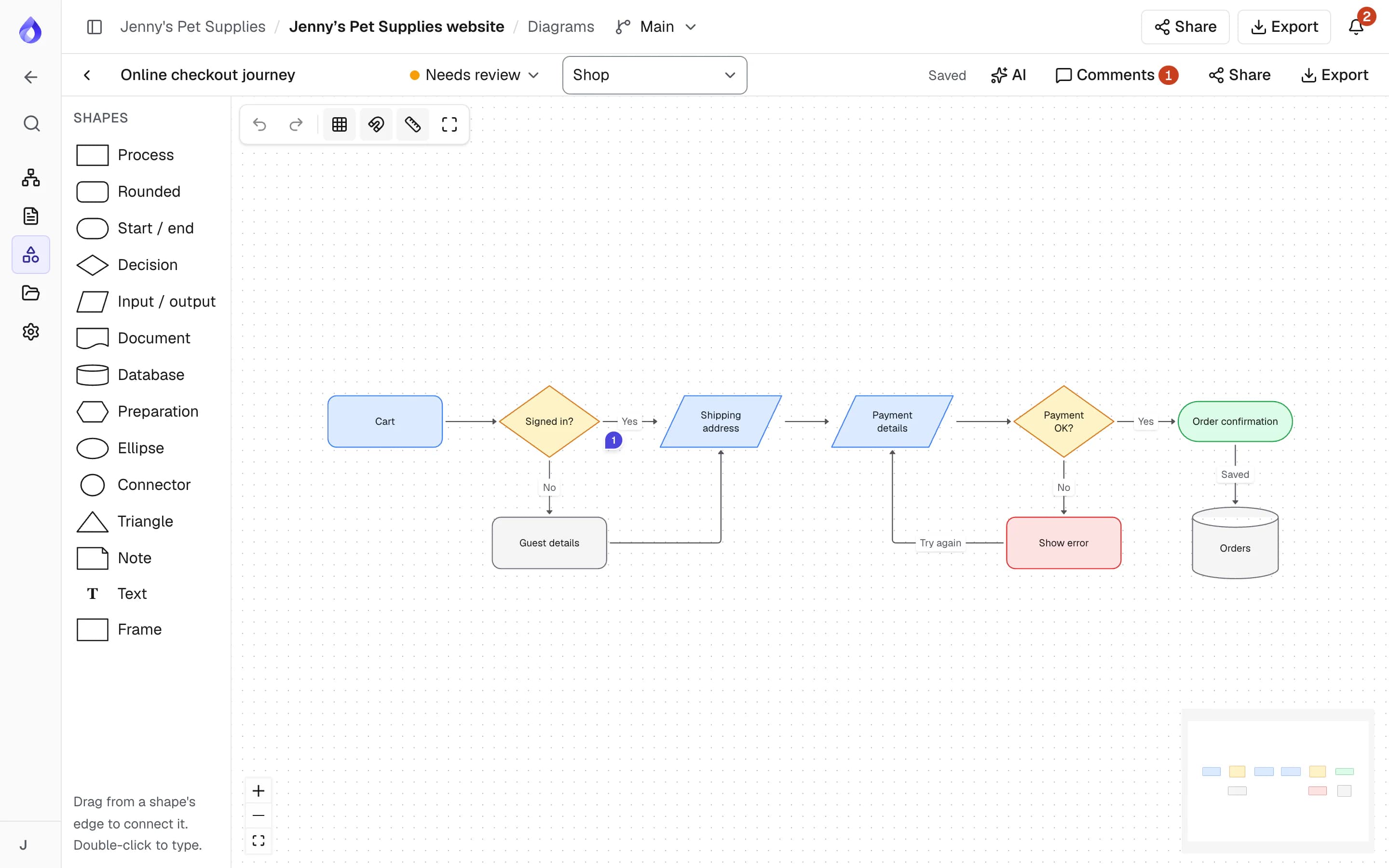
- Optional starter diagrams: one to three, such as a checkout journey
- Builds in the background, so you can close the dialog
- A notification and an email when the project is ready
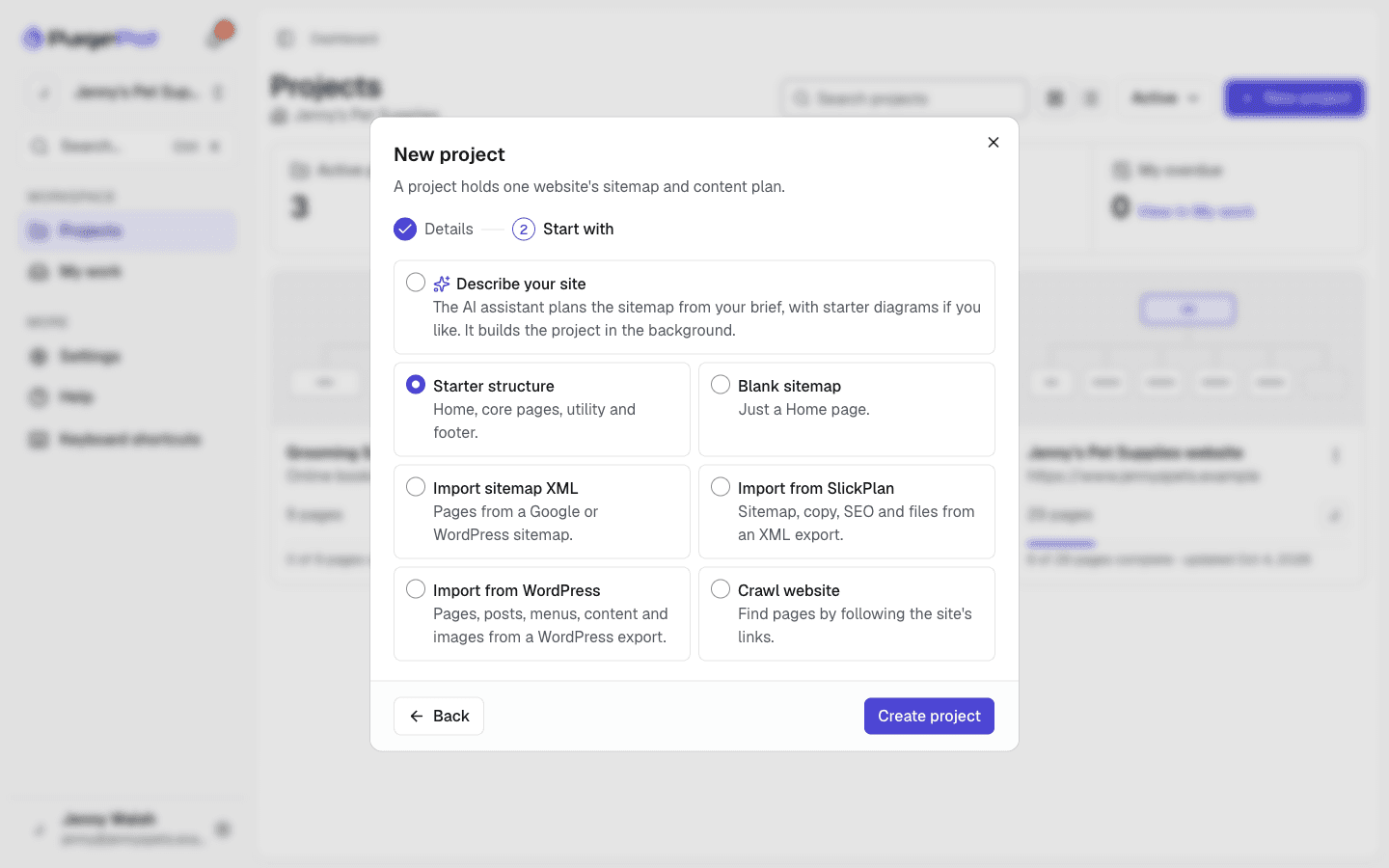
Build a project from the client’s files
Add up to 20 files of 25 MB each: a copy deck, a product spreadsheet, a brand guide. Word, Excel, CSV, PowerPoint, PDF (text only), images, text and Markdown work. Tell the assistant what each file is for, or let it decide.
- Copy goes into pages exactly as written; the assistant doesn’t retype it
- Those pages start as Draft
- Questions it couldn’t answer become open comments on the pages
- Keep the uploaded files in the project’s Files (on by default)
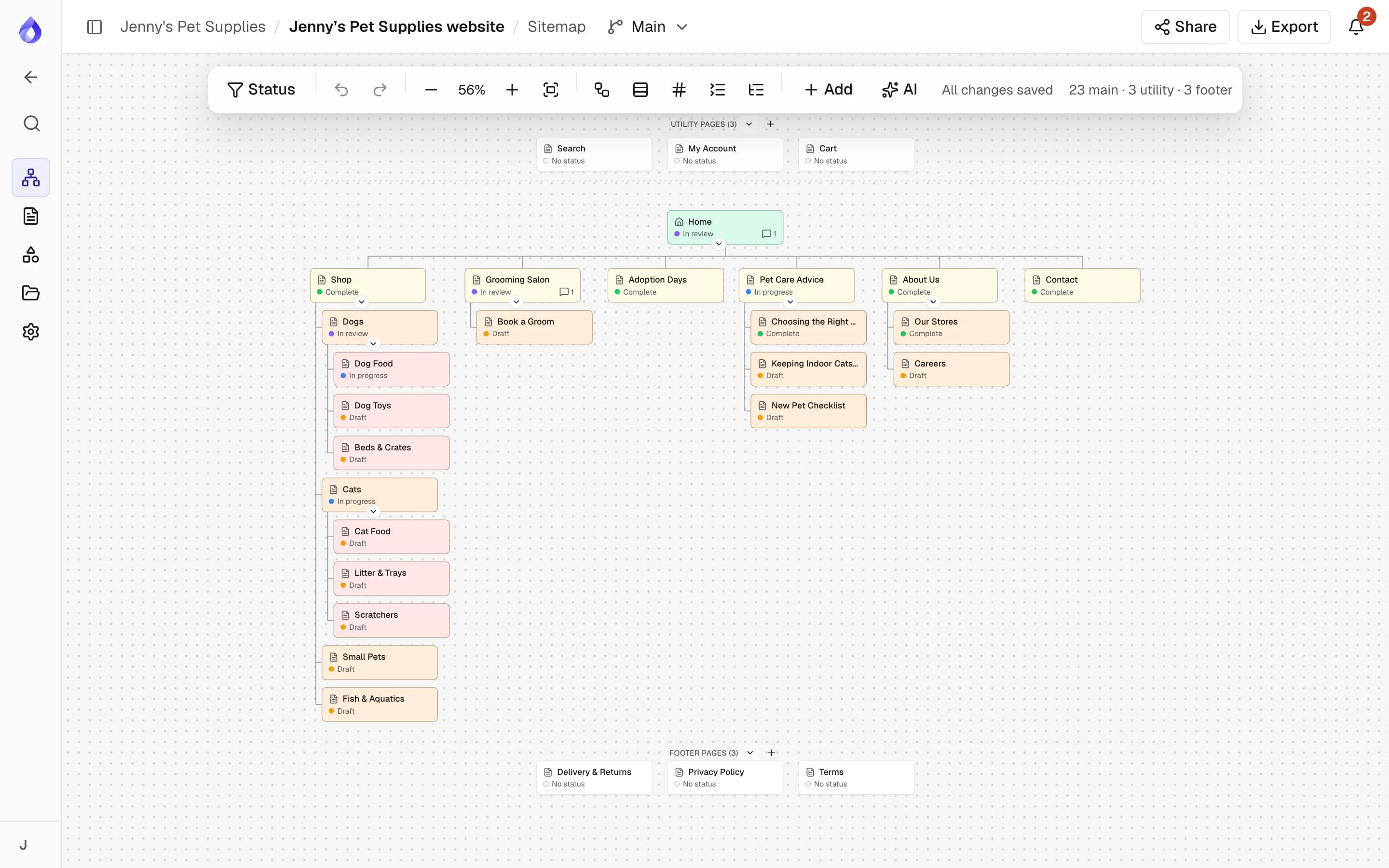
Page suggestions on the sitemap
Select a page and ask for pages that belong under it, or select nothing and ask what the site is missing. Each suggestion shows where it goes and why. Keep the ones you want and they are added in one step.
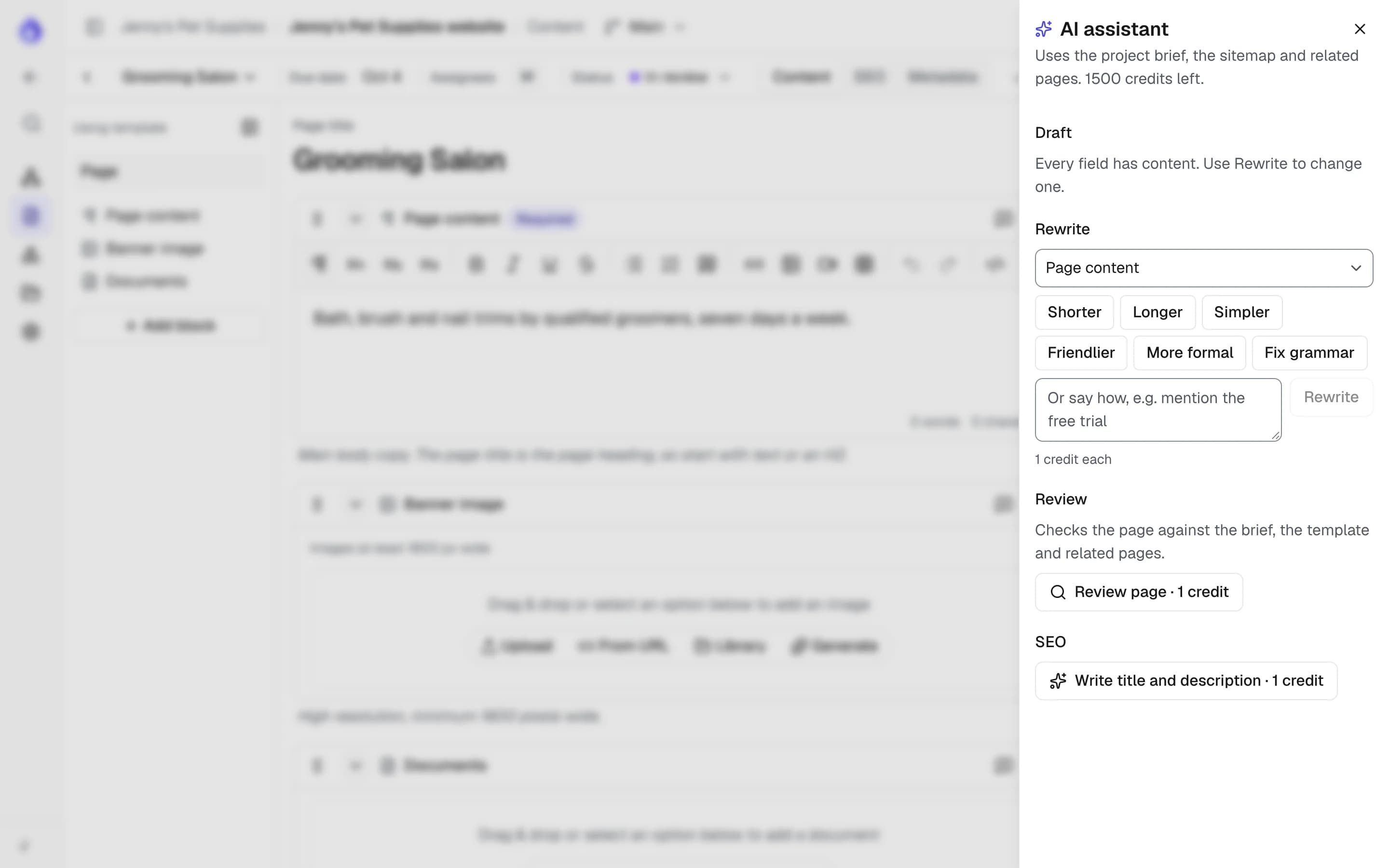
Draft, rewrite, review and SEO in the page editor
The assistant writes to the page’s template, its sitemap notes and the project brief. Insert a result as an ordinary edit, or add rich text as suggestions: tracked changes marked "AI assistant" that you accept or reject. AI suggestions work on every plan.
- Draft every empty field at once
- Rewrite a field: shorter, longer, simpler, friendlier, more formal, fix grammar, or your own instruction
- Review the page against the brief, the template and related pages, then Fix each finding
- Write an SEO title and description
Diagrams from a description
Describe a flowchart, visitor journey, business process or org chart and the assistant draws it, with shapes linked to their sitemap pages. In an existing diagram, add steps from a description, review it for dead ends and unlabelled decisions, or tidy the layout for free.
Images and alt text
Generate an image from a description in image, cards and rich-text blocks. Pick a shape and up to four options; the one you use goes into the project’s files. The assistant can also write alt text for any image, which stays editable.
Built for real projects
A project brief
Project managers set purpose, audience, key messages, tone of voice, style rules, image style and a glossary.
Never overwrites newer work
If a field changed since the assistant wrote its proposal, you’re asked to try again.
Never moves or deletes pages
Suggestions only add pages, and only the ones you keep.
Writes in the page’s language
Drafts and rewrites match the language you are editing. Sitemap suggestions are written in the language you are viewing.
Multilingual planningReview as tracked changes
Add AI rewrites as suggestions and review them like a colleague’s edits.
Review and approvalCosts shown up front
Each button shows its credits. The new-project dialog shows the total before you start.
Failed requests refunded
If a request fails, its credits come back.
Fair-use limits
Per person: 20 requests a minute, 300 a day and 10 images an hour.
Switch it off
Workspace admins can turn the assistant off for the whole workspace.
Role-aware
Project managers and Editors use it in pages. Viewers don’t see it.
Free layout tidying
Tidy a diagram’s layout without spending credits.
Copy from files kept as written
SEO titles and descriptions from files are kept only if the files contain that exact text.
How AI credits work
Each workspace has a pool of credits. Credits renew on the first of each month.
Starter and the free trial: 25 credits, once
Enough to plan a small site from a brief and try the page tools.
- Pro plan and up
Pro: 300 credits a month
For freelancers and small teams planning a few sites.
- Team plan and up
Team: 600 credits a month
For teams drafting and reviewing copy across several projects.
- Agency plan
Agency: 1,500 credits a month
For agencies running many client projects at once.
What each action costs
Most page actions cost 1 credit. Generating an image costs 5 credits per image, and a diagram drawn from a description costs 3.
- New project from a description: 5 credits, plus 1 per 25,000 tokens of file text (up to 5 more), plus 3 per diagram
- Sitemap page suggestions: 2 credits
- Draft: 1 credit per field filled, up to 10
- Rewrite, review fix, SEO title and description, alt text: 1 credit each
- Review a page or a diagram: 1 credit
- Draw a diagram or add steps: 3 credits
- Tidy a diagram’s layout: free
Who uses the AI assistant
Agencies
Turn a client’s copy deck and spreadsheets into a structured project in one go, then refine it together.
PagePot for agenciesMarketing and digital teams
Fill empty fields, tighten copy to template limits and check pages against the brief before review.
Marketing and digital teamsUX and IA designers
Get a first sitemap and key journeys on the table fast, then restructure them by hand.
Sitemap builderFrequently asked questions
What is an AI website planner?
An AI website planner helps you plan a site’s structure and content with AI. In PagePot the assistant plans a sitemap from a description or the client’s files, suggests missing pages, and drafts and reviews page copy using the project brief, the sitemap and the page templates.
Can the AI generate a sitemap from my brief?
Yes. Choose Describe your site when creating a project. Describe the site, and optionally add the audience, must-have pages, a page limit (up to 150) and files. The assistant plans the pages and can also create one to three starter diagrams.
Will the AI change my content without asking?
No. Results show first. Nothing goes into a page until you choose Insert content, or Add as suggestions to review it as tracked changes. If the field changed since the proposal was written, you’re asked to try again, and the assistant never moves or deletes pages.
How is my data used?
Text and files you send to the assistant are processed by Anthropic and aren’t used to train models. Files uploaded to start an AI project are deleted within 7 days unless you keep them in the project’s Files.
How many AI credits do I get?
Starter and the 14-day free trial include 25 credits, once. Pro includes 300 credits a month, Team 600 and Agency 1,500. Credits renew on the first of each month, and failed requests are refunded.
Who can use the AI assistant?
Project managers and Editors can use it in the page editor. Sitemap suggestions and diagram tools are for people who can edit the sitemap or diagrams (Project managers). Viewers don’t see it. Workspace admins can turn it off for the whole workspace.
Can I use Claude or ChatGPT with PagePot instead?
Yes, alongside the assistant. Connect your own AI agent through PagePot’s MCP server and it can plan sitemaps, draft pages and review copy in your projects, using your account with its provider rather than PagePot AI credits.
Can it write in other languages?
Yes. Drafts and rewrites are written in the language of the page you are editing, and sitemap suggestions in the language you are viewing the sitemap in.
Keep exploring
Content planner
Structured blocks, templates and statuses for every page the assistant helps write.
Content planner