



AI agents (MCP)
Plan websites from Claude, ChatGPT and other AI agents
Connect your own AI agent to PagePot with MCP. Ask it to plan a sitemap, draft empty pages or review copy. It works within your project roles, and changes to existing copy arrive as tracked suggestions your team accepts or rejects.


AI writes the copy, then someone pastes it in
Teams already draft pages and brainstorm structure in AI chats, then copy the results into a document or the CMS by hand. Nobody can see what changed, and the brief, the tone and the approvals get lost on the way.


AI agents that work inside the plan
PagePot’s MCP server lets an agent read the sitemap, the content brief and each page, then write back where your team can review it: tracked suggestions in the page editor, comments on the page, and every change in the history as “via Claude”.
Your agent, your account
Use the AI tools you already have: Claude, ChatGPT, Cursor, VS Code or any MCP client. Agent work doesn’t use PagePot AI credits.
Suggestions, not surprises
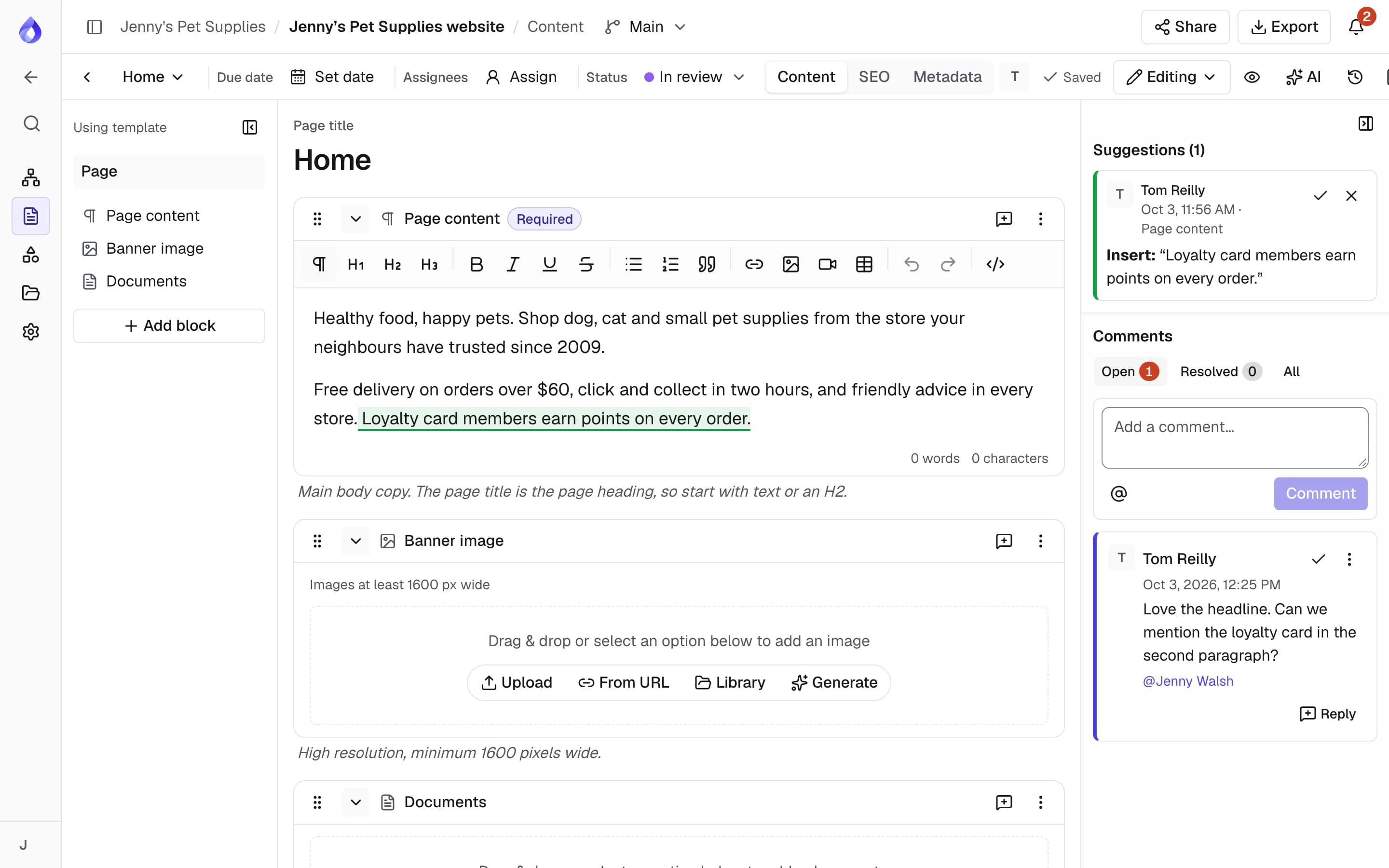
When an agent changes page copy that’s already written, the change arrives as a tracked suggestion to accept or reject. Empty fields are filled straight away.
Your roles and approvals
An agent can only do what you can. Edit locks, status locks, required fields and plan limits apply, and admins can disconnect any agent.
Connect an agent in a minute
Copy the server URL
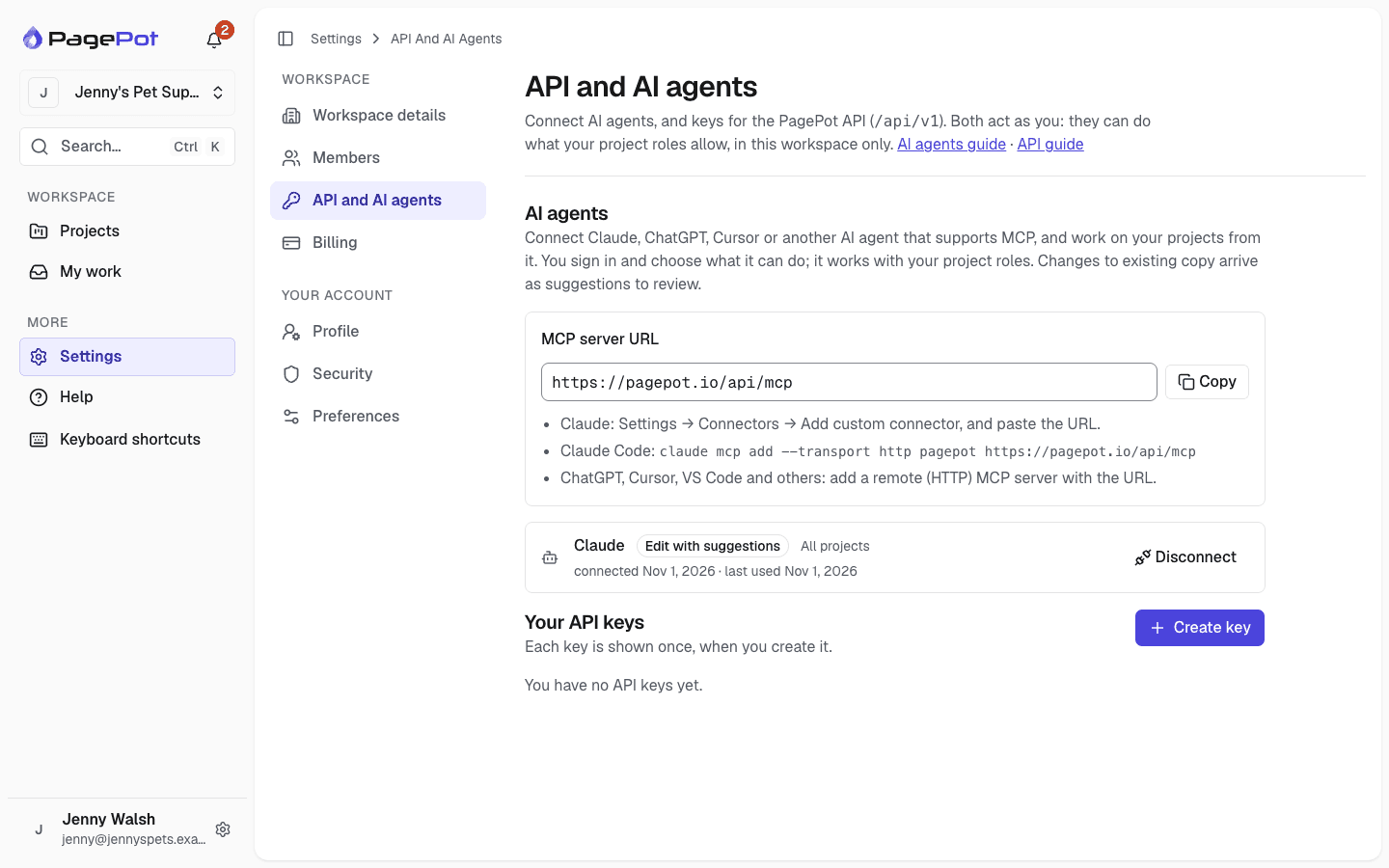
Settings → API and AI agents shows your PagePot MCP server URL.
Add it to your agent
In Claude: Settings → Connectors → Add custom connector. In Claude Code: claude mcp add. ChatGPT, Cursor and VS Code take a remote MCP server URL.
Sign in and choose
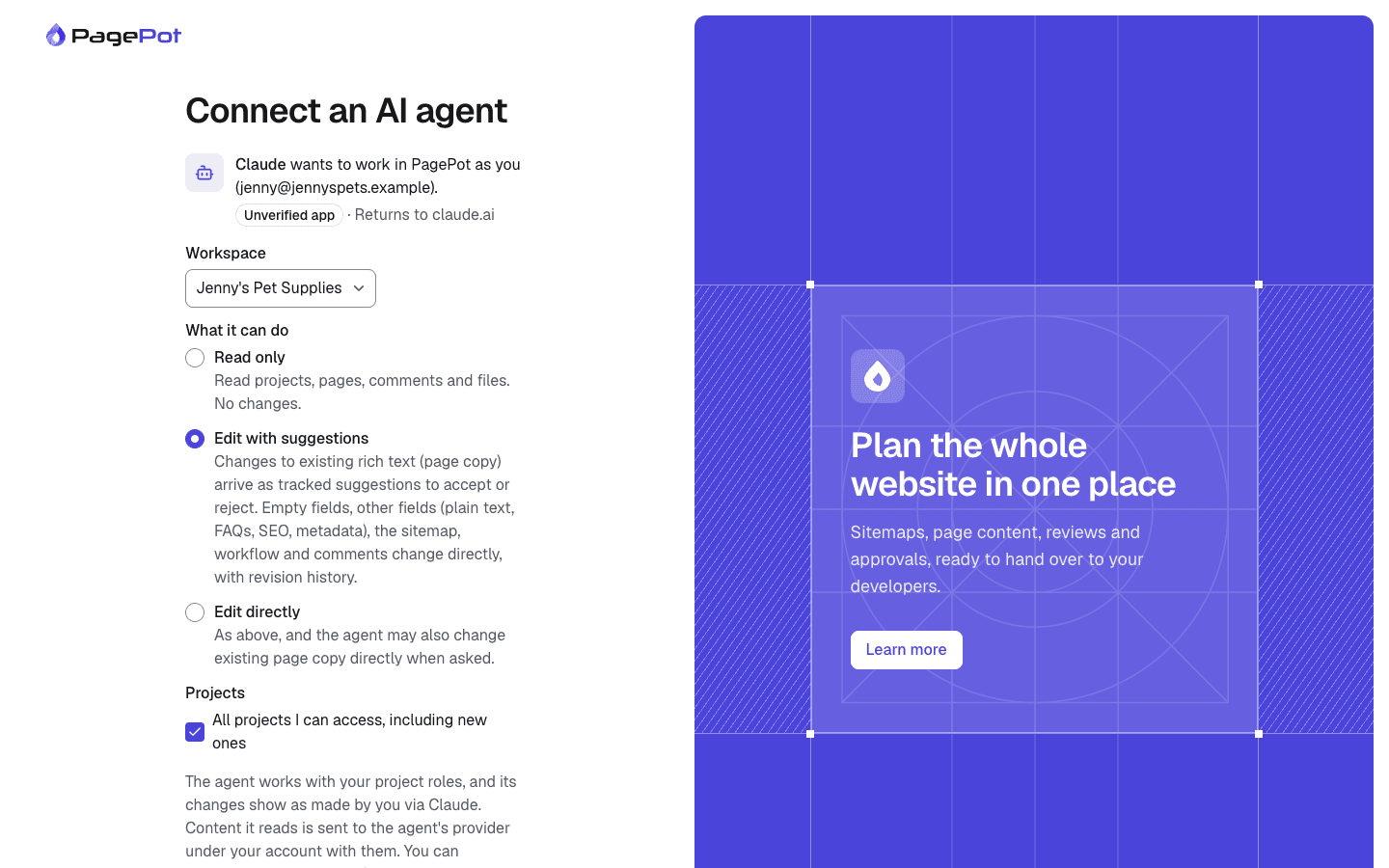
PagePot opens in your browser. Pick the workspace, what the agent can do and which projects it can reach, then click Allow.
What you can ask your agent to do
Plan a sitemap from a brief
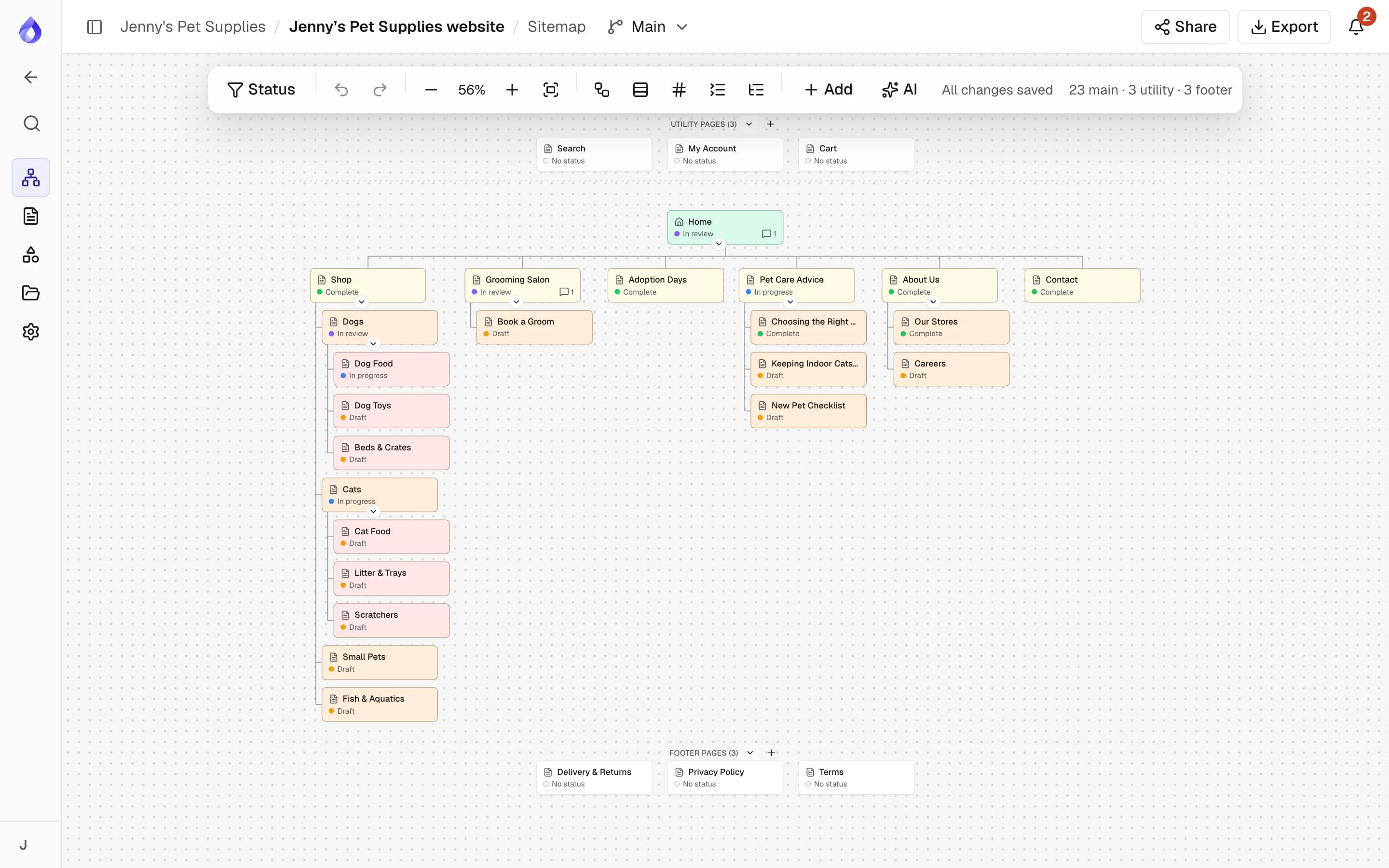
Describe the site, and the agent proposes a page tree with a purpose for each page. Once you confirm, it creates the project or adds the pages under the right parent, up to 150 pages in one go.
- Page types and writer’s notes for every page
- Main, utility and footer navigation
- Rename, move, delete and restore pages as the plan changes
Draft and improve page content
The agent reads the project’s brief (purpose, audience, tone and style rules), each page’s notes and each field’s instructions, then writes the copy. Rich text goes in with headings, lists, links, tables and project images.
- Changes to existing copy arrive as tracked suggestions
- Empty fields are filled directly
- SEO titles, descriptions and metadata
- Start a translation and translate it field by field
Review, organise and report
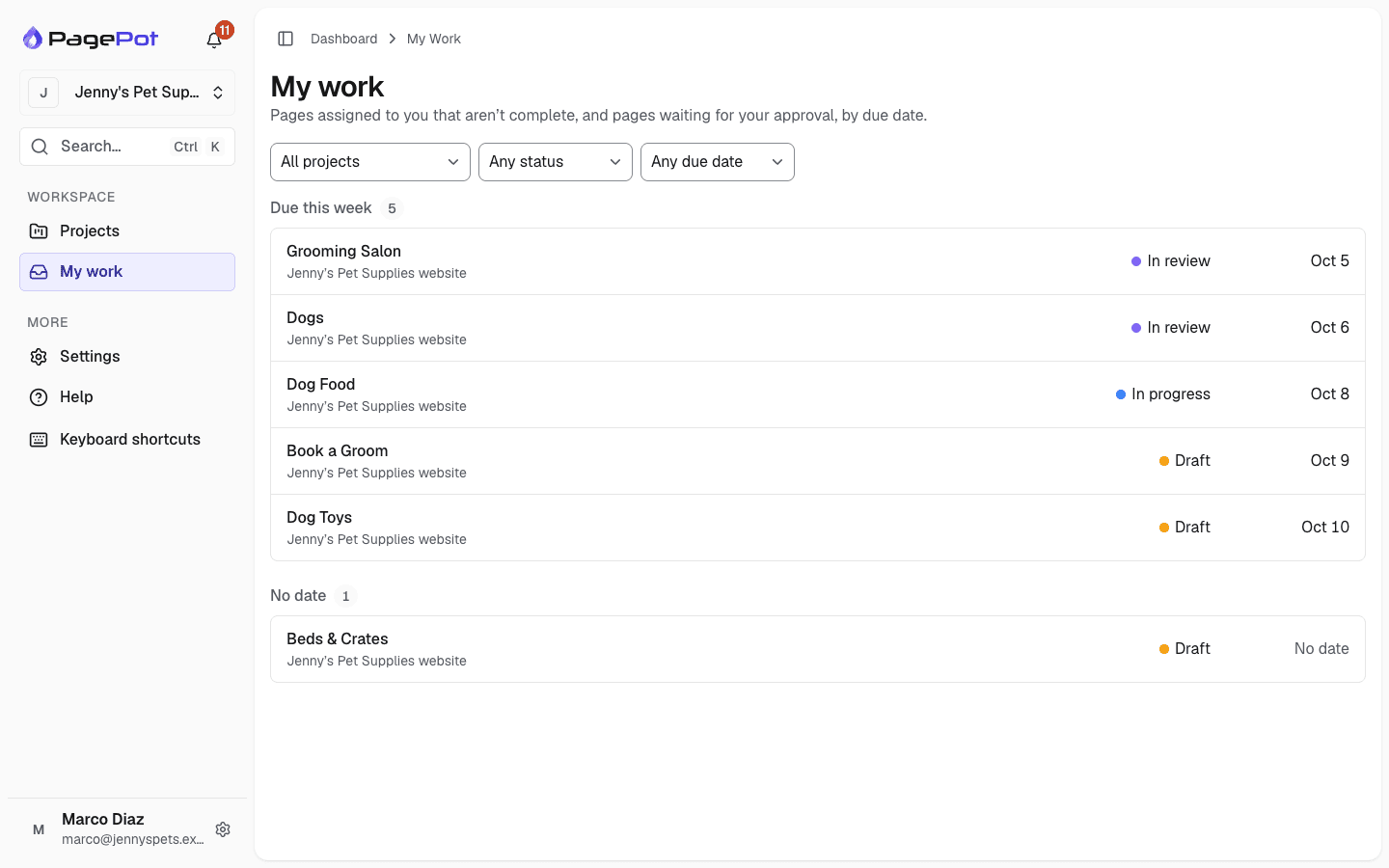
Ask what’s due, which pages are still in draft or what changed this week. Agents can leave comments, set statuses, assign pages and set due dates.
- Your assigned pages, soonest due first
- Recent activity for a project or a page
- Comments attached to the right block
- Ready-made prompts in Claude: review a page, plan a sitemap, draft a page
Connections you control
Each person connects their own agent by signing in to PagePot. They choose read only, edit with suggestions or edit directly, and all their projects or only some. Settings → API and AI agents lists connected agents, each with a Disconnect button.
- Workspace admins see everyone’s agents and can disconnect them
- Admins can turn agent connections off for the whole workspace
- Agents stop working when someone leaves the workspace
- Changes show in the history as the person’s, “via” the agent
Built on the Model Context Protocol
Sign in, no keys
Agents connect with OAuth: you sign in to PagePot and approve the connection. There’s nothing to copy into Claude or ChatGPT.
API keys for developers
Claude Code, Cursor and scripts can also send a personal API key as a bearer token.
Current MCP
Streamable HTTP, supporting the latest MCP specification and earlier clients.
20 tools, 3 prompts
Projects, sitemap, pages, content, SEO, metadata, workflow, comments, activity, files and search.
Edit locks respected
If someone has a page open in the editor, the agent waits instead of overwriting their work.
Rate limits
600 requests and 120 changes a minute for each connected agent.
What agents can’t do, and where your content goes
Agents can’t upload files, edit diagrams or tree tests, change project settings or templates, invite people or create share links. PagePot’s own AI assistant stays in the app.
When an agent reads a page, that content goes to the agent’s provider (for example Anthropic for Claude, or OpenAI for ChatGPT) under the person’s own account, and that provider’s terms apply. Only connect agents you trust, and choose read only or pick projects when the agent doesn’t need more.
Frequently asked questions
What is an MCP server?
MCP (Model Context Protocol) is the open standard AI agents use to connect to other tools. PagePot’s MCP server lets Claude, ChatGPT, Cursor and other agents read and work on your website plans.
Which AI agents work with PagePot?
Any agent that supports remote MCP servers over HTTP, including Claude (on the web, the desktop app and Claude Code), ChatGPT, Cursor and VS Code.
Which plans include it?
Reading works on every plan, including the free trial. Editing (creating pages, writing content, workflow and comments) needs the Team or Agency plan.
Will an agent overwrite my team’s work?
With Edit with suggestions, changes to existing page copy arrive as tracked suggestions for your team to accept or reject. Pages open in the editor are locked, and page revisions keep earlier versions you can restore.
Does it use PagePot AI credits?
No. The agent uses its own AI model through your account with its provider. PagePot’s built-in AI assistant and its credits are separate.
Can Workspace admins control agents?
Yes. Workspace admins see every connected agent and can disconnect any of them, or turn agent connections off for the whole workspace.
Keep exploring
AI website planner
PagePot’s built-in AI assistant for sitemaps, copy and diagrams.
AI website planner