



Review and approval
A content review and approval workflow for website projects
Comment on pages, suggest edits as tracked changes, custom editorial workflows. Clients review on a password-protected link, without an account.


Feedback scattered across email and documents
Comments arrive in email threads, edits in marked-up Word files, and approval in a reply that says "looks good". Nobody knows which version was signed off, or whether it changed since.


One content review and approval workflow, on the page itself
In PagePot, comments, suggested edits and approval live on each page. Approving a page records the exact revision, and if anyone edits it afterwards the approval is marked out of date.
Discuss in context
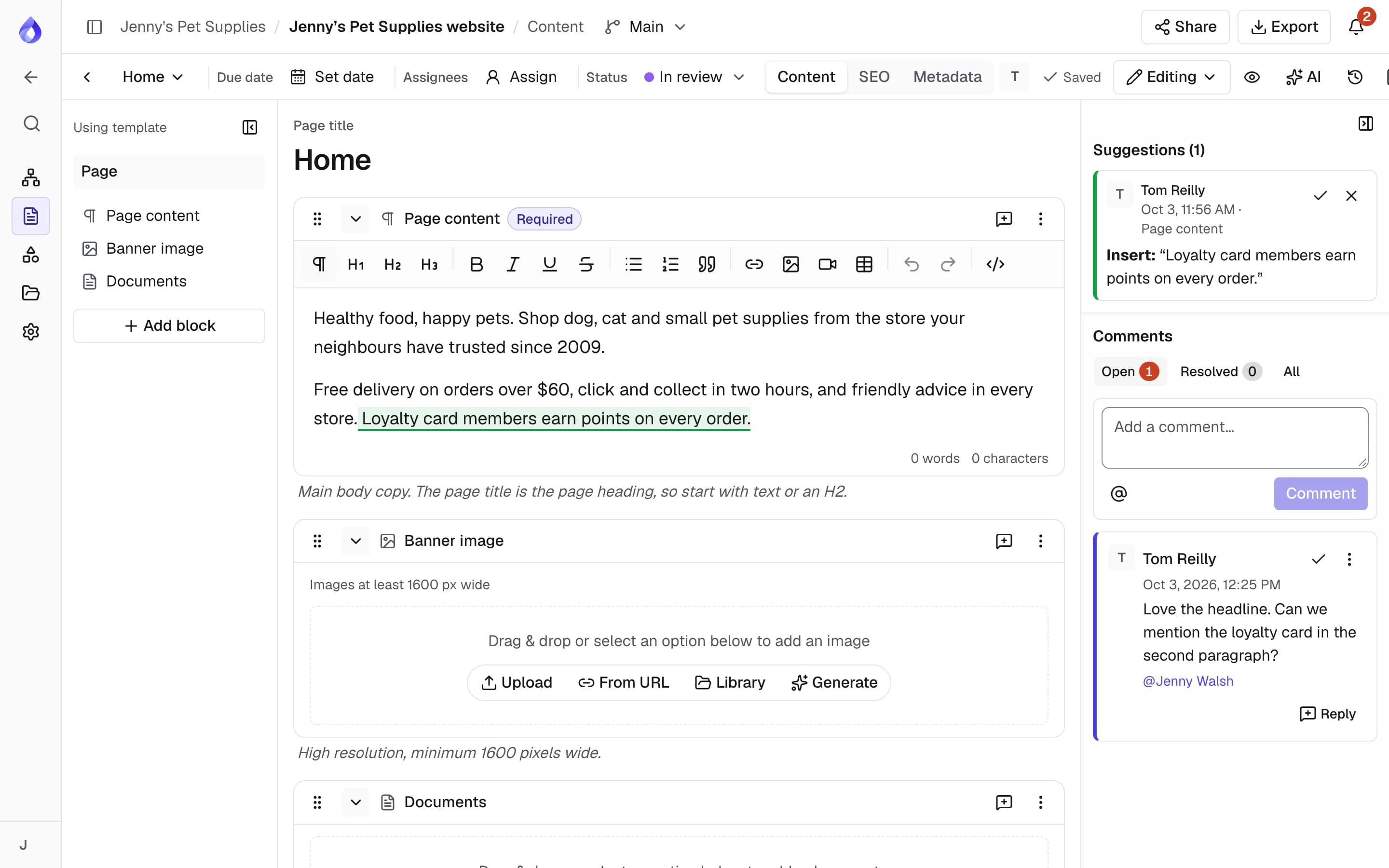
Comment on a page, a block or selected text. Mention people with @ and resolve threads when they’re done.
Suggest, don’t overwrite
Switch to Suggesting and your edits are tracked for someone else to accept or reject.
Sign off with confidence
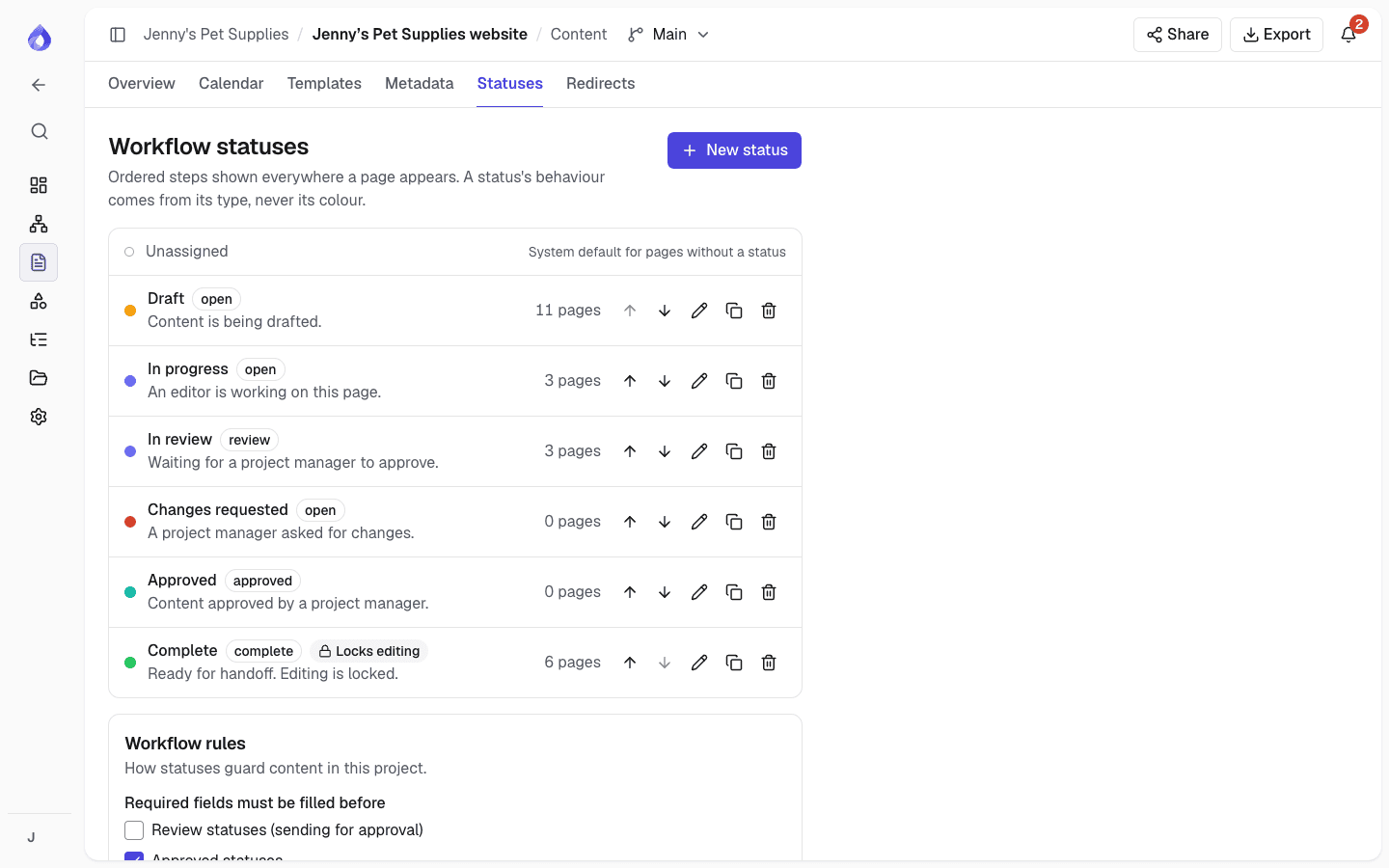
Workflow statuses show where every page stands. Only people with approval rights can mark a page Approved.
Everything in the review cycle
Comments, mentions and threads
The comments rail sits beside the content. Comment on the whole page, on a block, or on selected text. Type @ to mention someone and they get a notification.
- Reply in threads; press ⌘Enter to post
- Resolve and reopen threads
- Filter by Open, Resolved or All
- Comment counts on sitemap cards show where discussion is open
Suggesting mode: tracked changes for web copy
Switch the top bar from Editing to Suggesting. Type, delete or replace text as usual and your changes are marked. Editors and Project managers accept or reject each one, or all at once, in the suggestions panel.
- Viewers can suggest changes too
- Previews and exports leave unresolved suggestions out
- AI rewrites can be added as suggestions on every plan
Statuses and approval
Each page has a workflow status: Draft, In progress, In review, Changes requested, Approved and Complete by default, or create your own multi-step workflow. Editors move pages to open and review statuses; only Project managers set Approved or Complete.
- A page can’t be approved while a required field is empty
- Approval records the revision that was approved
- Edits after approval mark it out of date
- Statuses can lock content editing
Password-protected share links for client review
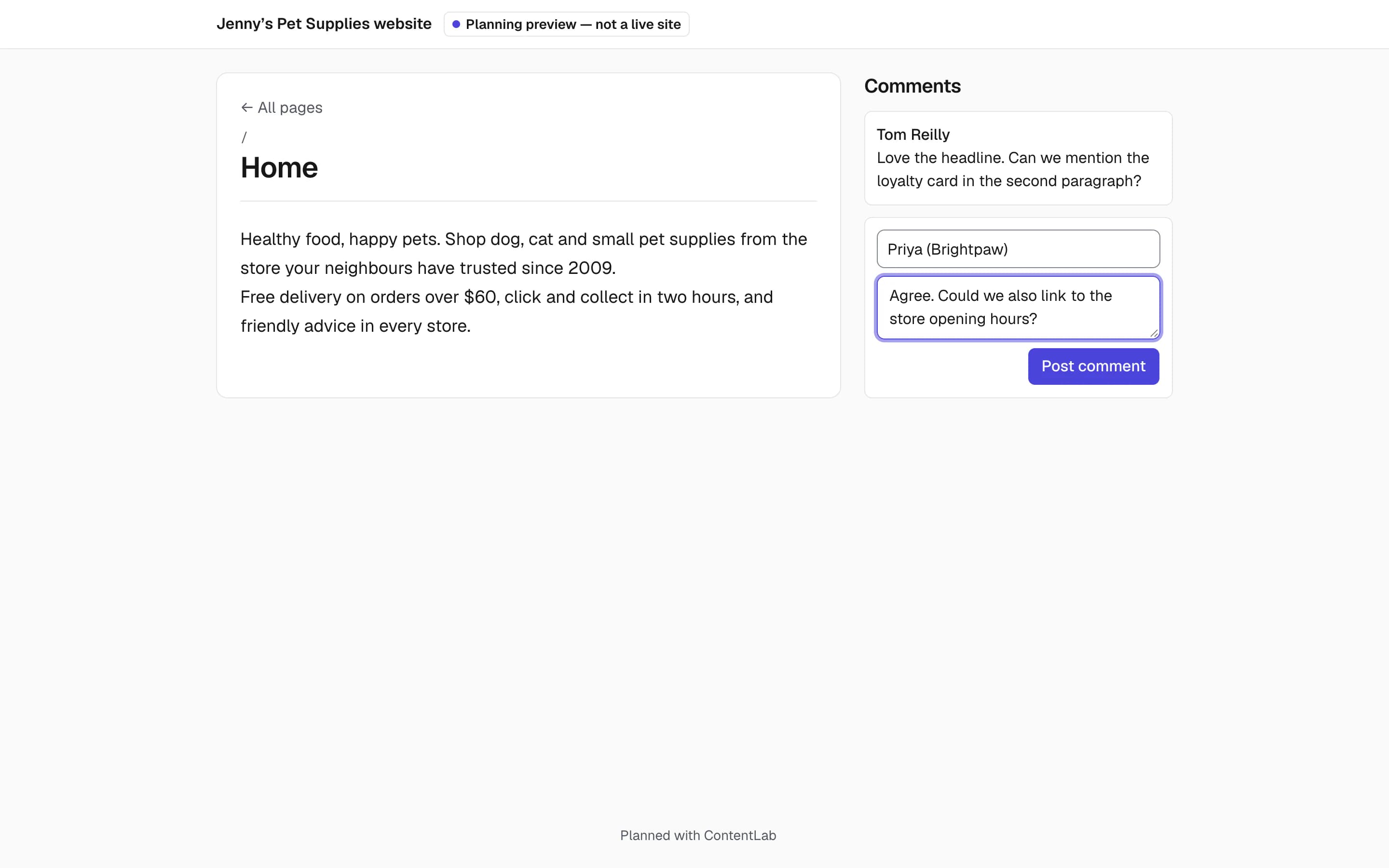
Share the whole sitemap and pages, or a single page, with people outside your workspace. Set an optional password and an expiry, and choose whether guests can comment. Guests enter their name and leave feedback on the page, and their comments appear in the editor marked as guest comments.
- Expires after 30 days by default, or never
- Optionally include internal notes
- Revoke a link to cut access at once
- Diagrams have their own share links
One editor at a time
Only one person edits a page, in one language, at a time, so nobody overwrites anyone else. Others see who is editing and can preview while they wait, or take over. A lock lapses after 5 minutes without changes.
- Whoever is taken over gets a notification
- Save conflicts show both versions: keep yours or use theirs
- Unsaved changes are kept in the browser if a save fails
Revision history with restore
Each saved change makes a revision, and approved revisions carry an Approved badge. Compare any revision with the current page and restore it. Restoring adds a new revision, so nothing is lost.
Keep everyone in the loop
In-app notifications
The bell shows mentions, replies, assignments, review requests, approvals and status changes.
Email notifications
Choose in-app, email or both for each kind of notification.
Daily email digest
Get one email each morning with what you haven’t read, grouped by project.
Slack notifications
Post status changes, assignments, comments and suggestions to a Slack channel.
Guest comment alerts
The person who created a share link is notified when a guest comments.
Suggestion alerts
Hear about new suggestions on your pages, and when your suggestions are rejected.
Branded share links
Show your agency’s logo, name and colour to clients instead of PagePot’s.
Comment undo
Delete a comment by mistake and undo it from the message that appears.
No content in emails
Emails say what happened and link to it; page content stays in PagePot.
One notification for bulk changes
Move twelve pages to review and people get one notification, not twelve.
Roles that match how sign-off works
Workspace roles decide who manages the workspace. Project roles decide what each person can do on a project.
Workspace admins and Members
Workspace admins manage people and billing and are Project managers on every project. Members see only the projects they’re added to.
Project managers
Change the sitemap, set statuses, approve pages, and manage sharing and integrations.
Editors
Write content, send it for approval, comment, suggest changes and review suggestions.
Viewers (free)
View, comment, suggest changes and export. Viewers don’t use a seat, so invite clients this way.
Frequently asked questions
What is a content review and approval workflow?
It is the set of steps content goes through before it is signed off: drafting, review, changes and approval. In PagePot each page has a workflow status, comments and suggested edits, and approval records the exact revision that was approved.
Can clients review content without an account?
Yes. Create a share link for the whole sitemap and pages or a single page, with an optional password and expiry. If you allow guest comments, clients enter their name and leave feedback, which appears in the editor marked as guest comments.
Does PagePot support tracked changes?
Yes. Suggesting mode tracks edits in rich text for Editors and Project managers to accept or reject. Making suggestions is on the Team and Agency plans. Formatting changes can’t be suggested.
Who can approve a page?
Project managers (and Workspace admins, who are Project managers on every project). Editors can set open and review statuses on pages that aren’t locked. A page can’t be approved while a required field is empty.
What happens if two people edit the same page?
Only one person edits a page, in one language, at a time. Others see who is editing and can preview or take over; the person taken over is notified. A lock lapses after 5 minutes without changes.
Do clients and reviewers need a paid seat?
No. Viewers are free and don’t use a seat. They can view, comment, suggest changes and export.
Can I go back to an earlier version of a page?
Yes. Open the revision history, compare any revision with the current page and restore it. Restoring adds a new revision, so nothing is lost.
Keep exploring
Marketing and digital teams
Assign pages, track progress and hand approved copy to developers.
Marketing and digital teams