



SEO planning
SEO content planning for every page, before launch
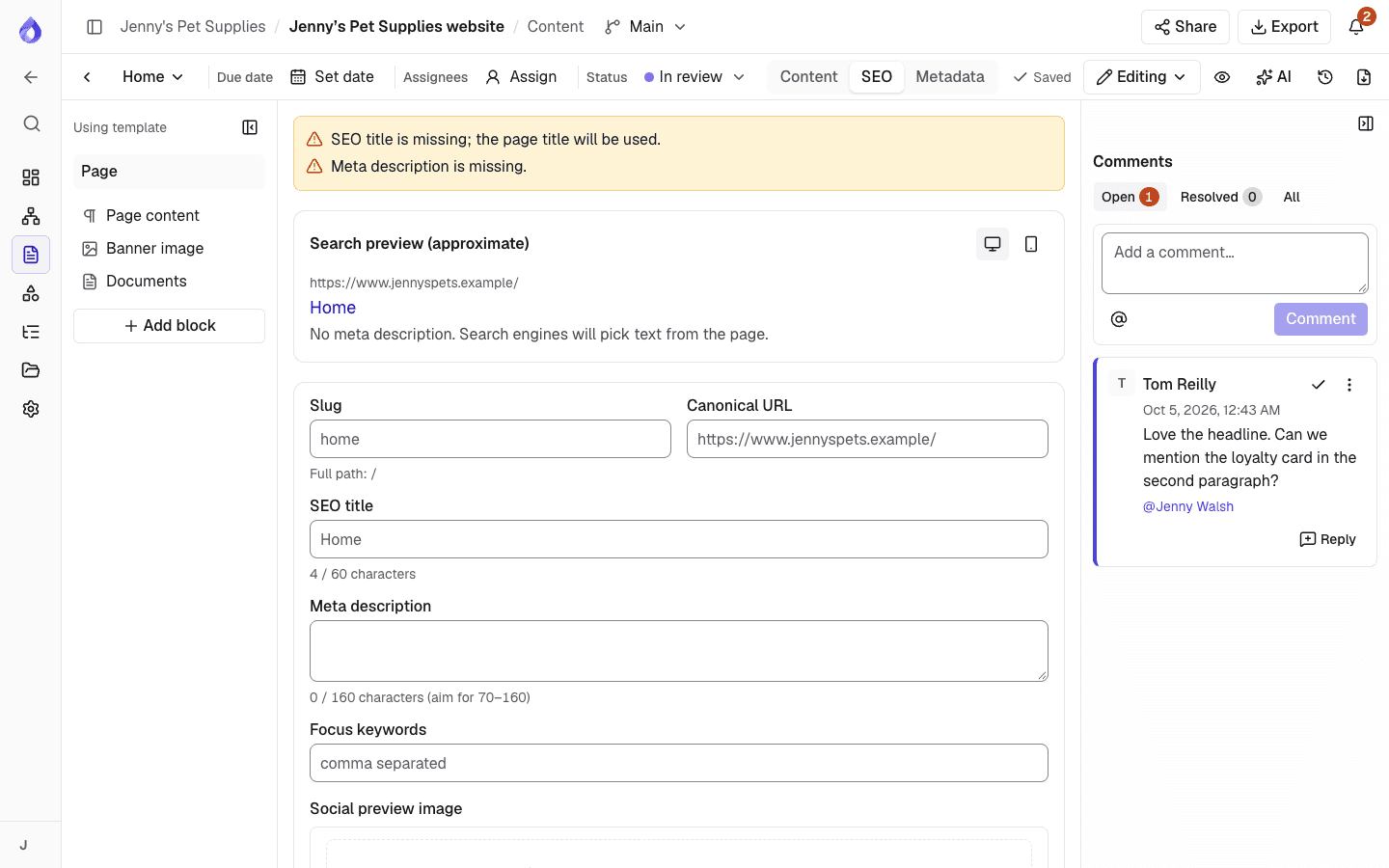
Plan each page’s slug, SEO title, meta description, social image, robots settings and structured data next to its content. Warnings catch missing, overlong and duplicate values while there is still time to fix them.


SEO gets bolted on after the build
Titles and descriptions are written in a spreadsheet nobody updates, or entered into the CMS the week before launch. URLs change late, duplicates slip through and redirects get missed.


SEO content planning on the same page as the copy
In PagePot every page has an SEO view beside its content. Writers see the search preview as they type, warnings flag problems early, and the plan exports as an XML sitemap and into Drupal with the rest of the content.
Per page, per language
Each page, in each language, has its own title, slug, SEO title, description and structured data.
See it like a search result
Desktop and mobile search previews show how the title and description will read.
Warnings, not blockers
Missing, short or long titles and descriptions, noindex pages and duplicate paths are flagged, but never stop you saving.
Everything you need for SEO planning
Titles, descriptions and search previews
Write the SEO title and meta description for each page and see a desktop and mobile search preview update as you type. Add focus keywords to keep writers on topic.
- Warnings for missing, short or long titles and descriptions
- The AI assistant can write the SEO title and description (1 credit)
- Unsaved-change warning if you leave the SEO view
Slugs, paths and canonical URLs
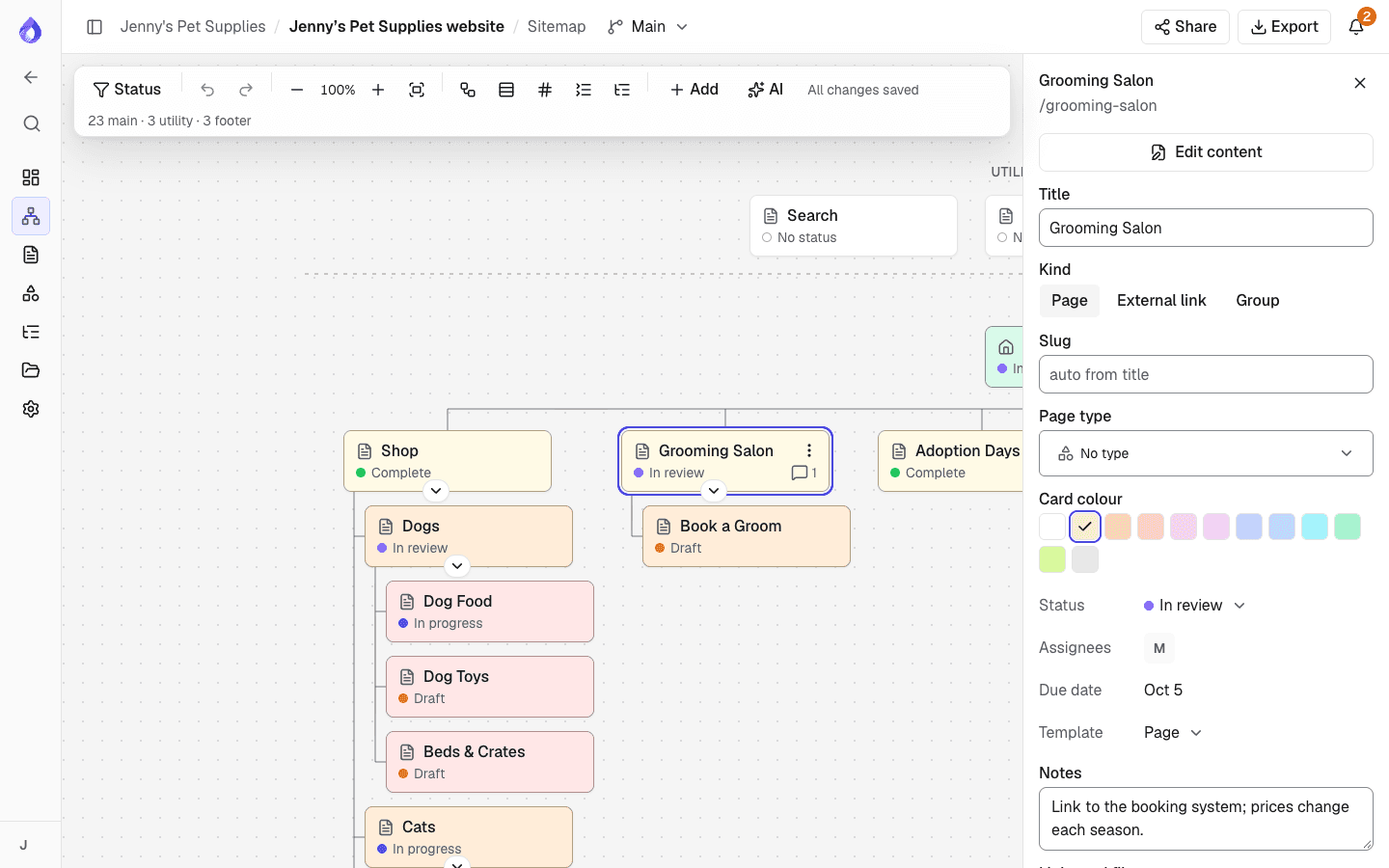
Set each page’s slug in its properties or the SEO view; its path follows its place in the sitemap. PagePot warns you when a path is already used by another page. Set a canonical URL where a page should point elsewhere.
Social images, robots and structured data
Choose a social preview image from an upload, a URL or the project library. Set robots to index or noindex, follow or nofollow. Add structured data as JSON-LD, checked as you type.
Metadata schemas for structured fields
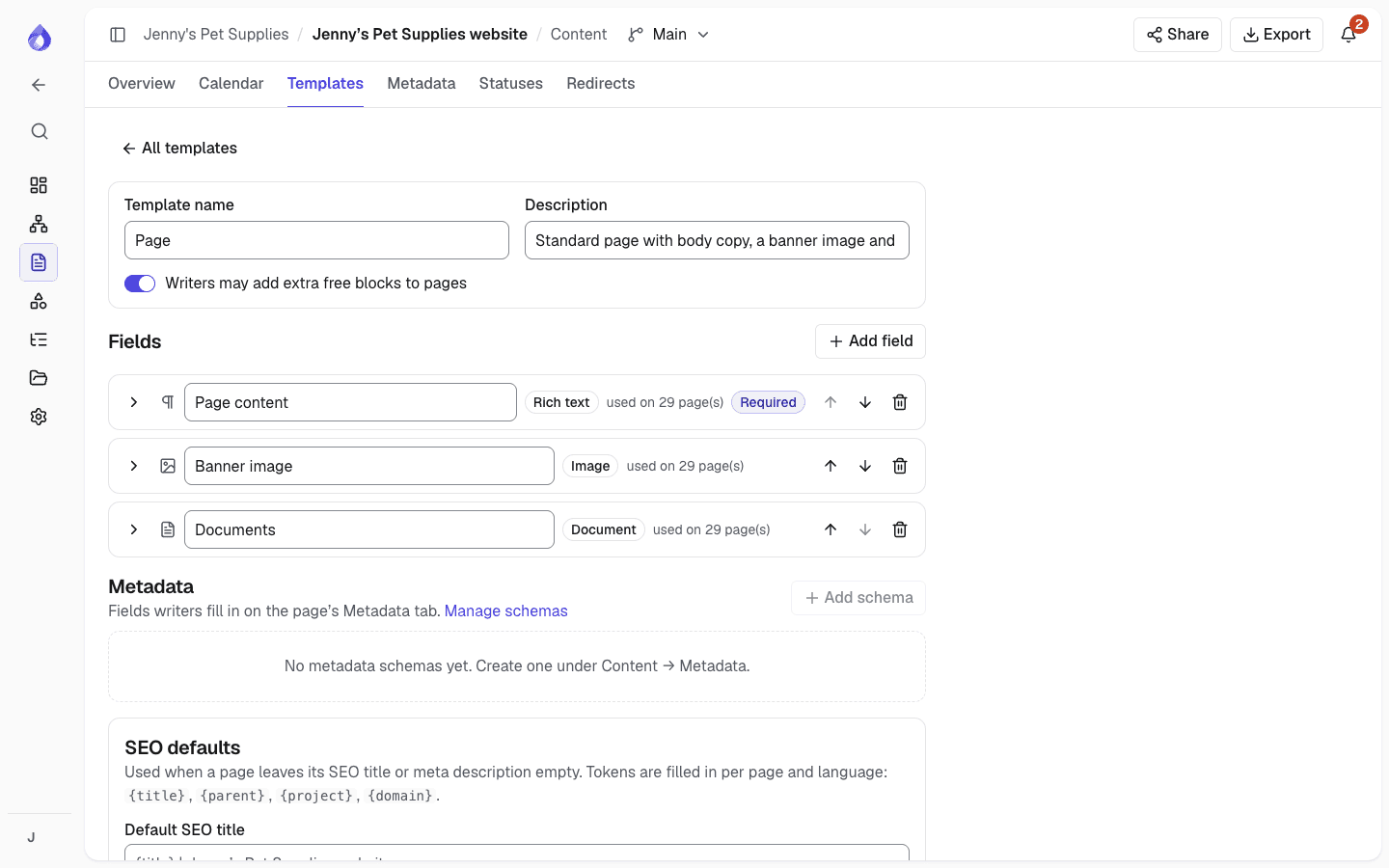
Project managers define metadata schemas, such as a product category, tags, a publish date or a featured switch, and add them to templates. Fields can be required before approval and differ per language.
- Text, long text, number, yes/no, date, select and tags fields
- Filter the content overview by metadata values
- Metadata appears in exports, share pages and the Drupal integration
XML sitemap export with hreflang
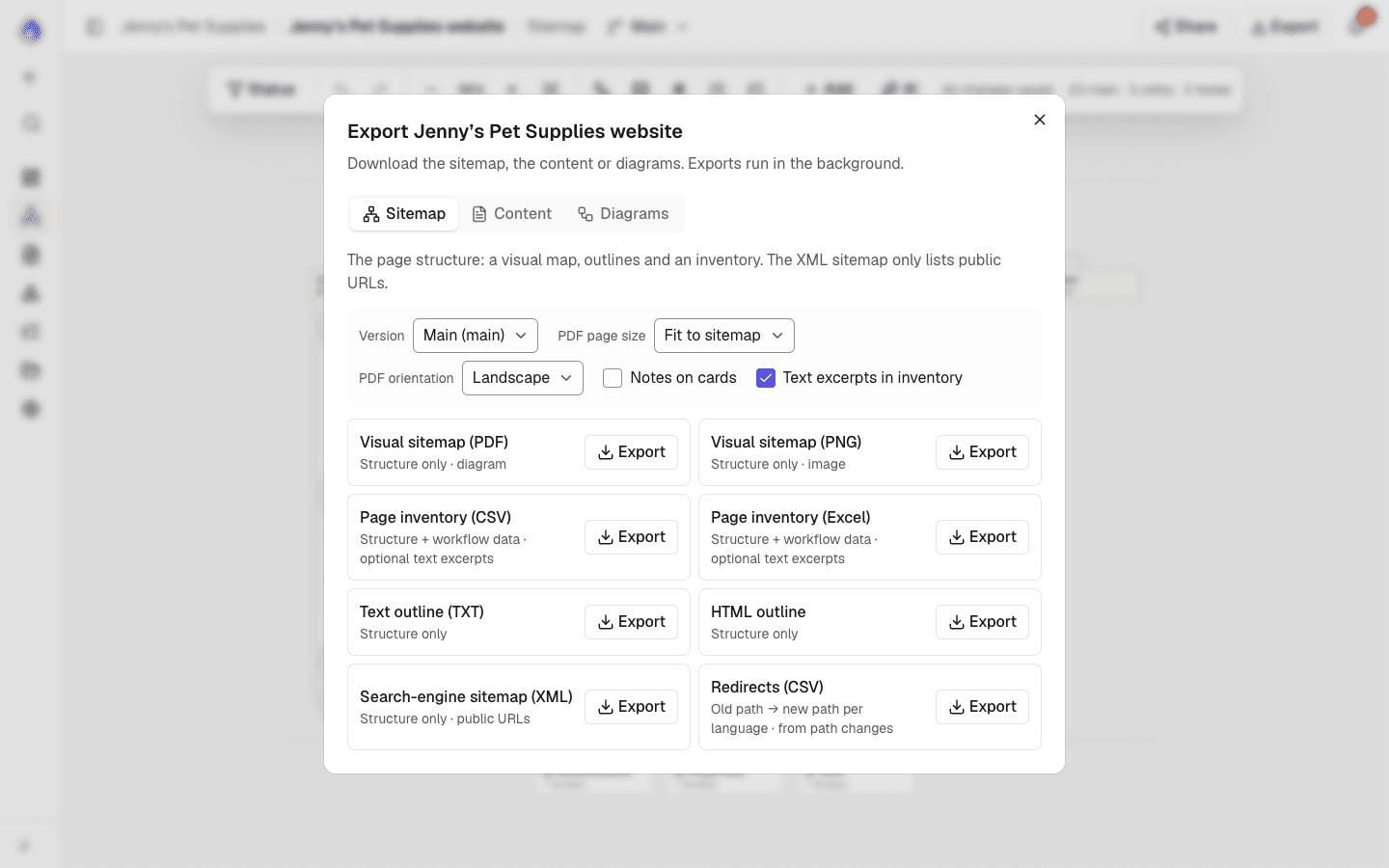
Export a search-engine XML sitemap of the planned site, with hreflang links between language versions. The developer handoff package includes a sitemap.xml too.
Import SEO metadata from the current site
Planning a redesign? Crawl the live site and import each page’s existing title and meta description into the content planner, so you start from what ranks today.
More SEO planning tools
Focus keywords
Record the keywords each page should target.
Mobile search preview
Check how titles and descriptions read on a phone.
Duplicate path warning
Spot two pages competing for the same URL.
Noindex warning
See when a page is set to stay out of search results.
JSON-LD validation
Structured data is checked as you type.
Translated paths
Paths in other languages start with the language, such as /es/tienda/perros.
Multilingual planningSitemap XML import
Start a project from the current site’s sitemap XML to see every existing URL.
Page inventory export
A CSV with every page and language, including metadata.
Drupal import
Map SEO fields to Metatag and metadata to taxonomy when you import into Drupal.
Drupal integrationSEO planning for a redesign, step by step
Import the current site
Crawl it or import its sitemap XML, with SEO titles and descriptions.
Restructure the sitemap
Move, merge and rename pages, and set the new slugs.
Write titles and descriptions
Use the search preview, warnings and AI help to finish every page.
Export for launch
Hand developers an XML sitemap, the content and the metadata.
Frequently asked questions
What is SEO content planning?
SEO content planning means deciding each page’s URL, title, meta description, target keywords and structured data while the site is planned, rather than after it is built. It keeps search in mind from the start and avoids late URL changes.
Which SEO fields can I plan for each page?
Page title, slug, canonical URL, SEO title, meta description, focus keywords, social preview image, robots (index and follow) and structured data as JSON-LD.
Does PagePot warn about SEO problems?
Yes. It flags missing, short or long titles and descriptions, pages set to noindex, and paths already used by another page. Warnings never stop you saving.
Can I export an XML sitemap?
Yes. Export a search-engine XML sitemap of the planned site, with hreflang links for other languages. Visual sitemaps export as PDF or PNG.
Can I keep the SEO titles and descriptions from my current site?
Yes. When you crawl an existing site (Pro plan and up), you can import each page’s title and meta description into the content planner.
Can AI write meta descriptions?
Yes. The AI assistant writes an SEO title and description for a page from its content and the project brief, for 1 credit. Nothing goes into the page until you insert it.
Keep exploring
Website content migration
Keep your search rankings when you move content to a new site.
Read the guide