



Sitemap builder
A visual sitemap builder for planning website structure
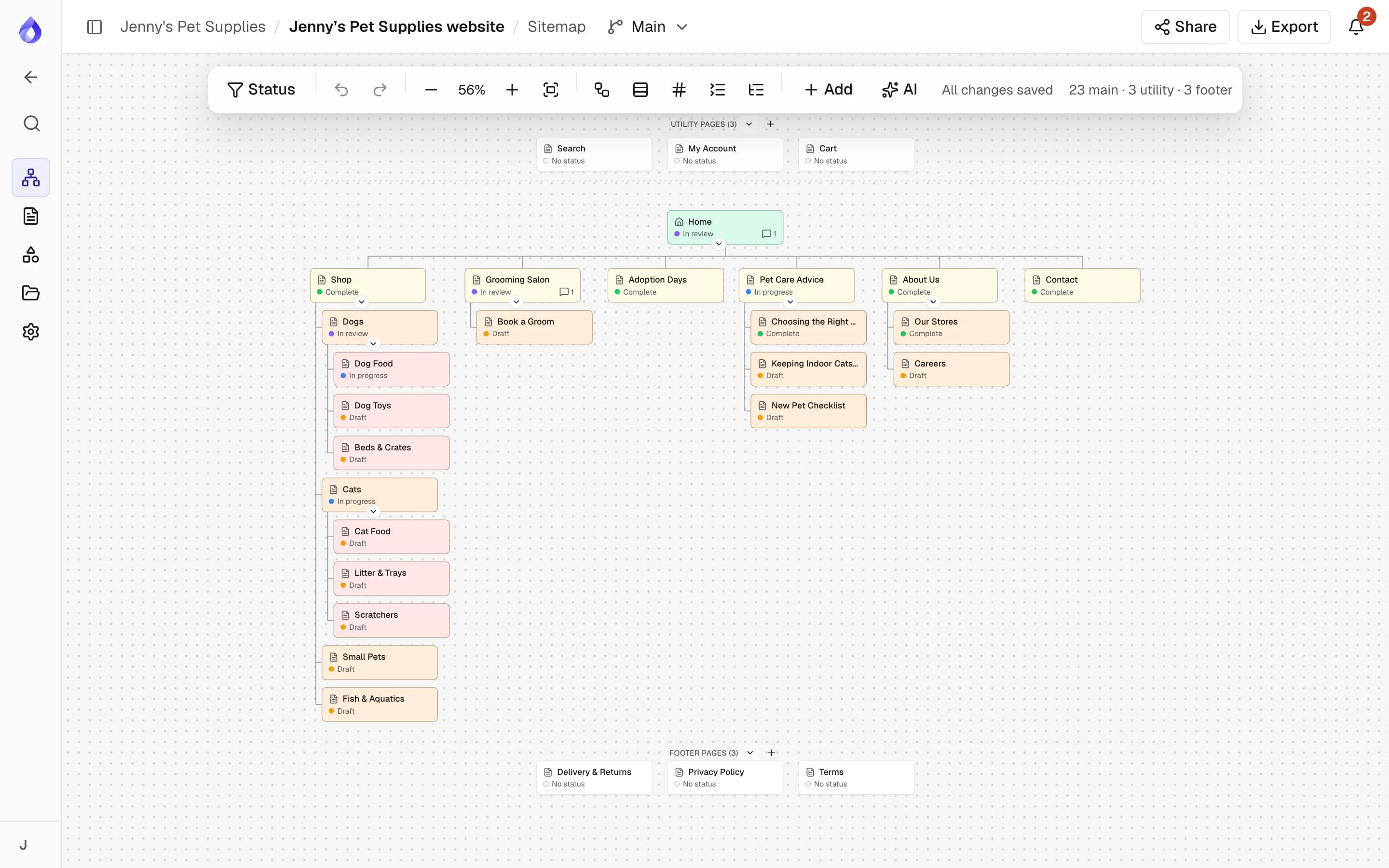
Drag pages into place, plan main, utility and footer navigation, and share the map with your client. Every page on the map is also where its content gets written.


Sitemaps drawn in slides go stale fast
Structure lives in a whiteboard photo, content in a spreadsheet and feedback in email. Every rename means updating three files, and nobody is sure which one is current.


One map that stays in sync with the content
In PagePot each card on the sitemap is a real page record. Rename or move it and the content planner, calendar and exports update with it, without losing content or comments.
Structure in minutes
Add pages before, after or below any card, drag to reorder, and let the layout tidy itself. Keyboard shortcuts cover moving, indenting and renaming.
Start from what exists
Import a WordPress export, a sitemap XML file or a Slickplan export, or crawl the live site, to get the current structure on the map, then restructure it.
Share for sign-off
Send a password-protected link. Clients view the map and leave comments without creating an account.
Everything you need to plan site structure
Drag-and-drop sitemap editor
Main pages hang under Home, with utility pages (search, account, cart) in a band above and footer pages in a band below. Drag a card before, after or onto another to move it.
- Add sub pages, parents and groups from any card
- Undo and redo that never overwrite a colleague’s later change
- Vertical or horizontal layout, compact view and page numbers
- Select several pages to set status, template, type or colour at once
Page properties for every card
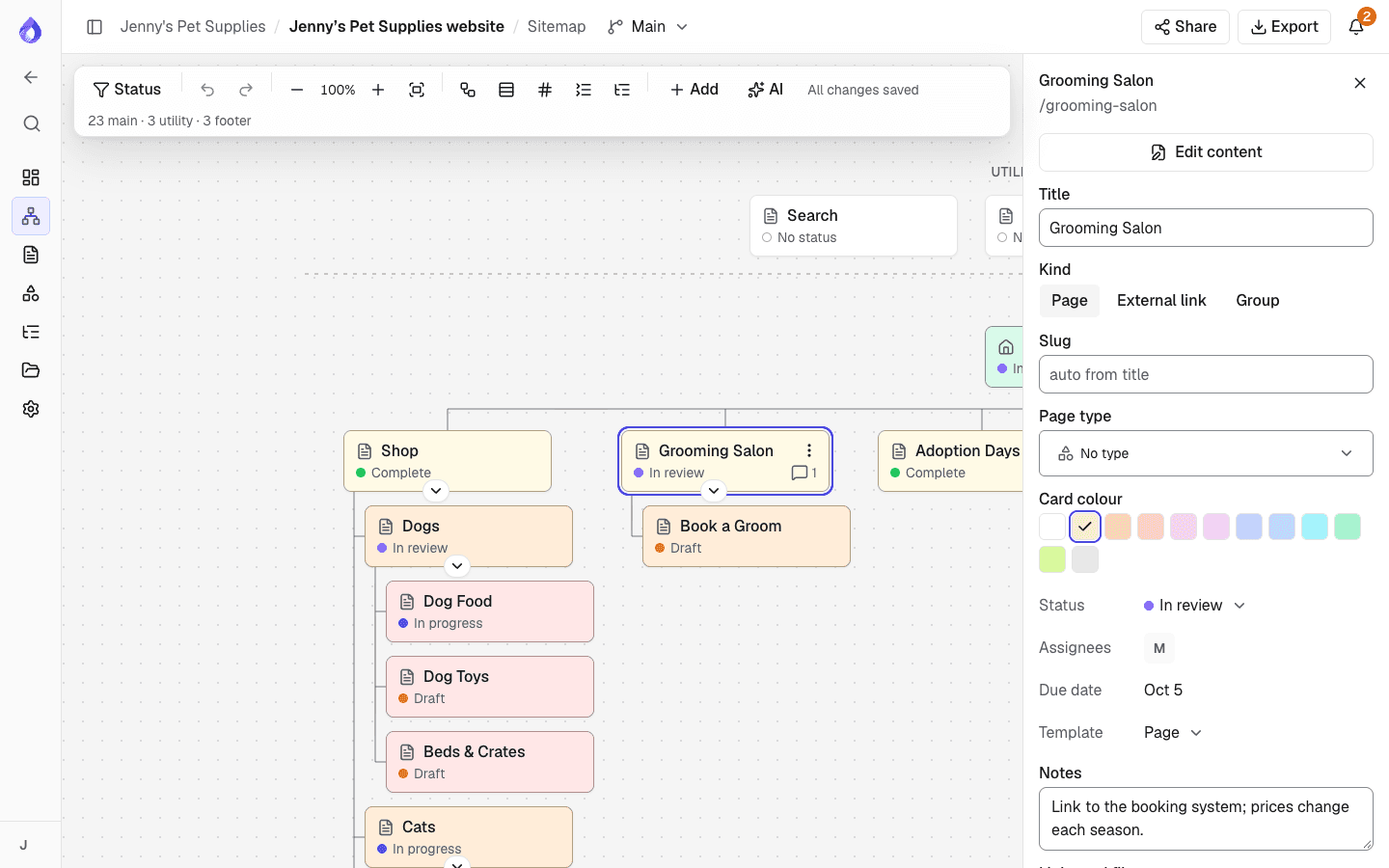
Give each page a slug, page type, colour, workflow status, assignees, due date, template and internal notes. See the links and files each page uses and the diagrams linked to it.
- Pages, external links and groups
- Custom page types, such as "Product listing" or "Article"
- Eleven card colours for sections or priorities
Plan large sites in sections
Turn any branch into a section and it opens as a map of its own, with a breadcrumb back. Sections can contain sections, so a 1,000-page site stays readable.
Import a Slickplan export
Moving from Slickplan? Upload its XML export and get the sitemap in the same order, a template for each content template, the copy, SEO settings, internal links and files. Files are copied in the background, and a report lists any that could not be.
Import a WordPress site
Upload a WordPress export and get the page tree, menus as main, utility and footer navigation, posts, each page’s content and SEO, and the images. Available on every plan.
Tree test the structure
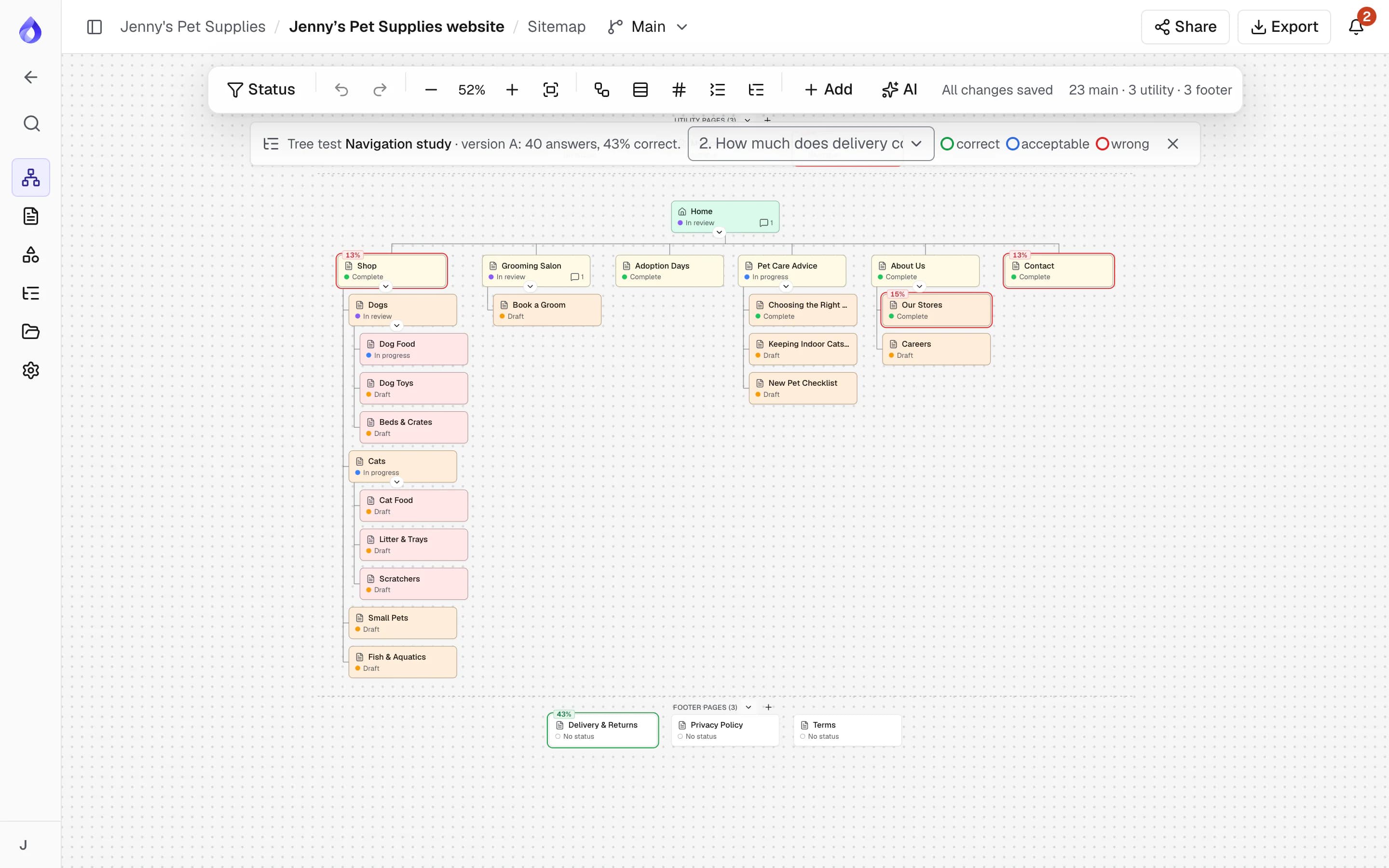
Check whether people can find things before anything is built. Compare up to three sitemap versions A/B with a tree test, then colour the map by where participants clicked.
Import a sitemap XML or crawl a site
Start a redesign from the current site. Import Google, WordPress (core, Yoast, RankMath, Jetpack) and index sitemaps, or crawl the live site with a live log you can stop, resume or cancel.
Export for presentations and developers
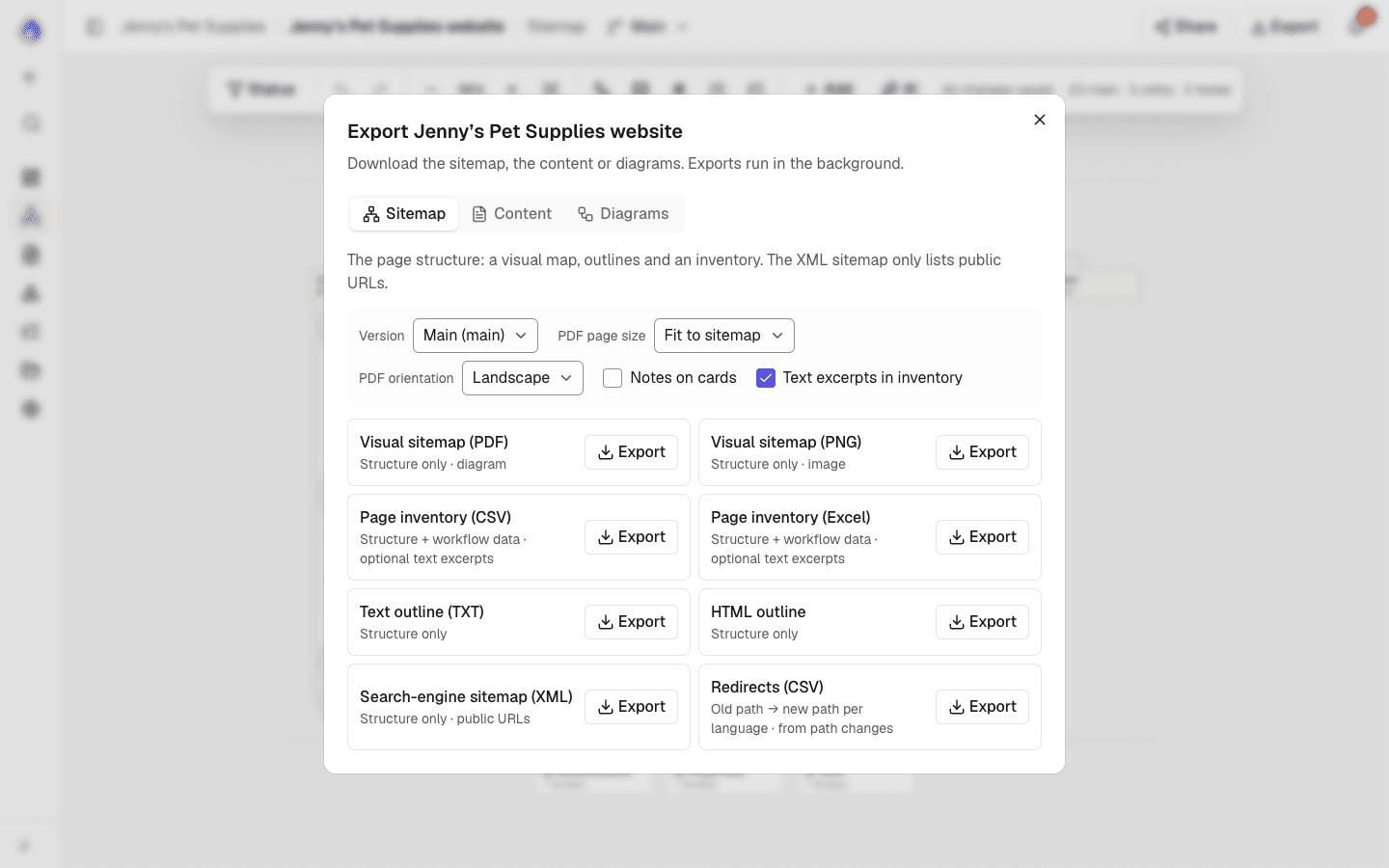
Download the visual sitemap as a PDF at any paper size or a high-resolution PNG, or export a page inventory (CSV), text and HTML outlines, or a search-engine XML sitemap with hreflang links.
More sitemap tools
AI page suggestions
Ask the AI assistant for pages the site is missing, based on the project brief.
AI assistantStatus highlighting
Highlight pages by workflow status to see what is drafted, in review or approved.
Multilingual titles and paths
Switch the map to another language and spot pages that are not translated yet.
Multilingual planningCommand palette
Press ⌘K to jump to any page in a large sitemap.
Duplicate with children
Copy a branch with its notes, statuses, templates and content.
Comment counts on cards
See which pages have open discussion at a glance.
Autosave
Every change saves as you make it.
Role-based editing
Project managers change the structure; editors and viewers see it read-only.
Built for everyone who plans websites
UX and IA designers
Model navigation and hierarchy, then test it with stakeholders before wireframes.
Agencies
Present structure to clients on a branded share link and collect feedback in one place.
PagePot for agenciesDevelopers
Get a structure that maps straight to CMS templates and routes, with an export to match.
Drupal integrationFrequently asked questions
What is a visual sitemap?
A visual sitemap is a diagram of a website’s pages and how they relate: which pages sit under which, and what appears in the main, utility and footer navigation. Teams use it to agree on structure before design and development start.
How is a visual sitemap different from an XML sitemap?
A visual sitemap is a planning tool for people. An XML sitemap is a file that lists a site’s URLs for search engines. PagePot does both: you plan visually and can export an XML sitemap, with hreflang links for other languages.
Can I import my existing website?
Yes. Import a Slickplan XML export (with its templates, copy, SEO and files), a sitemap XML file or URL (up to 2,000 pages), or crawl the live site (Pro plan and up, up to 1,000 pages) to start a project from its current structure.
Can clients review the sitemap without an account?
Yes. Share a read-only link with an optional password and expiry date. You choose whether guests can leave comments.
Can I export the sitemap?
Yes: PDF (fit to the sitemap or A4, A3, Letter and Tabloid), PNG, CSV page inventory, text and HTML outlines and XML. Content exports to Word, PDF, HTML and a Drupal package.