Import a sitemap, SlickPlan, WordPress or crawl a site
Start a project from an existing website (a sitemap XML file, a WordPress export or a crawl of the live site) or from a SlickPlan export.
When Jenny's team rebuilds an existing site, they start from the pages it already has.
Import sitemap XML
Choose Import sitemap XML, then Upload file or paste a Sitemap URL and click Load.
- Works with Google sitemaps, sitemap indexes and WordPress sitemaps (core, Yoast, RankMath and Jetpack). Only page sitemaps are imported. Compressed
.gzfiles work too. - Up to 10 MB, 50 child sitemaps and 2,000 pages.
- You see a preview tree before creating the project. Folders in the URLs that have no page of their own become pages, and titles come from the URL.
Import from SlickPlan
If Jenny's agency planned the site in SlickPlan, they can bring the whole plan across. In SlickPlan, open the sitemap, choose Export and download the XML file. In PagePot, choose Import from SlickPlan and Upload SlickPlan XML (up to 25 MB).
The preview shows the pages, templates and files it found. When you create the project you get:
- The sitemap, in the same order: Home, main pages, utility pages and footer pages.
- A template for each SlickPlan content template, with the same fields (text, rich text, images, files, videos, tables, forms, code and author notes). Pages use the template they had in SlickPlan.
- The copy in each page's fields, links between pages (they keep pointing at the right pages; a link to a page that was not in the export is removed and listed in the report), and the SEO settings (description, keywords, robots, canonical URL and JSON-LD). A description that is just the template's default is left empty so the page keeps following the template.
- Statuses that match one of your project's statuses by name (for example Draft and Complete). Others start with no status.
- Files (images, documents and videos). They are copied in the background after the project is created, and a panel on the sitemap shows the progress. SlickPlan serves files slowly, so large files (such as videos) can take a long time; if the copy stops, use Retry on the panel. Files that could not be copied, for example because your storage is full, are listed in a report.
Some things are not brought across: content in other languages (only the SlickPlan project's own language is imported), a second YouTube or Vimeo link in the same video field, and SlickPlan's alternate URLs. The report and the preview list what was skipped.
Import from WordPress
If Jenny's Pet Supplies runs on WordPress, the whole site can come across, content included. Available on every plan.
- In WordPress, go to Tools → Export, choose All content and click Download Export File.
- In PagePot, choose Import from WordPress and Upload WordPress export. The
.xmlfile (or a compressed.xml.gz) can be up to 50 MB and hold up to 2,000 pages. - Check the preview and the choices:
- Home page: the page used as your Home (WordPress doesn't put this in the export, so PagePot guesses from the menu or a page called
home). - Menus: for each WordPress menu, choose Main navigation, Utility, Footer or Ignore. PagePot guesses from the menu names.
- Posts: on by default. Untick to leave them out. Other content types (for example WooCommerce products) are listed and off by default.
- Home page: the page used as your Home (WordPress doesn't put this in the export, so PagePot guesses from the menu or a page called
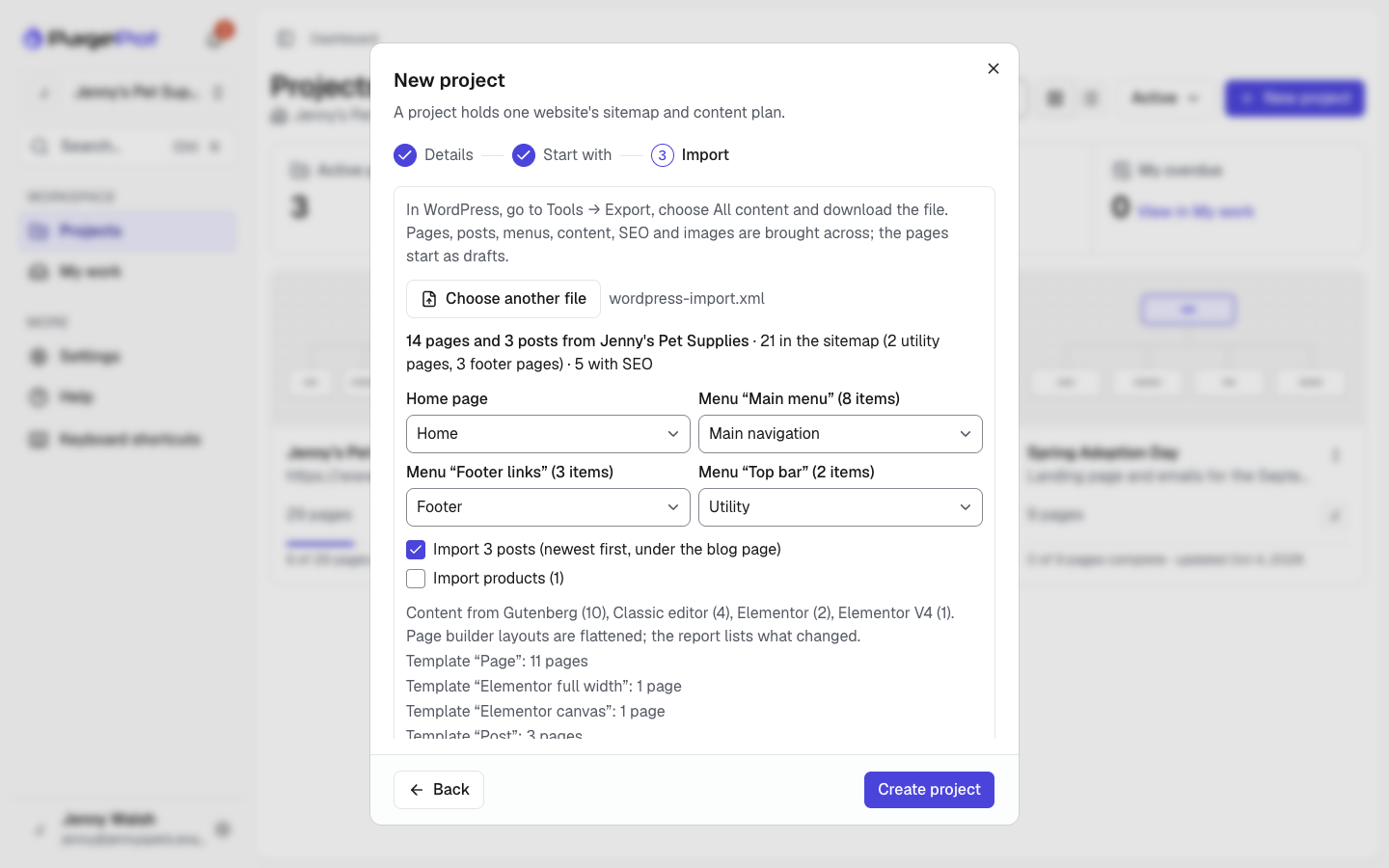
When you create the project you get:
- The sitemap from the page hierarchy and page order. Slugs are kept, and each page's notes hold its original URL (useful for redirects later). Pages whose parent isn't in the export go under Home.
- Menus as regions: pages that are only in the footer or utility menu move there; custom menu links become link pages; a menu item with children but no page of its own (such as "Resources") becomes a group, and the pages under it in the menu move into it.
- Posts under the blog page (an empty page called Blog or News), or under a new Blog group, newest first. They use a Post template with a featured image and the content; categories, tags and the published date are page metadata.
- Content converted to PagePot blocks: text becomes rich text, images become image blocks, YouTube and Vimeo embeds become video blocks, FAQs and accordions become accordion blocks, files become document blocks and code becomes code blocks. It works for the block editor (Gutenberg), the classic editor, Elementor and Divi (4 and 5). Page builder layouts (columns, sections, rows) are flattened in order; styling isn't kept. Synced patterns are filled in.
- A template for each WordPress page template (for example "Elementor full width"), with the content in a Content field.
- SEO from Yoast or Rank Math: title, description, focus keyword, canonical URL and robots settings.
- Every page starts as Draft. Links between pages point at the imported pages.
Images and files are copied from the site in the background, and a panel on the sitemap shows the progress. Its Report lists, for each page, where the content came from (Gutenberg, Elementor…) and what was flattened or dropped, the drafts, private and trashed items that were skipped, and any image the site wouldn't serve (some hosts block downloads; upload those by hand). Image IDs, galleries from plugins, forms and widgets that only exist in the theme aren't brought across. To send a PagePot project to WordPress, see WordPress.
Crawl website
Choose Crawl website (Pro and above) and enter the Website URL to crawl.
- Page label: use the page's title tag, its first heading, or the URL.
- Follow mode: the domain only, the domain and its subdomains, or only the starting folder.
- View more options lets you limit the number of pages (100 by default, up to 1,000) or the depth, include or exclude folders, use basic HTTP authentication, ignore robots.txt or cookies, set a user agent, import SEO metadata into the content planner, and render JavaScript (up to 300 pages).
The crawl starts once the project is created and you return to the Projects dashboard, where the project's card shows that it is crawling. A panel on the sitemap shows its progress and a live log. Stop & save keeps what was found so far, Resume carries on, and Cancel import removes the pages it added.

