



PagePot vs docs and spreadsheets
Outgrown your website content planning template?
Most website projects start with a website content planning template: a spreadsheet of pages, a folder of copy documents and a sitemap on a whiteboard. PagePot keeps all three in one plan, so nobody has to ask which file is current.


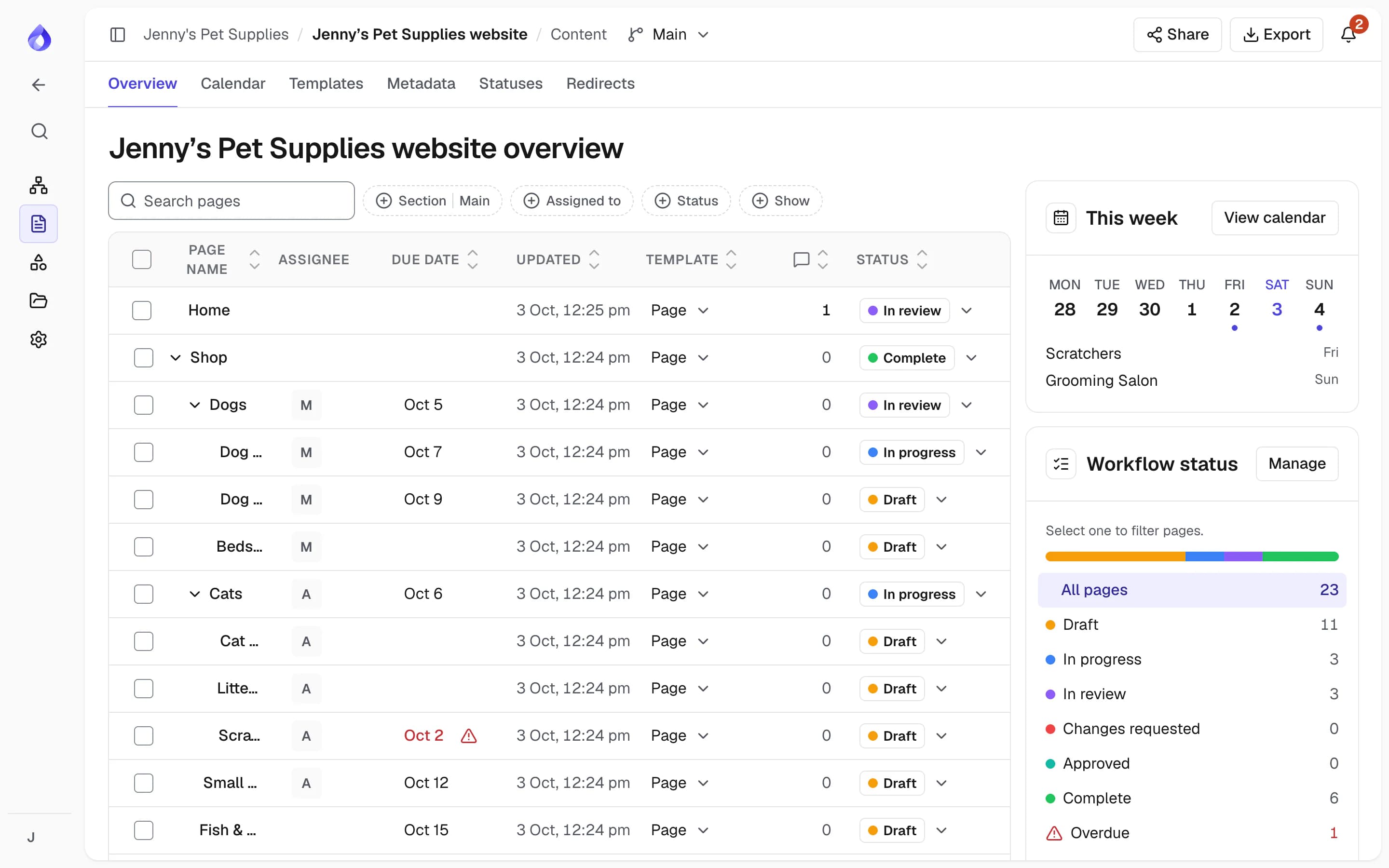
The plan lives in five places
The page list is a spreadsheet, the copy is in one document per page, the sitemap is a whiteboard export and the feedback is in email. Rename a page and you update three files. A reviewer comments on last week’s version. A developer copies text into the CMS by hand and misses the latest change.


One plan, with the structure built in
In PagePot each card on the visual sitemap is a page record that holds its content, SEO, status, owner, due date and comments. Change the structure and everything follows. Reviewers comment on the live plan, and developers get exports or a Drupal import instead of copy and paste.
PagePot and a website planning spreadsheet, side by side
Docs, spreadsheets and whiteboards are flexible and already paid for. Here is what changes when the plan moves into a tool built for it.
| Feature | PagePot | Docs and spreadsheets |
|---|---|---|
| Site structure | Drag-and-drop visual sitemap with main, utility and footer navigation | Indented rows in a sheet, or a separate whiteboard drawing |
| Page content | Written on each page in fields from its template | One document per page, linked from the sheet |
| Renaming or moving a page | Change it once; content, comments and exports follow | Update the sheet, the document name and the diagram by hand |
| Status, owners and due dates | Built in, with a calendar, My work list and reminders | Columns you maintain by hand |
| Which version is current | One plan, with revision history and restore on every page | Depends on file names and who saved last |
| Client feedback | Share link with optional password; guests comment on the page | Comments spread across documents and email threads |
| Proposed edits | Tracked suggestions accepted or rejected per page (Team plan and up) | Suggested edits inside each document, reviewed one file at a time |
| SEO fields | Slug, SEO title, description, robots and structured data with warnings | Extra columns with no checks |
| Languages | Each language has its own content, SEO, status and owner (Pro plan and up) | Another tab or a copy of every document |
| User flows | Diagrams with steps linked to sitemap pages | A separate whiteboard file |
| Handoff to the CMS | Exports, a Drupal 11 import (Team plan and up) and an API | Copy and paste, page by page |
| Cost | From US$9/month billed yearly; Viewers are free | Usually already part of your office software |
Compares PagePot with general-purpose documents, spreadsheets and whiteboards as commonly used for website planning, as of October 2026. Individual tools differ, and templates or add-ons can close part of the gap.
What changes when you leave the spreadsheet
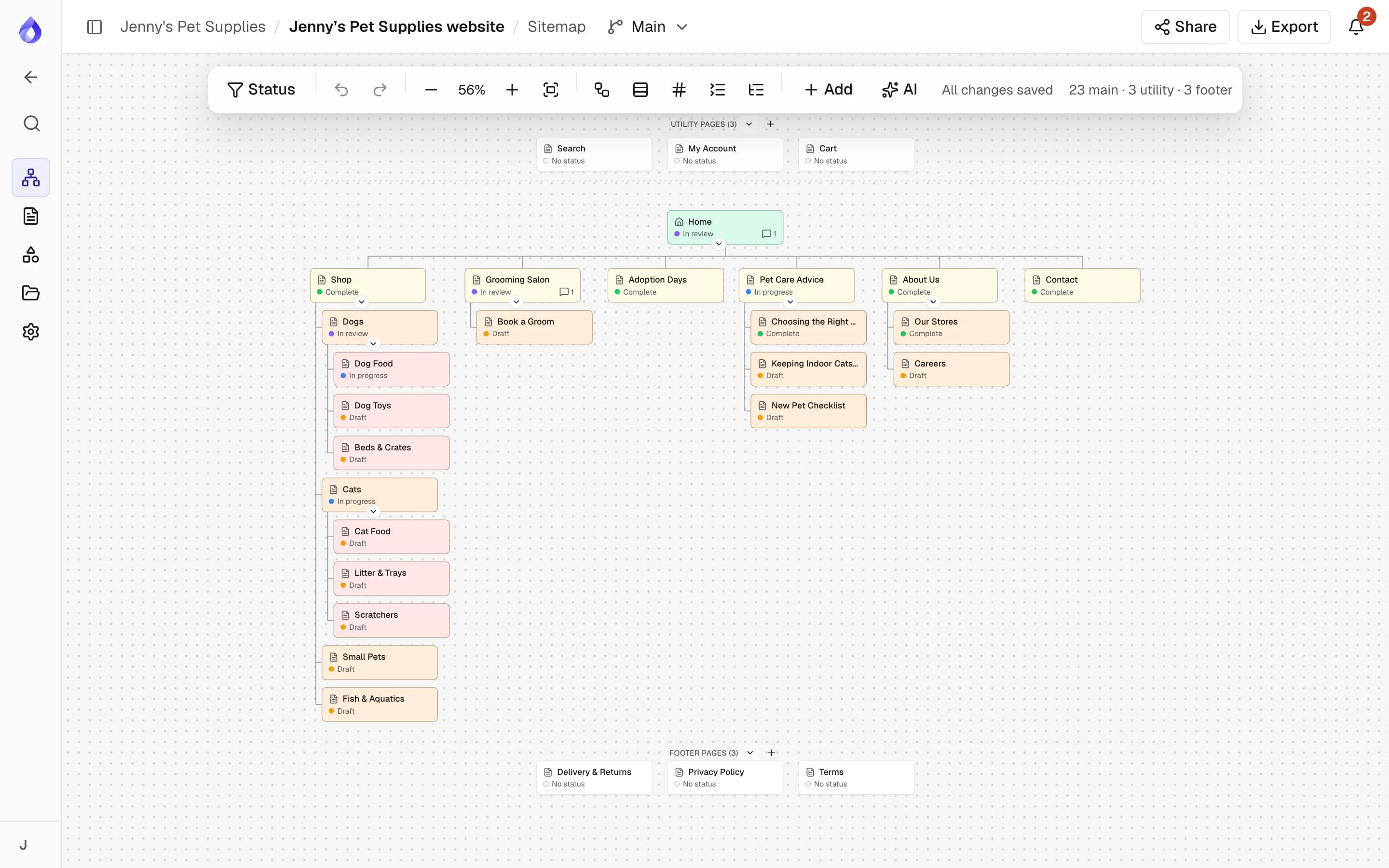
The sitemap is the page list
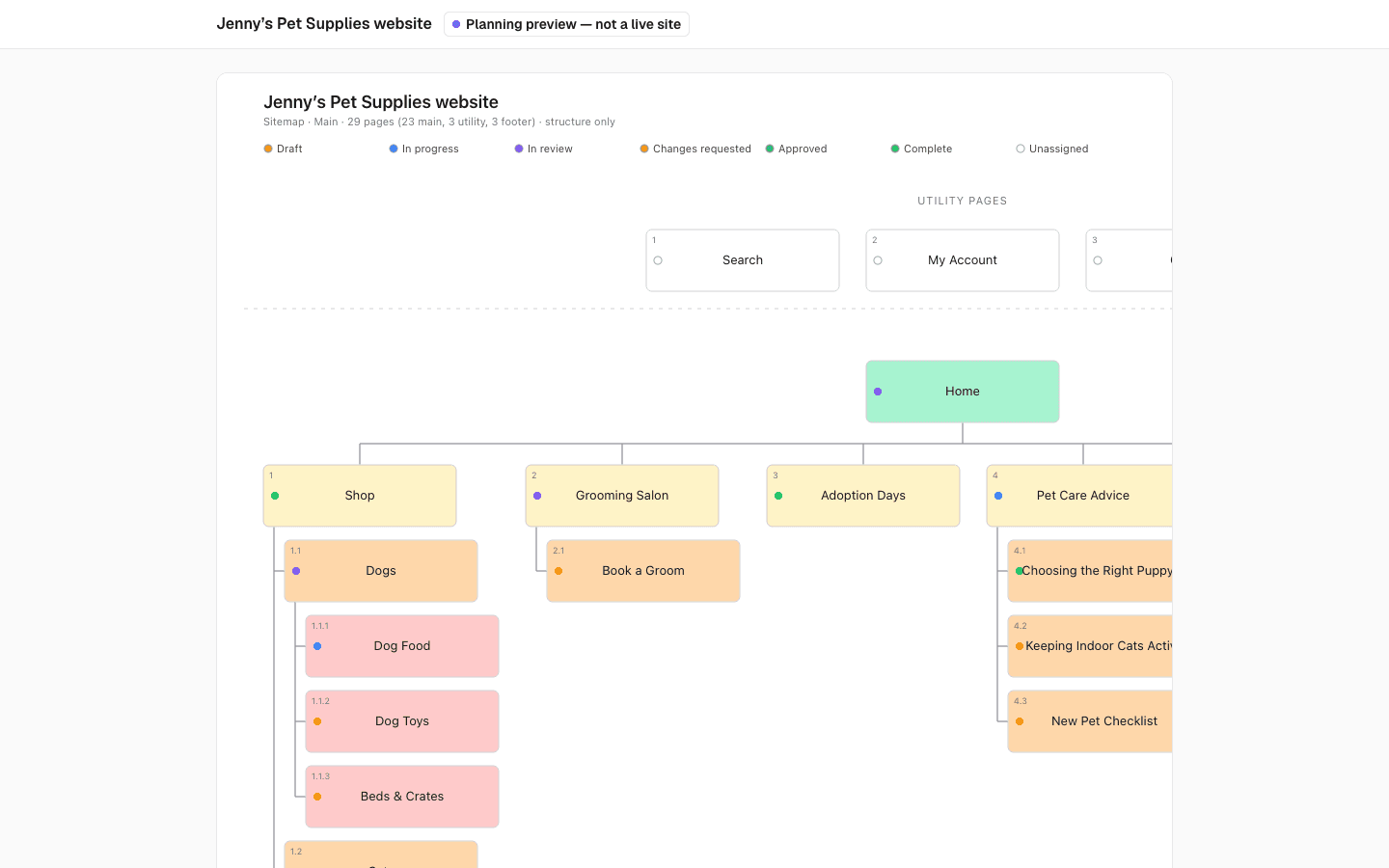
No more keeping a sheet and a diagram in step. Drag pages into place, plan main, utility and footer navigation, and split big sites into sections. Already have a site? Import its sitemap XML or crawl it.
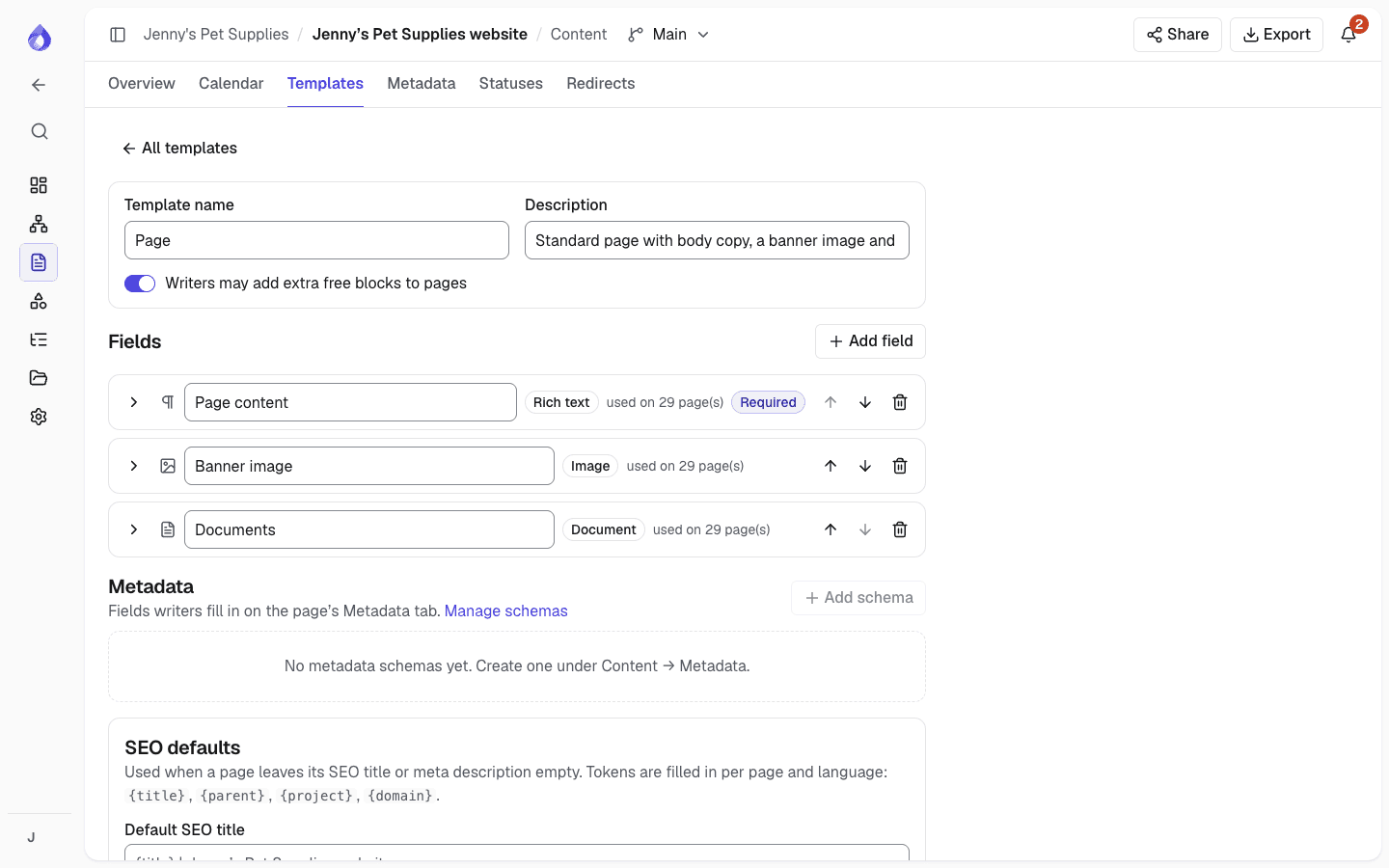
Content in the shape of the page
Templates define the fields each kind of page needs, such as banner, body copy and FAQs, so writers know what to write and developers get content that matches the build.
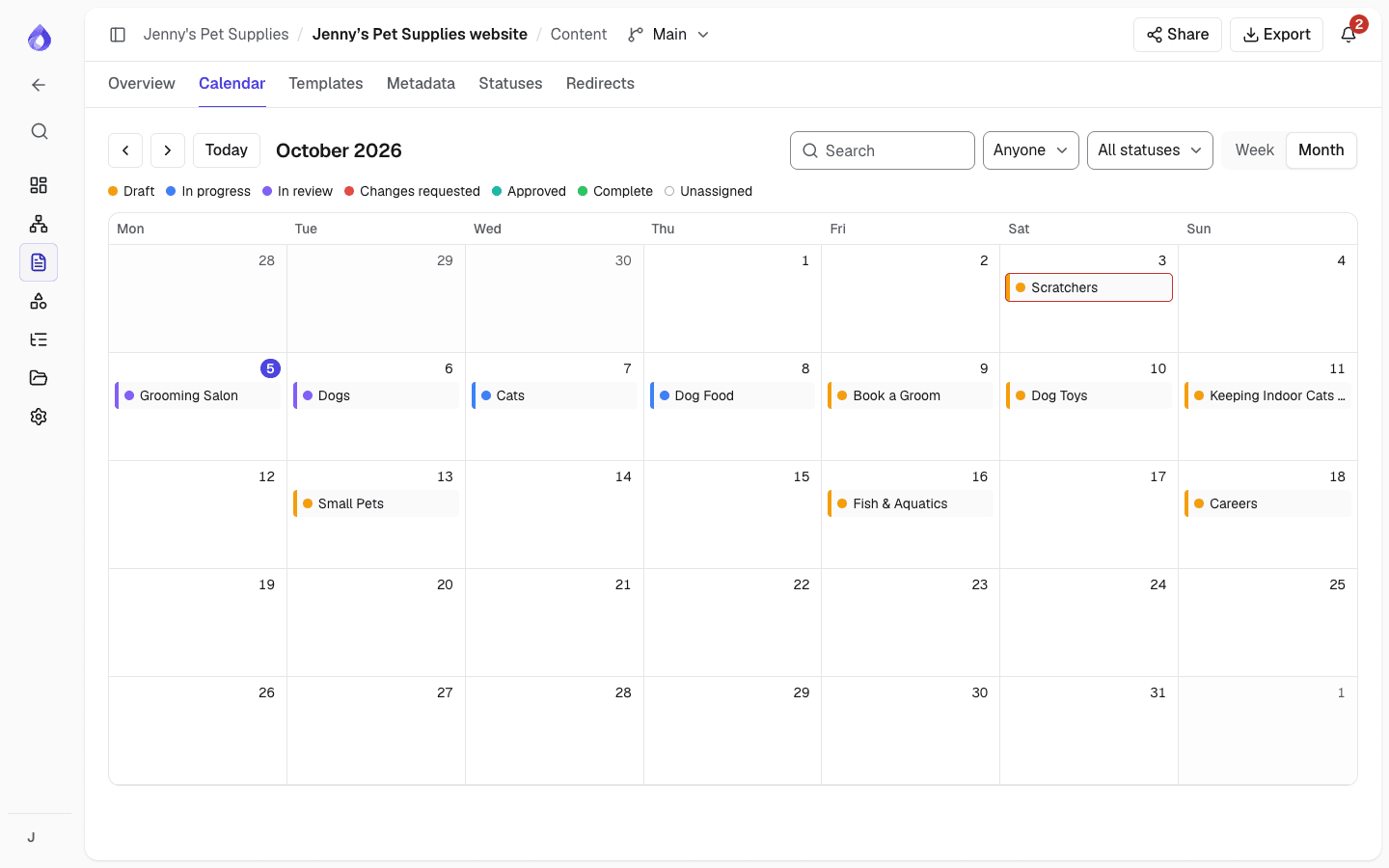
Progress you don’t have to chase
Statuses such as Draft, In review and Approved show on sitemap cards, in the content overview and on the calendar. Everyone sees their pages in My work, and gets a reminder before a page is due.
Feedback on the plan, not in email
Send clients a share link with an optional password and expiry. They read the sitemap and pages and leave feedback without an account, and it lands in the editor’s comments next to the content.
A handoff without copy and paste
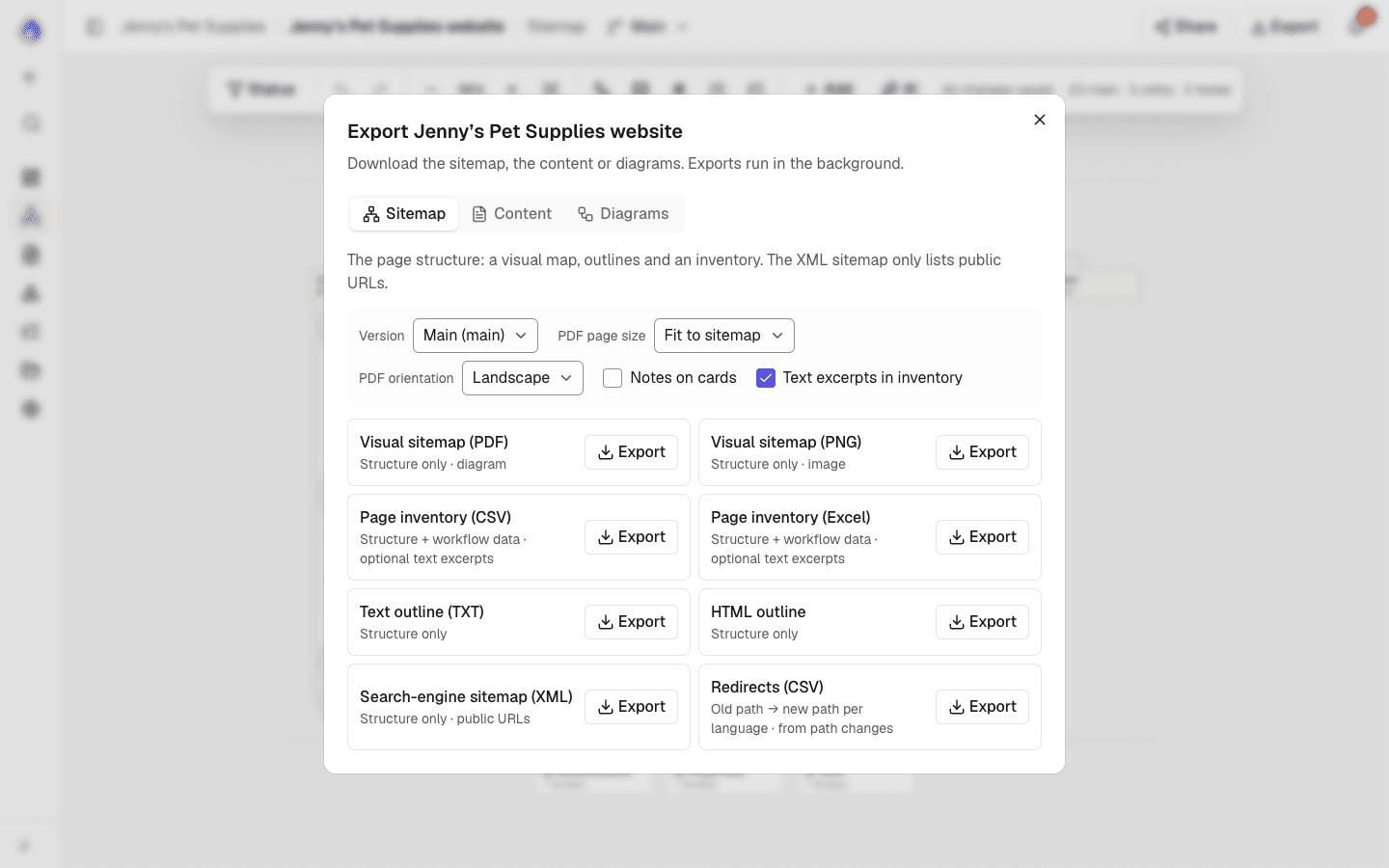
Export the sitemap as PDF or PNG, a page inventory as CSV, content as Word or PDF, or an HTML handoff package. On the Team plan and up, import straight into Drupal 11 or use the API.
Things a spreadsheet can’t do for you
Page locks
One person edits a page at a time, so nobody overwrites anyone else.
Revision history
Compare any earlier version and restore it.
Mentions
Type @ to bring someone into a comment thread.
Status locks
Lock editing once a page is approved or complete.
SEO warnings
Spot missing titles, long descriptions and duplicate paths.
Shared file library
Replace an image once and every page that uses it updates.
XML sitemap export
Generate a search-engine sitemap with hreflang links.
Slack notifications
Post status changes and comments to a project channel (Team plan and up).
Command palette
Press ⌘K to jump to any page or action.
When docs and spreadsheets are enough
A dedicated tool isn’t always worth it. A spreadsheet and a few documents may be all you need if the site has a handful of pages, one person writes and approves everything, and there is one language. Document tools are also familiar to everyone, and many let several people type in the same file at once.
The cost shows up as the project grows: more pages, more reviewers, more languages, or a developer who needs the content in the CMS. That is usually when teams move the plan out of files.
Moving your plan out of files
Bring the structure across
Import the current site’s sitemap XML or crawl it, or build the sitemap by hand from your page list.
Let the AI assistant read your files
Start an AI project and upload your copy deck, spreadsheet of pages or brand guide (Word, Excel, CSV, PowerPoint, PDF and more). The assistant plans the sitemap and places copy from your files into pages as written.
AI assistantSet up templates and statuses
Define the fields each kind of page needs and the statuses your review follows.
Invite the team and share with the client
Assign pages and due dates, then send a share link for feedback.
Frequently asked questions
Is there a website content planning template I can start from?
Yes. PagePot includes starter templates for common page types, such as standard page, landing page, article, contact page and FAQ, a starter site structure, and diagram templates such as a checkout flow and a content approval process. Each template sets the fields a page needs, so the plan starts structured.
What should a website content plan include?
At minimum: every page and where it sits in the structure, its purpose, the content it needs, an owner, a status and a due date, plus SEO basics such as slug, title and meta description. Our website planning checklist covers the rest.
Can I import my existing spreadsheet into PagePot?
There is no direct spreadsheet import into the sitemap. Instead, start an AI project and upload the spreadsheet with your other files: the assistant reads them, plans a sitemap and places your copy into pages. You can also import a live site’s sitemap XML or crawl it.
Can I still get a spreadsheet out of PagePot?
Yes. The page inventory export is a CSV with one row per page and language, including status, assignees, due dates, template, metadata and optional text excerpts. It opens in Excel or Google Sheets.
Do clients need an account to review?
No. Share the sitemap or a single page on a link with an optional password and expiry, and choose whether guests can comment.
Is PagePot worth it for a small website?
For a few pages written and approved by one person, a document may be enough. PagePot starts paying off when several people write or review, when there are many pages or languages, or when content has to reach a CMS. Try it free for 14 days to see.