Tree tests
Find out whether people can find things in your sitemap, and which of two or three versions works better.
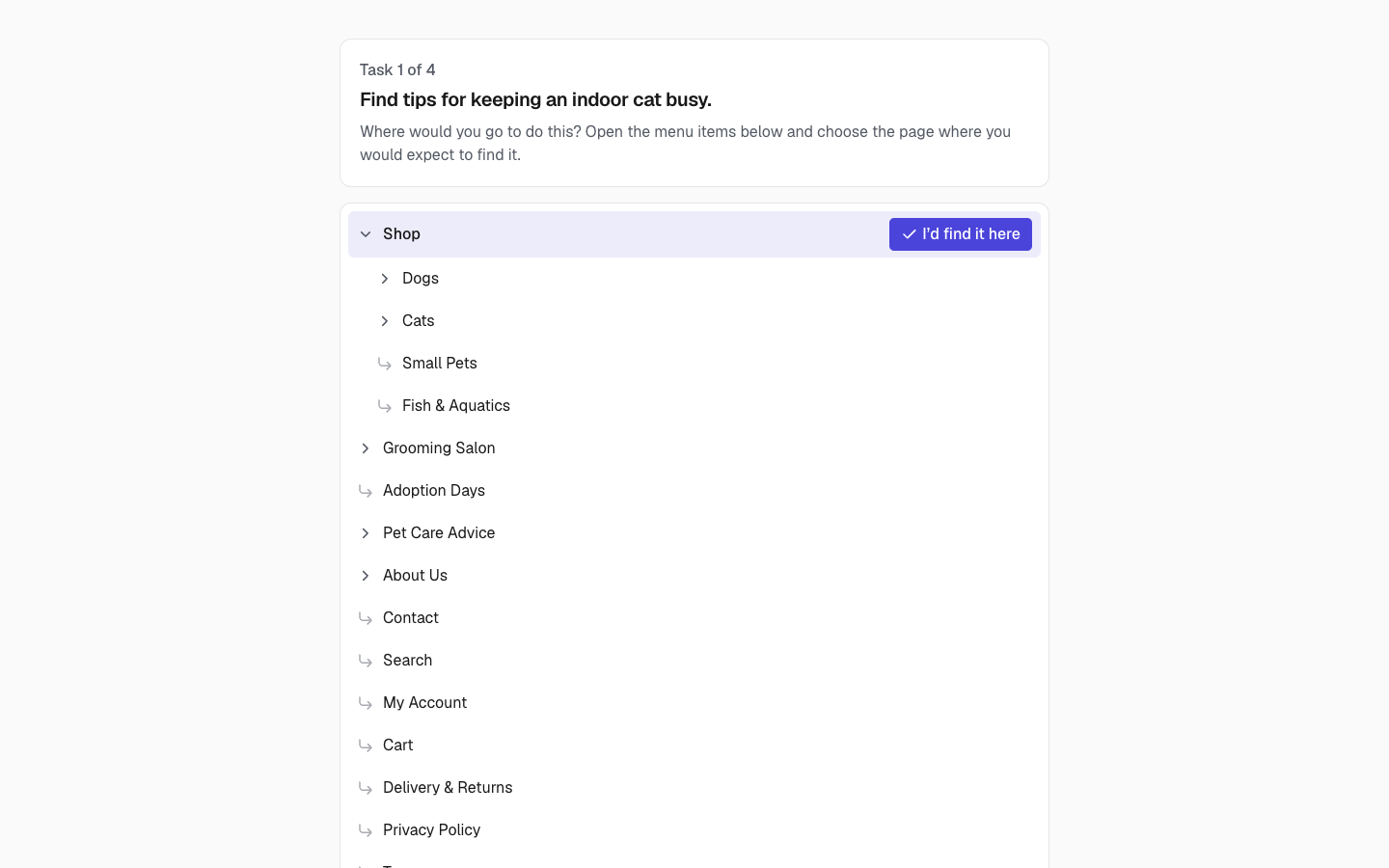
A tree test checks whether people can find things in your site's structure before anything is designed or built. You write a few everyday tasks, mark the page where each one should end, and send a link. Participants see only the page titles, as an expandable menu, and pick where they would go.
Jenny's Pet Supplies might ask "Your dog needs a bath and a nail trim. Where would you book an appointment?" and mark Grooming Salon › Book a Groom as the right answer.
Tree tests are part of the Pro plan and above. Project managers create and run them; everyone on the project can see the results.
Create a tree test
- Open Tree tests in the project sidebar and choose New tree test.
- Give it a name. It starts by testing the main sitemap version.
- Add tasks with Add task. For each task, tick the Correct page (or pages). Tick Acceptable for pages that are not ideal but would still do; they are counted separately.
Write tasks the way a visitor would think about them, not with the page's own title: "Where would you renew a pet licence?" rather than "Find Pet Licences".
Only the pages participants will see are listed. Groups can't be chosen as answers, but any page with pages under it can be ("I'd find it here").
Compare versions (A/B)
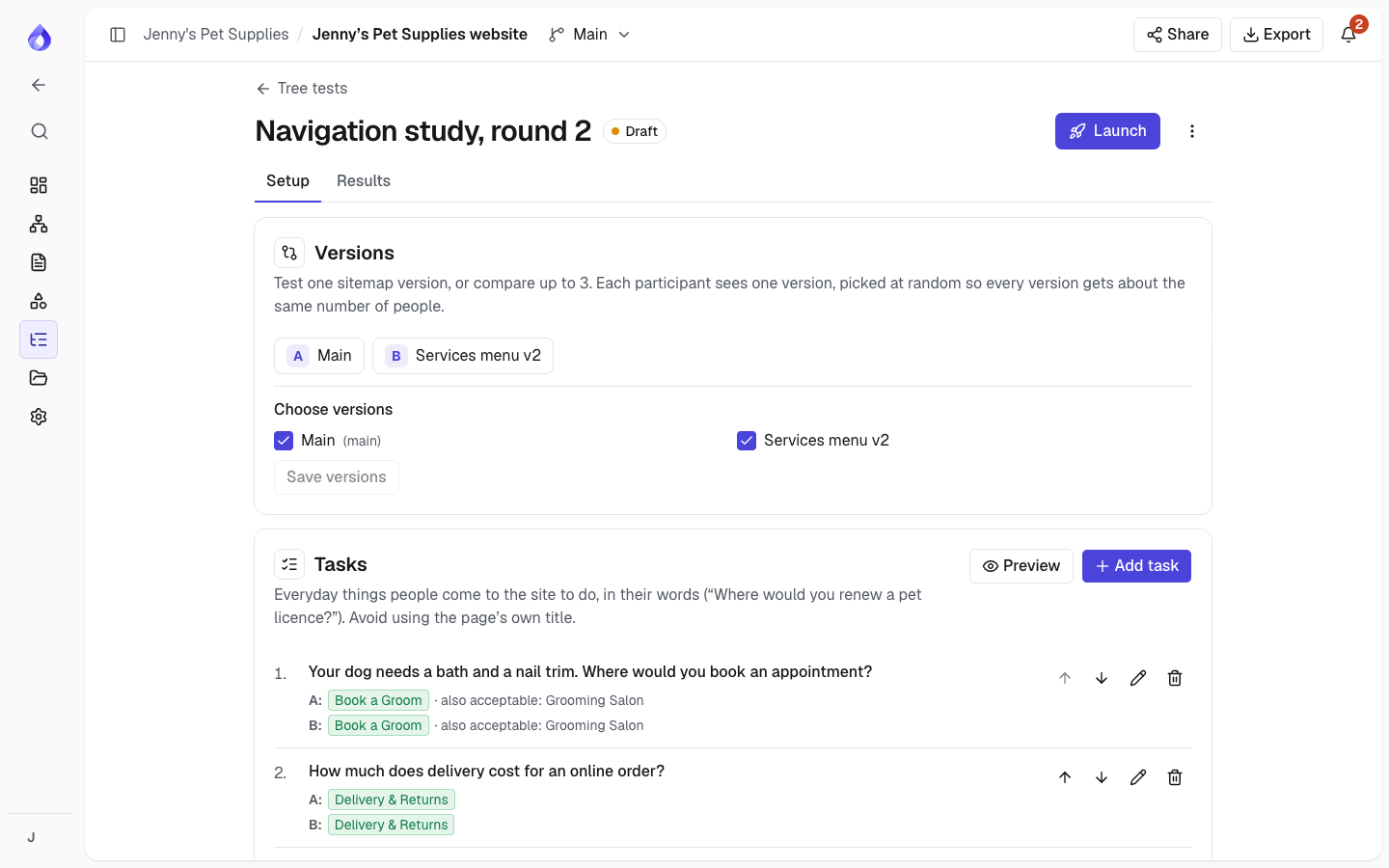
To compare structures, create another sitemap version first. Jenny's team made a Services menu version where Grooming Salon and Adoption Days move under a new "Services" group and Delivery & Returns moves from the footer into the main menu. Then, in the tree test's Versions card, tick up to three versions and save.
Each participant sees one version, picked at random so that every version gets about the same number of people. Pages are shared between versions, so a task's answers are copied to a new version; check them on each version's tab in the task, because a page might sit somewhere else (or be missing) in another version.
Settings
- Welcome message, thank-you message and an optional closing question (for example "Was anything hard to find?").
- Show utility pages and Show footer pages add those pages as extra top-level items. They are hidden by default.
- Shuffle tasks gives each participant the tasks in a random order (on by default).
- Ask how sure they are adds a 1–7 confidence question after each answer.
- Language, when the project has several: page titles are shown in that language.
- Notify me after sends you a notification when that many people have finished.
- Stop after turns new people away once that many have finished.
- Close on closes the test at the end of that day.
- Password: participants must enter it before they start.
Preview and launch
Choose Preview to take the test yourself. Nothing is recorded, and at the end you see how each answer would be scored.
When every task has a correct page in each version, choose Launch. The tree of each version is frozen at that moment, so later sitemap edits don't change what participants see. After launch you can still change the name, messages and limits, but not the versions or tasks. To test again with changes, choose Duplicate in the menu: you get a new draft with the same versions and tasks.
Then choose Copy link and send it to participants. They don't need an account and aren't asked for an email address. If they leave halfway, they can come back on the same device and carry on; they can only take part once.
Choose Close to stop taking answers, and Reopen to start again.
Results
Open the Results tab. For each task, and each version, you see:
- Success: the share of answers on a correct page, with a 95% range. With few participants the range is wide.
- Direct: answers reached without going back up the menu or opening another branch first.
- First click: the share whose first click went into the branch that holds the answer. A wrong first click usually means a wrong answer.
- Skipped and median time.
- Where people ended up: every page chosen, with the wrong ones in red.
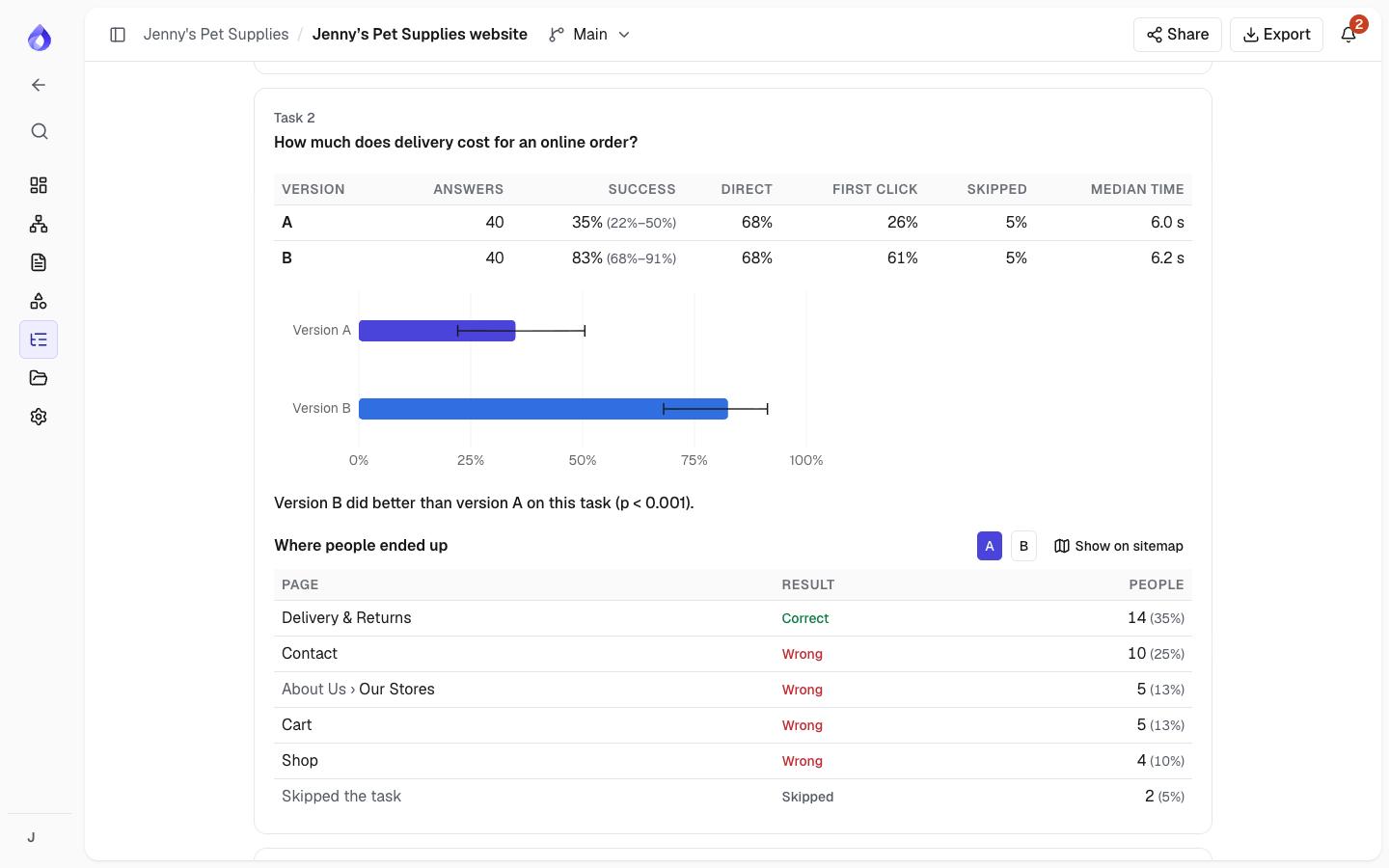
When you compare versions, PagePot names a better version for a task only when the difference is statistically significant, allowing for the number of tasks and versions compared. Otherwise it says there is no significant difference yet. The overall figures are a guide only, because each person answers several tasks. Aim for about 50 people per version.
People who clicked through too fast (a typical answer under 2 seconds) and people who didn't finish are not counted. They are shown in the totals.
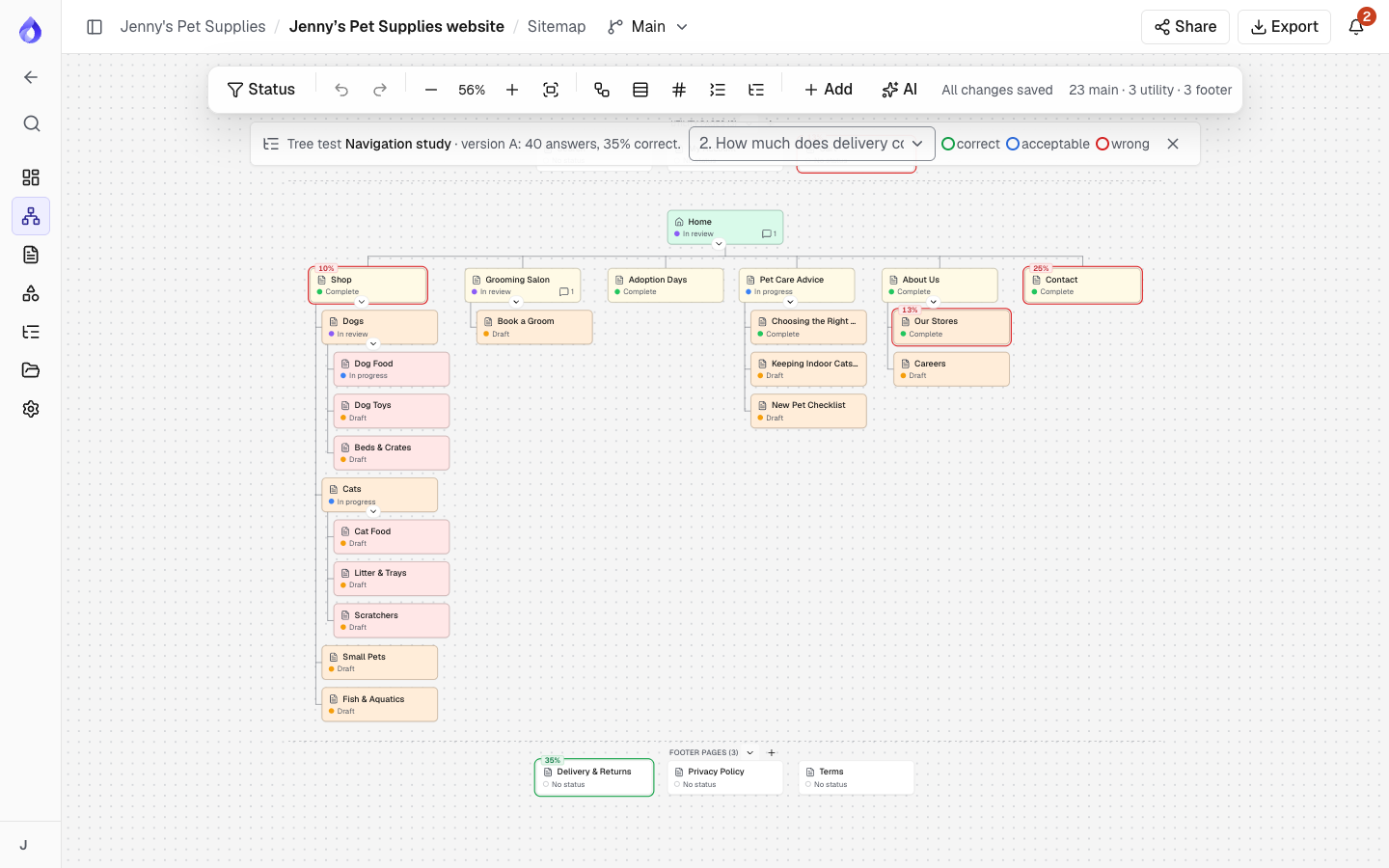
Choose Show on sitemap to open that version's sitemap with the cards coloured for the task: green for correct pages, blue for acceptable ones and red for wrong ones, with the share of people who chose each page.
Export
- Responses (CSV): one row per answer, with the version, the page chosen, the path, the time and the result.
- Tree (Treejack CSV): the tree of a version in the import format of Optimal Workshop Treejack and UXtweak, one page per row, indented by column.

