Templates
Decide which blocks every page of a kind has, with instructions and limits for writers.
A template is the list of blocks a page starts with, such as "Page content", "Banner image" and "Documents". Every page has one. Everyone can view templates; Project managers edit them in Content → Templates.
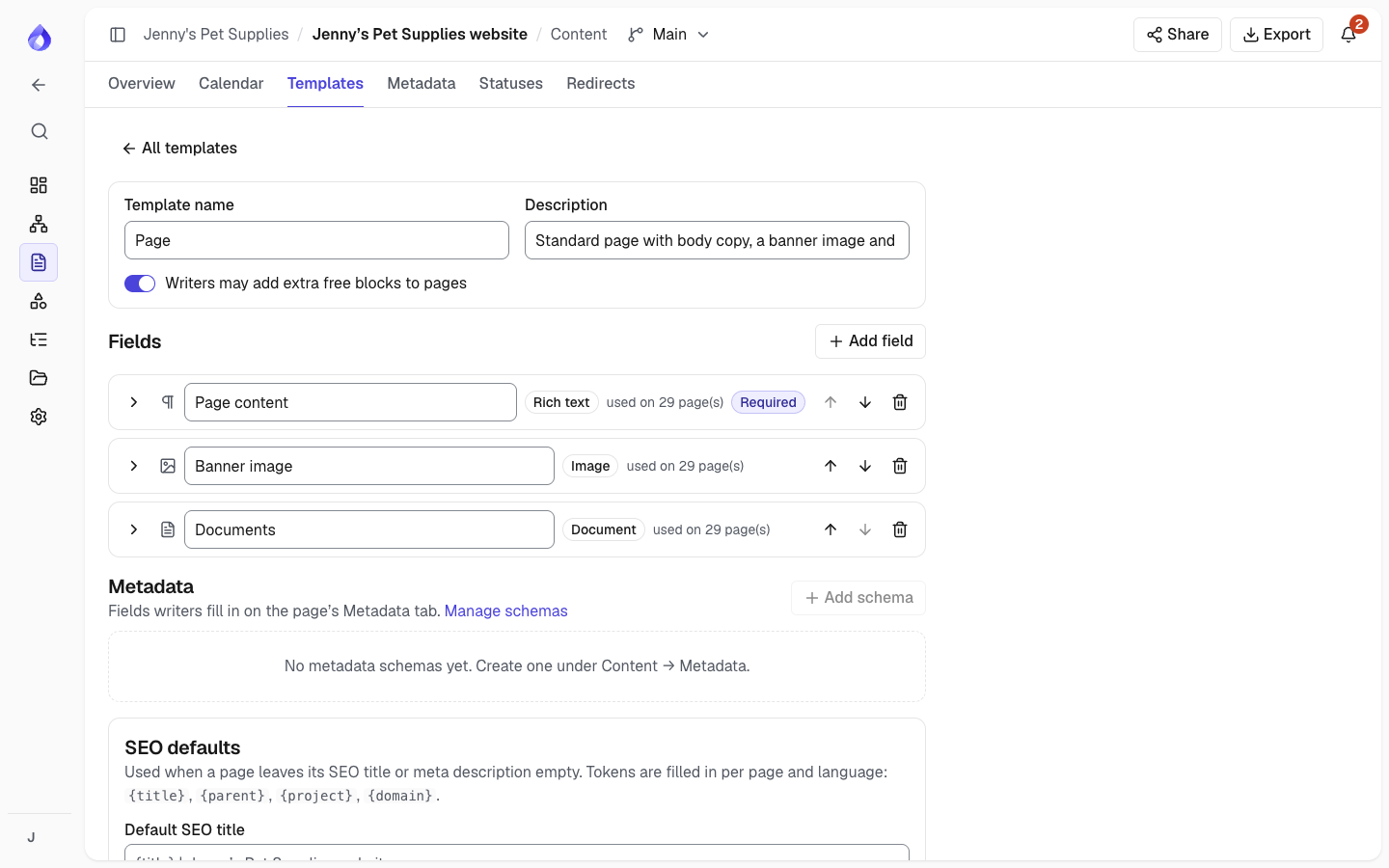
Create a template
Click New template and start from Blank, Standard page, Landing page, Article, Contact page or FAQ. Give it a name and description, and choose whether writers may add extra blocks of their own.
Fields
Click Add field and choose a type: Plain text, Rich text, Image, Video, Document, Note, Form, Code, Accordion or Cards. For each field set:
- Field label and Writer instructions (shown with the block, for example "High resolution, minimum 1600 pixels wide").
- Required: the page can't move to Approved or Complete while it is empty (a Project manager can change which statuses check this, see Workflow statuses).
- Lock structure: writers edit the value but can't move the block.
Blocks that come from a template can't be removed from a page by anyone. Extra blocks writers add, and extra copies of a repeatable field, can be.
- Allow multiple instances.
- Limits for the type: minimum and maximum characters and words and a placeholder for text (the editor's counter flags text that's under the minimum or over the maximum, but never stops a save; a minimum can't be above its maximum), number and size of files and accepted types for media, minimum image width and height (smaller images are marked on the page, and the image editor keeps crops above it), whether video embed links are allowed, the number of items, and the language for code.
A template can also add metadata schemas to its pages.
SEO defaults
Under SEO defaults, set a Default SEO title and Default meta description for pages that leave theirs empty. They can use these tokens, filled in for each page and language:
| Token | Becomes |
|---|---|
{title} | The page title |
{parent} | The parent page's title (empty on top-level pages) |
{project} | The project name |
{domain} | The site's domain, from the project's base URL |
For example, Jenny's Pet Supplies uses {title} | {parent} | {project}, so the Dog food page under Shop gets "Dog food | Shop | Jenny's Pet Supplies". A separator left over by an empty token is dropped. The editor's SEO view shows the default as the placeholder and in the search preview; share links and exports (including the Drupal package) use it too. A page's own SEO title or description always wins.
Apply and manage templates
- Change a page's template from the Template column of the content overview, in its properties, or for many pages at once from the overview's bulk bar. For one page you choose where each part of its content goes: every block is listed with a preview of its text and the field it will move to in the new template (pre-filled with the closest match). Content can move to a field of the same type, and plain text can move into a rich text field (the words are kept, one paragraph per line). Content you don't give a field stays on the page as a free block, or you can remove it; fields left over are added empty. For several pages at once, content is matched automatically and you get a summary.
- New pages get the default template. To take a page off its template, choose No template in the same menus (bulk bar included): all its content stays on the page as free blocks, which you can add, move and remove freely. The template's metadata fields, SEO defaults and required fields no longer apply (metadata values are kept and come back if you apply the template again), and the Drupal import maps pages without a template together, by block type. Template changes apply to the language you're viewing.
- Removing a field that already has content asks what to do with it: keep it as free blocks, archive it, or move it to another field.
- From a template's menu: Duplicate, Make default (used for new pages), Archive and Delete (you choose which template its pages switch to, or No template to keep their content as free blocks).

