Project settings
Project details, cover, languages, page types, the AI brief, team members, and archiving or deleting a project.
Open Settings in the project sidebar. Most tabs are for Project managers; My notifications is for everyone.
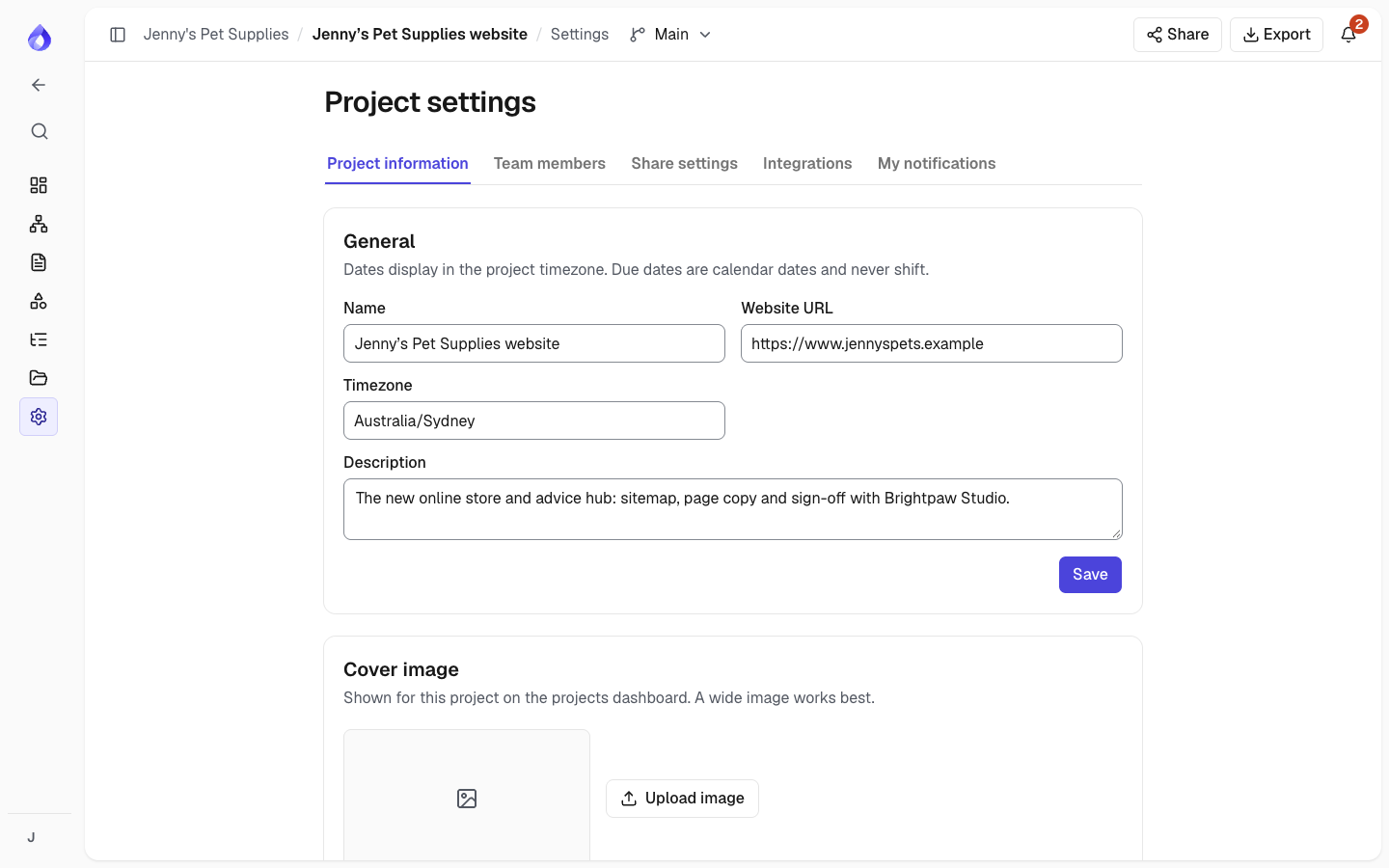
Project information
- General: name, website URL, timezone and description.
- Cover image: shown on the dashboard card.
- Languages: add content languages (Pro and above). See Languages.
- Page types: the types you can give pages, such as "Product listing" or "Article", each with an icon. Renaming a type renames it on its pages.
- AI assistant brief: purpose, audience, key messages, tone of voice, image style, style rules and glossary. The assistant uses it for everything it writes in this project. Projects with more than one language also get translation notes per language (formality, style notes and terms not to translate).
- Danger zone: Archive project (read-only, hidden from the dashboard) and Delete project.
Team members
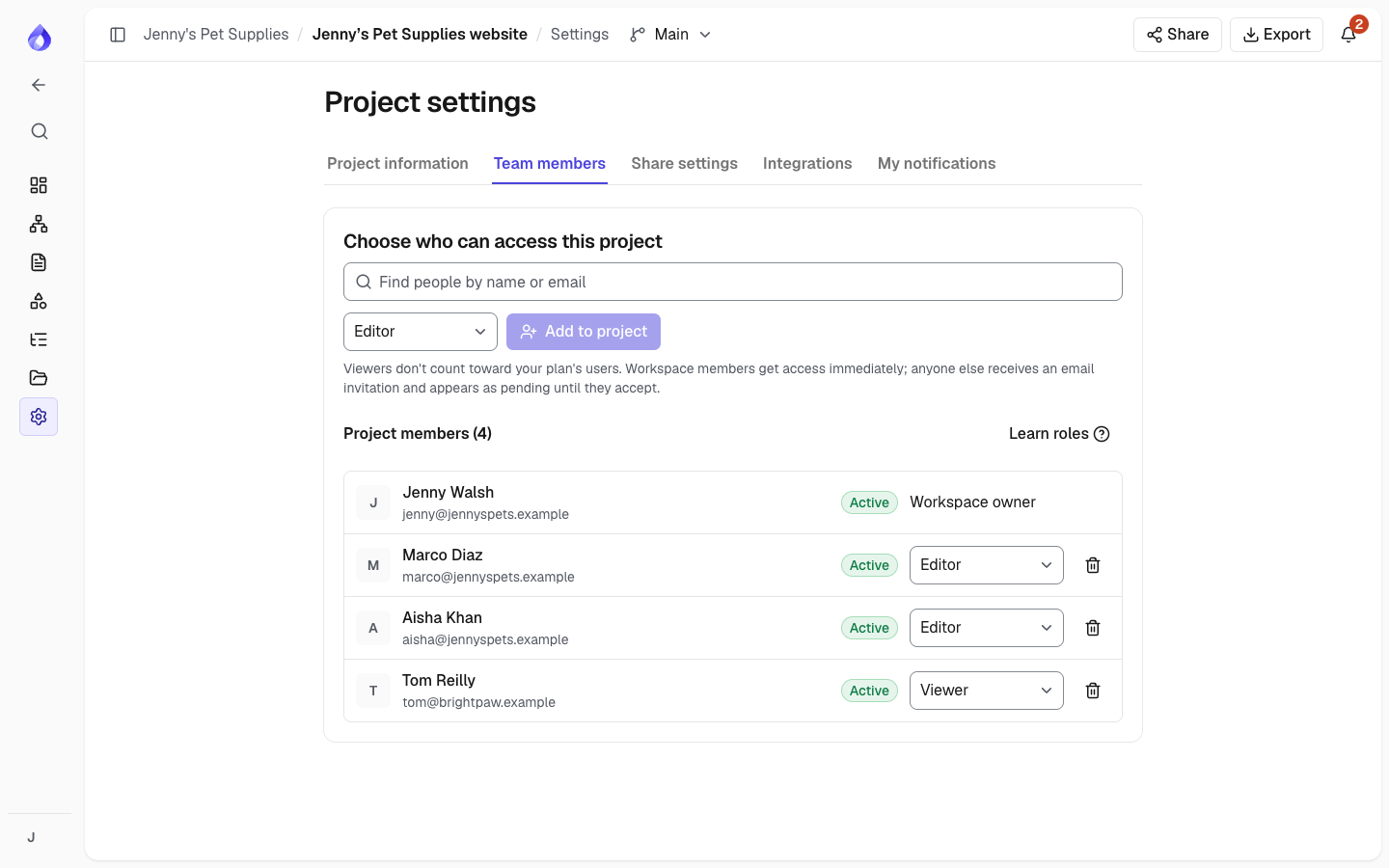
Find people in the workspace by name or email, choose a role, and click Add to project. Workspace admins can also invite someone new by email. Change a person's role or remove them from the list. When someone is removed, their page assignments in the project are removed too.
Other tabs
- Share settings: create and revoke share links. See Sharing and client review. Project managers also find Allow public file links here (off by default): while it's on, WordPress exports link their files for 14 days so the WordPress importer can download them; turning it off stops those links at once.
- Integrations: Slack, webhooks and Drupal tokens. See Integrations.
- My notifications: what you hear about, in the app and by email. See Notifications.

