Sitemap
Plan the structure of the site on a visual map of pages.
The sitemap shows every page of the site as a card, with lines to the pages under it. Open it from Sitemap in the project sidebar.
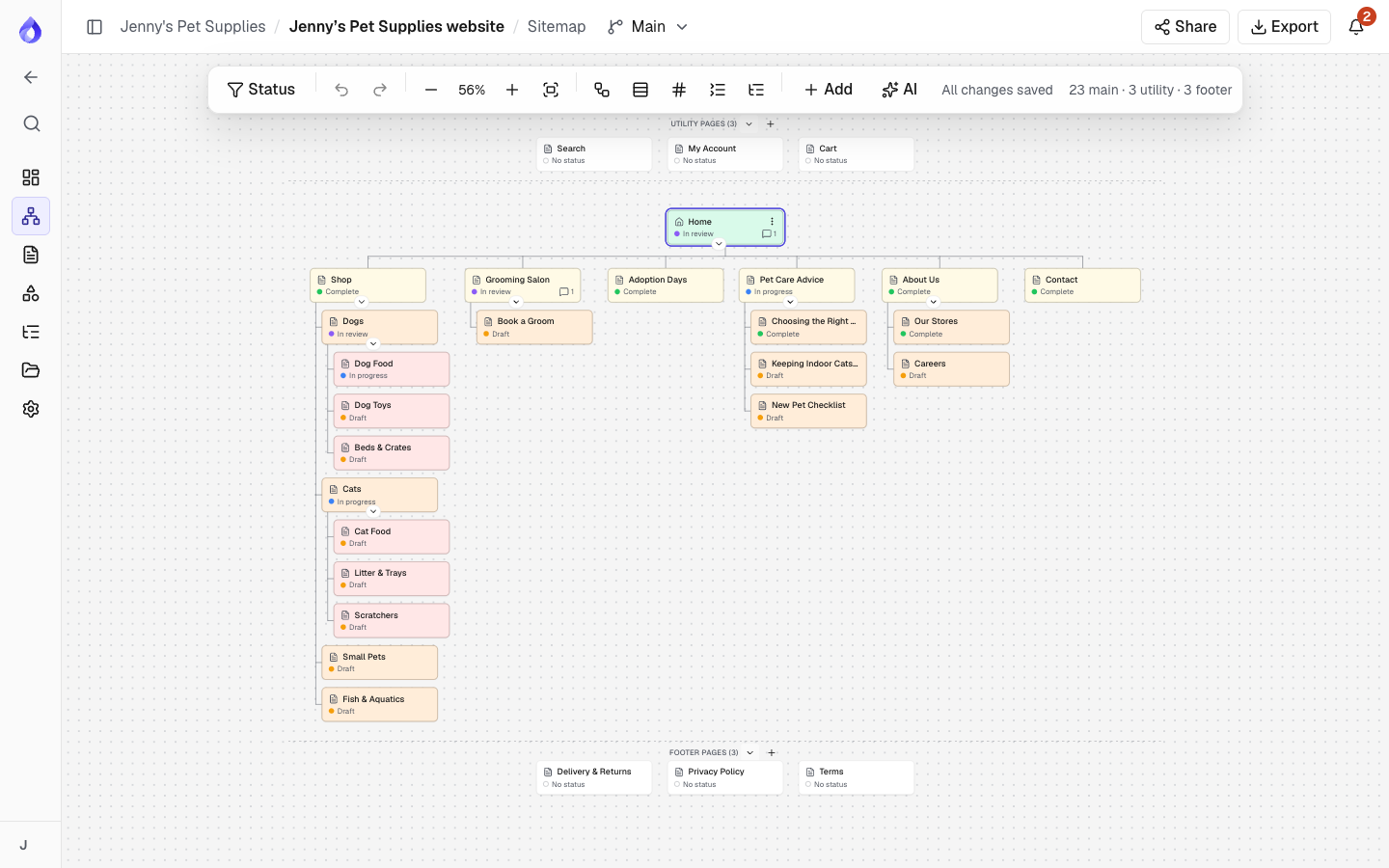
Reading the map
- Main pages hang under Home. Utility pages (such as Search, My Account and Cart) sit in a band above, and Footer pages (Delivery & Returns, Privacy Policy, Terms) in a band below. Collapse either band with its arrow.
- Each card shows the title, the page type icon, the workflow status (or "No status"), its colour and a comment count. In another language, pages without a translation are marked "Not translated".
- Click the arrow under a card to collapse or expand the pages below it.
- Drag an empty area to move around. Zoom with the mouse wheel (around the pointer), the toolbar or +, − and 0 (fit to screen).
The toolbar
- Status highlights pages by workflow status: tick one or more statuses (or No status) and the other pages fade and turn grey, so you can still see where they sit. Show all clears it. To find a page by name, press ⌘K (Ctrl+K).
- Language switches the titles and paths to another language.
- Undo and Redo, with the change named in the tooltip.
- Zoom, Fit to screen, Vertical or Horizontal layout, Compact view, Page numbers, Collapse all and Expand all.
- Add a utility or footer page.
- AI suggests pages (Project managers). See AI assistant.
- The save state ("All changes saved") and the number of pages in each band.
In another language, Add and AI work too: new pages get titles in that language (a page you add and name there takes that name in the default language as well). Moving and deleting pages is done in the default language.
People who can't change the sitemap see "View only. Project managers can change the sitemap."
The version menu next to the project name switches between sitemap versions: alternative structures of the same pages.
Learn more
- Add, move and organise pages
- Page properties, sections and page types
- Sitemap versions
- Tree tests: check whether people can find things, and compare versions

