New project
Create a project from a starter structure, a blank sitemap, a sitemap file, a SlickPlan or WordPress export, a crawl of a live site or the AI assistant.
Click New project on the dashboard. The dialog has three steps.
Details
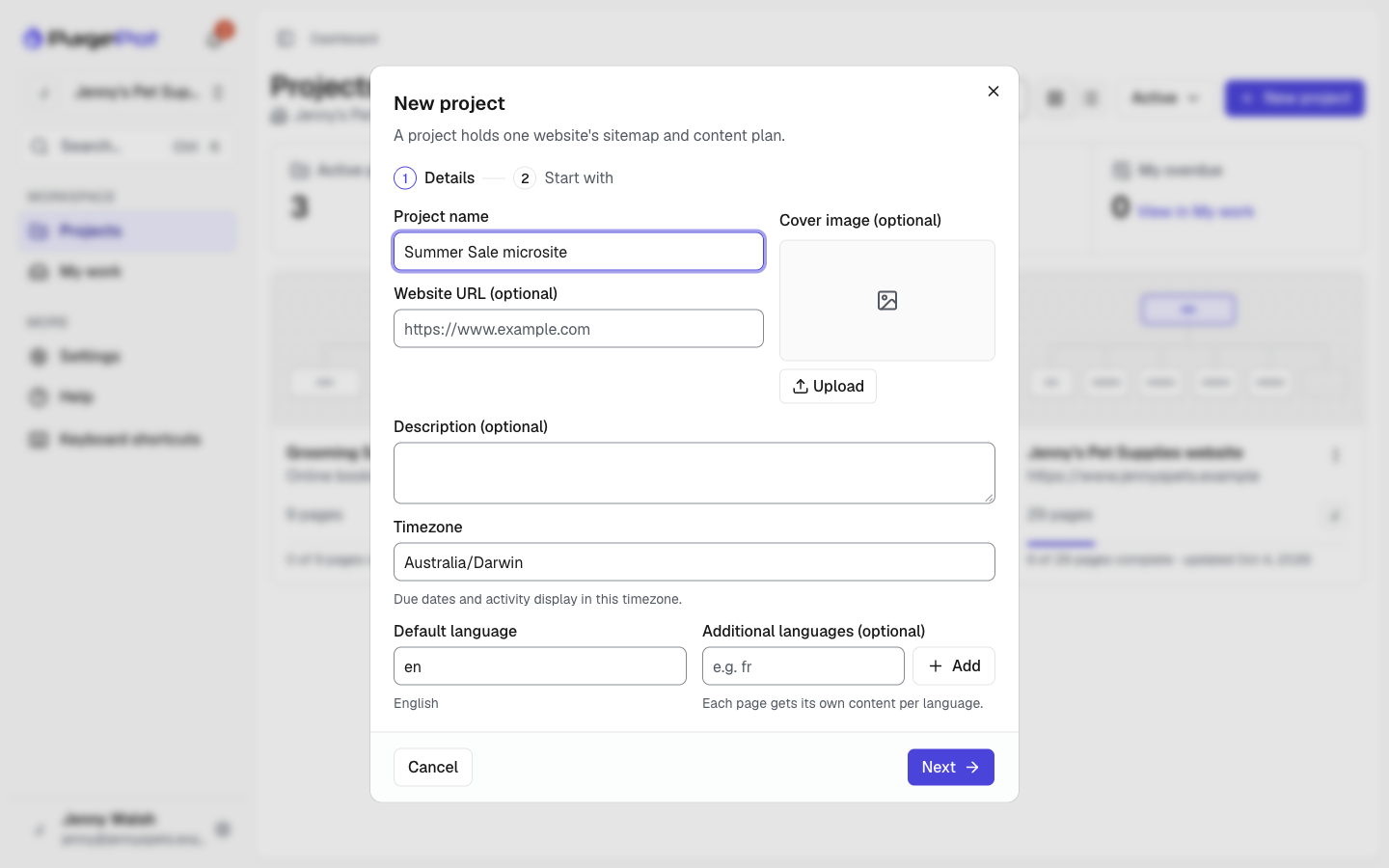
- Project name (required), Website URL, Cover image and Description.
- Timezone: due dates and activity are shown in this timezone.
- Default language, and optional additional languages (Pro and above). See Languages.
Start with
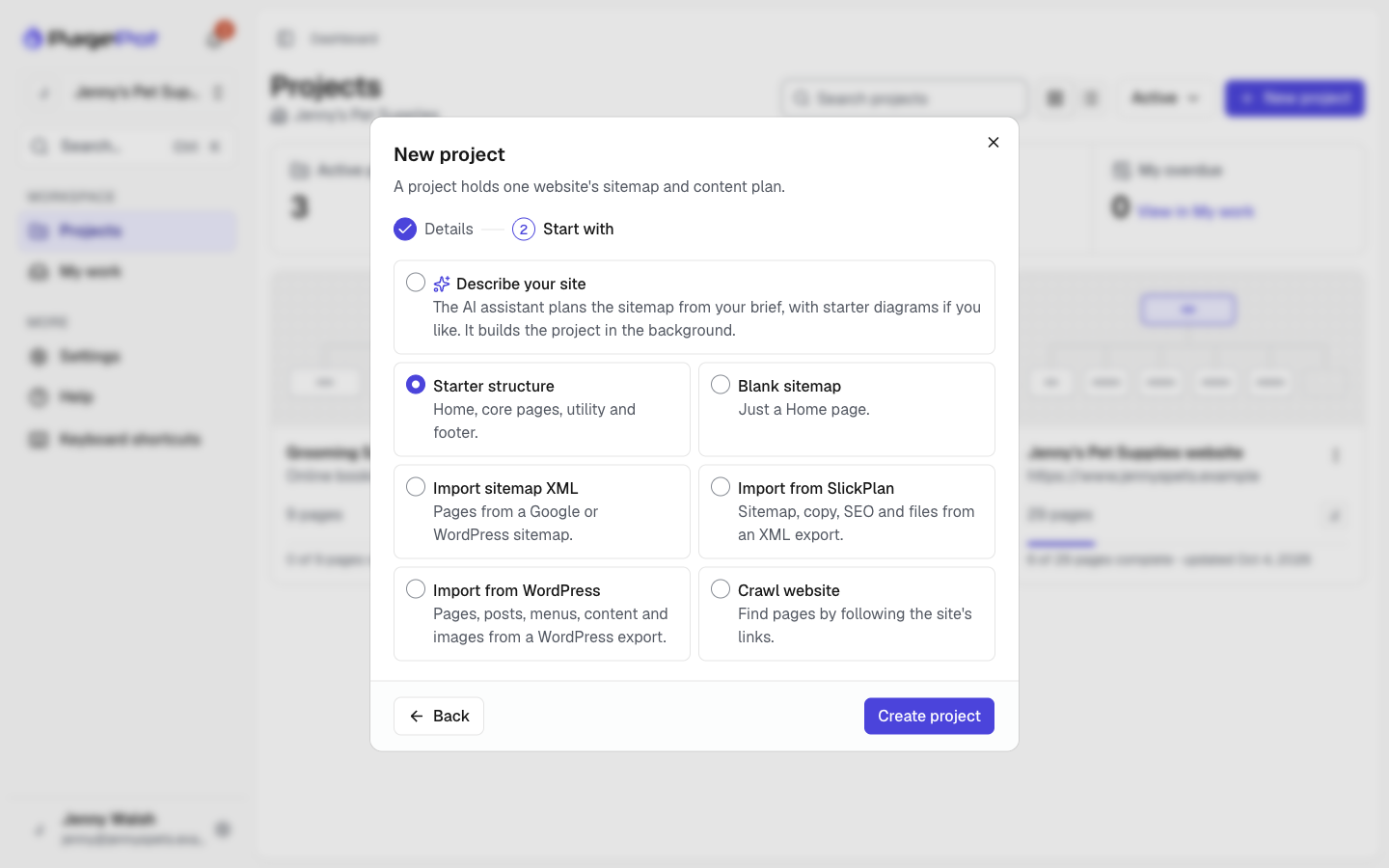
| Option | What you get |
|---|---|
| Describe your site | The AI assistant plans a sitemap from your description, and optionally your files. See AI project. |
| Starter structure | Home, About, Services, Blog and Contact; Search and Log in as utility pages; Privacy policy and Terms of use in the footer. |
| Blank sitemap | Just a Home page. |
| Import sitemap XML | Pages from a Google or WordPress sitemap file. See Import and crawl. |
| Import from SlickPlan | Sitemap, templates, copy, SEO and files from a SlickPlan XML export. See Import and crawl. |
| Import from WordPress | Pages, posts, menus, content, SEO and images from a WordPress export (Tools → Export). See Import and crawl. |
| Crawl website | Pages found by following a live site's links (Pro and above). See Import and crawl. |
Pressing Enter moves to the next step; it never creates the project by accident. Click Create project on the last step.
Imports from SlickPlan and WordPress and crawls carry on in the background, so you return to the Projects dashboard with a message (use Open project in it to go straight in). The project's card shows the progress, and a warning if something needs a look. Other starters open the new project's sitemap.

